
GymMaster Gym Software Manual
Member Portal
- Member Access
- Sign Up Online
- Bookings and Classes
- Portal Communication
- Customize Portal
- Frequently Asked Questions
- Setup Member App
Change Menu Names
Changes made here will also apply to the Member App
Change the wording of your menu list.
This can be applied to any of the existing menu options within Account, Booking, Training or Purchase.
- Label - this is the current label that will be displayed on Portal / App
- Click to edit
- Type - function of button
- This cannot be edited
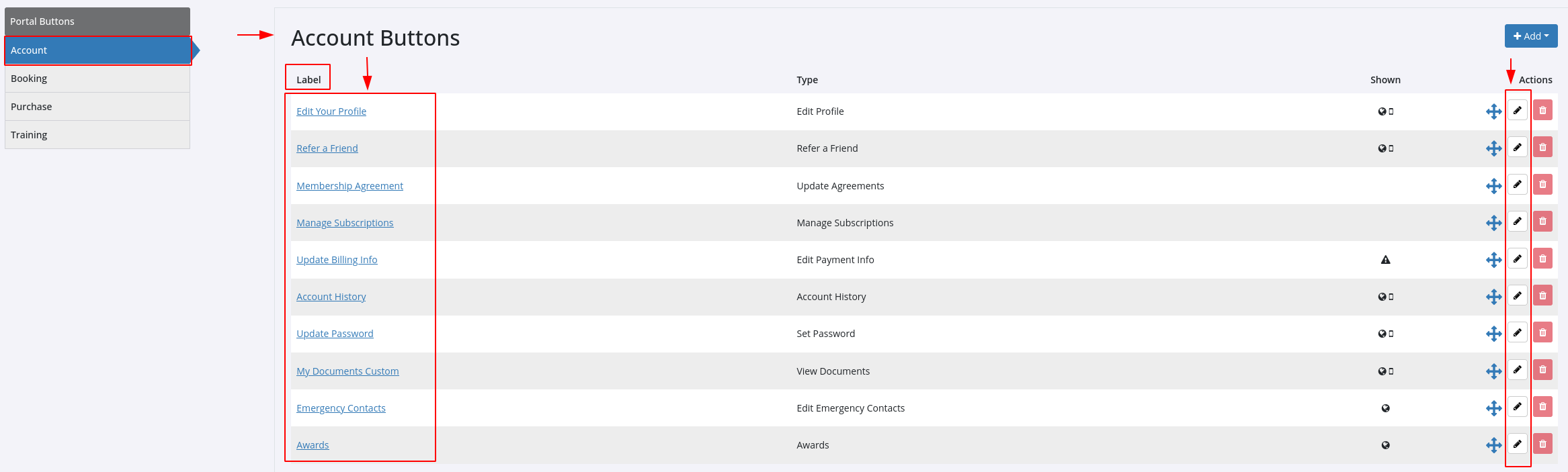
- This cannot be edited
- Edit Label;
- Make sure your new label continues to match the button’s designed function

Save
- Make sure your new label continues to match the button’s designed function
See below for example of how this will look within your menu;
-
- Default menu label was ‘Edit Your Pofile’
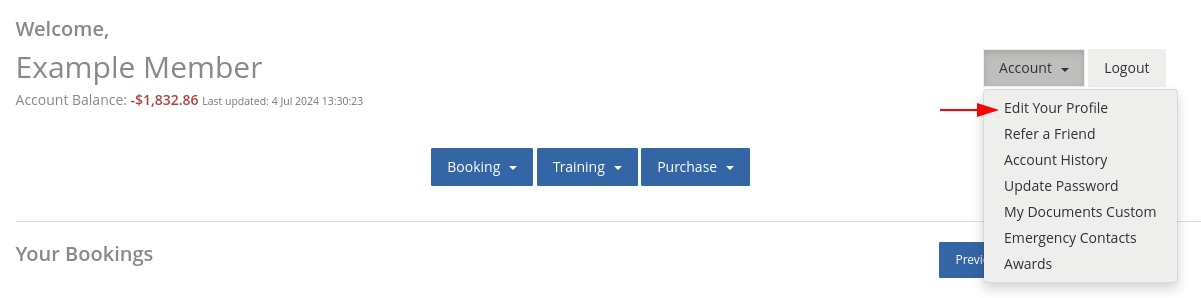
- Default menu label was ‘Edit Your Pofile’
-
- We changed this to the example of ‘Change Label Here’
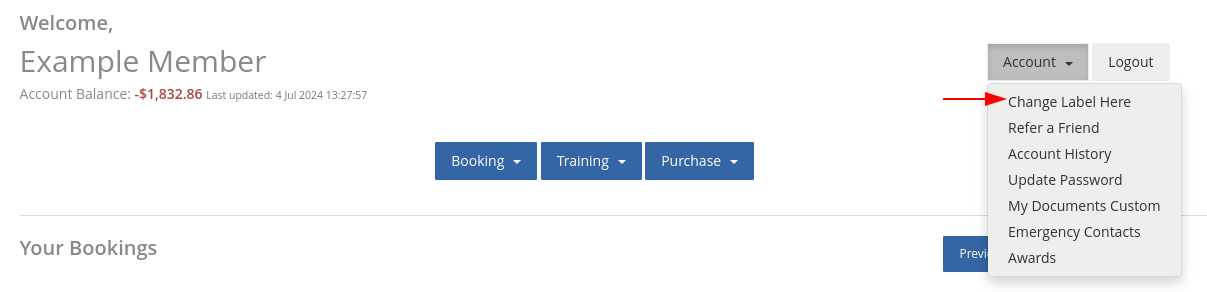
- We changed this to the example of ‘Change Label Here’
All of your menu names can be changed, under each section.
Remember you cannot change their designed function.
Next - Change Order

 2026 © Treshna Enterprises Ltd.
