
GymMaster Gym Software Manual
Member Portal
- Member Portal
- Member Access
- Bookings and Classes
- Communication
- Customize Portal
- Sign Up Online
- Frequently Asked Questions
- Setup Member App
Sign Up Online
Set up a seamless online sign-up experience by completing the five key stages below.
Step One - Memberships
To allow online membership sign-ups via the Member Portal and App, each membership must be enabled for online purchase;
Go to Settings > Membership Types
- Select Membership to sell online; select Add / Edit
- Enable Online Signup under Sell Membership Online
- Add a short Description (this displays online)
- Fill out required details
**Repeat for each membership available online **
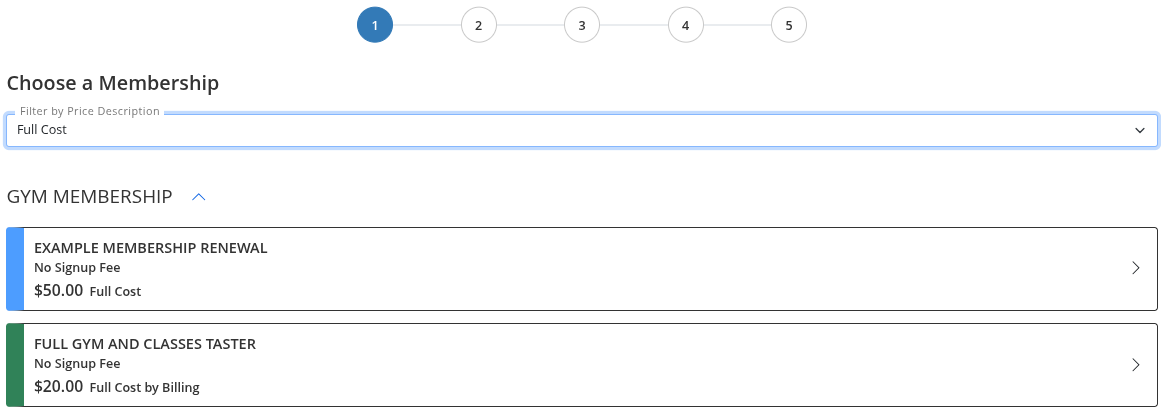
Want to tweak how your memberships are presented visually? See Membership Display
Step Two - Details
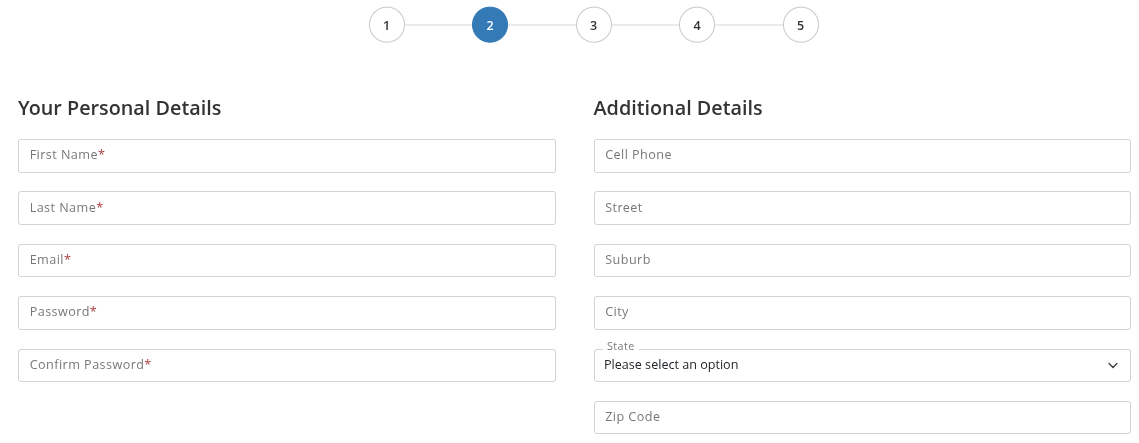
Let members provide personal info through the sign-up form at the login page
Go to Settings > Advanced Configuration > Member Portal Configuration
- Navigate to Sign-Up
- Enable Online Sign-Up
- Configure all form fields carefully. These are the fields new members will complete
- To request additional info, use Custom Member Fields
Step Three - Terms and Conditions
Members must agree to all forms attached to membership as part of the sign-up process.
- Terms & Conditions - Agree and initial
- Waivers - Agree and initial
- Contracts - Signature required
- Questionnaires - completed after sign-up
Set up your forms under Forms and Waivers.
Step Four - Payment
Note: GymMaster does not store payment card information. All billing data is securely handled by your chosen billing provider.
- Members add credit/debit card details during sign-up
- These details are sent directly to your billing provider for secure storage and recurring payments
- See Billing Provider Setup for more
Step Five - Confirmation
Once sign-up and payment are complete, members are shown a confirmation page and sent a confirmation email.
Confirmation Page
Choose one of two confirmation page options:
Option 1: Your Own Webpage
- Go to Settings > Club Details
- Scroll to Member Portal
- Enter your page under Online Sign-up Redirect URL
Option 2: GymMaster Default Page
- Go to Member Portal Configuration > Sign-Up
- Customize the Text on Sign-up Confirmation Page
Confirmation Email
Members receive a confirmation email immediately after sign-up.
Set up confirmation emails in your Templates and assign them via Portal Communication settings.
Be sure to include:
- Membership details
- First visit instructions
- Member Portal login info
- See: Member Portal Access
- How to download the Member App

 2026 © Treshna Enterprises Ltd.