GymMasters message chat feature allows two-way communication between staff and members. The Chat feature allows for real-time communication, making it easier to provide direct support, motivation, and updates between staff and members.
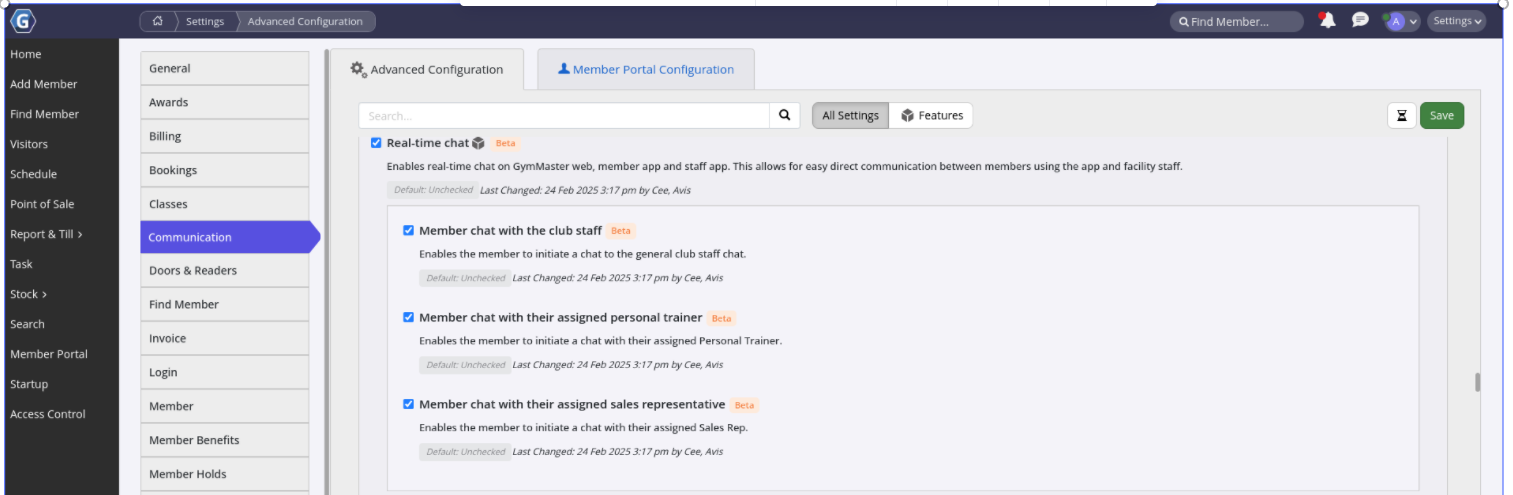
By default the Chat feature is not automatically enabled; enable Chat in your Advanced Configuration settings; details below.
Staff are now able to provide direct personal support, motivation, and updates between staff and members easily using GymMaster Chat.
Once enabled, Chat icon will be visible on GymMaster Toolbar; click to navigate to GymMaster Chat.
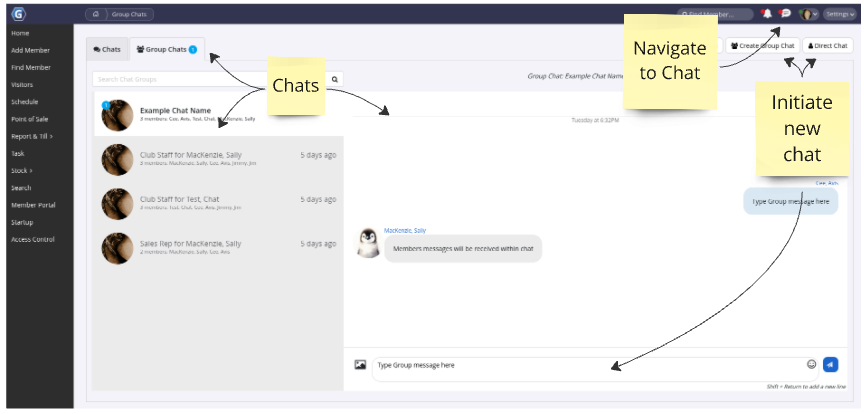
Staff can initiate and receive staff-staff, staff-member and staff-group chats from within the GymMaster Chat page.
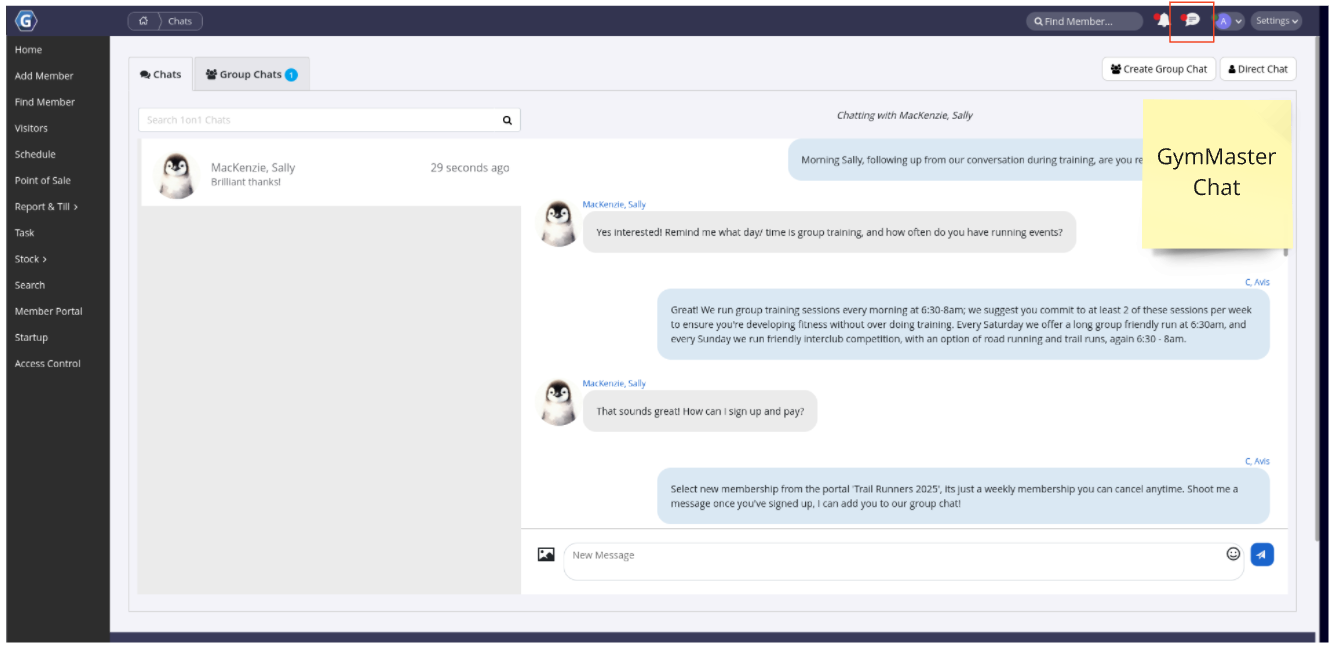
By default, two-way chats are initiated by Staff.
Navigate to GymMaster Chat, using the Chat icon in the Toolbar. Select Direct Chats (one on one) or Group Chats (unlimited) to begin new chat.
Search member/s and or staff name, to add into chat. Type, send and receive messages.
Red dot on chat icon in toolbar indicates unread chat messages
Once configured (as below) Members will have the option to initiate chats with particular staff.
Staff will be notified of incoming messages via the Staff App, or via the red Chat icon when logged into GymMaster.
To ensure member initiated chats reach the correct staff person, designate the following staff roles;
Personal Trainer: Designate Trainer per Member via Member Page > Additional Details.
Sales Representative:Designate Sales Rep per Member via Member Page > Marketing.
General Message Staff : Any number of Staff can be designated to receive general message chats via User Administration > Options > General.
Members will receive chat messages as GymMaster Member Portal app notifications and be able to reply directly via the app.
Members will need to adjust their general settings to allow notifications from GymMaster Member Portal App
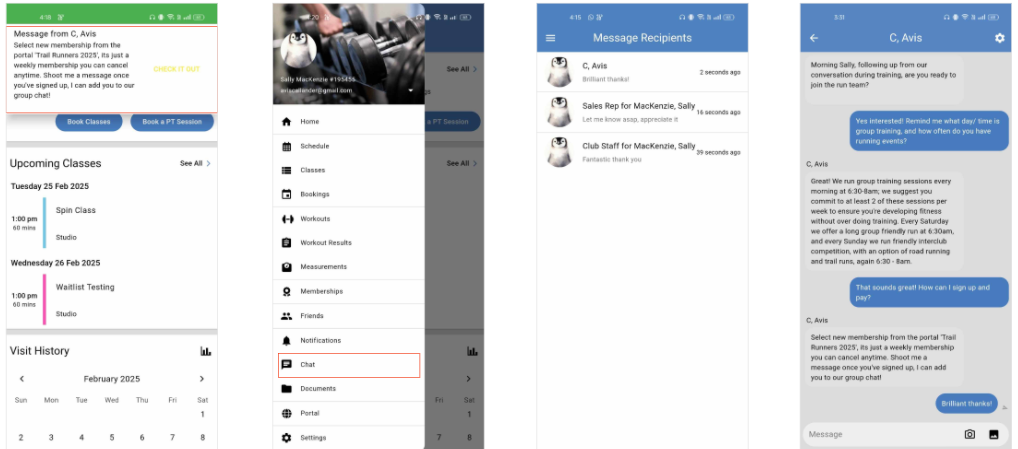
By default, two-way chats can only be initiated by Staff.
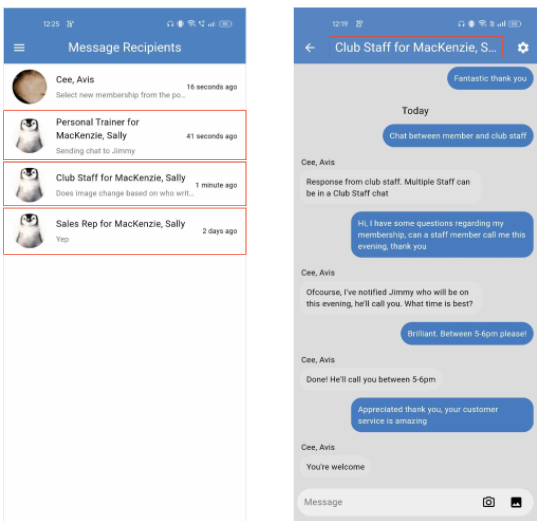
However, if enabled in Advanced Configuration > Communication, Members will have the option to initiate chats with designated staff;
Assigned Personal Trainer
A one-on-one chat can be initiated by a member to their assigned Trainer. If they have an assigned trainer, a blank Personal Trainer message thread will be visible in member’s chat list, which they can opt-into and begin a chat at any time. The Trainer will receive notification of messages when logged into GymMaster.
Assign Trainer to a Member via Member Page > Additional Details
Assigned Sales Representative
A one-on-one chat can be initiated by a member to their assigned Sales Rep. If they have an assigned Rep, a blank Sales Rep message thread will be visible in member’s chat list, which they can opt-into and begin a chat at any time. The Sales Rep will receive notification of messages when logged into GymMaster.
Assign Sales Rep to a Member via Member Page > Marketing
General Messages to Staff
Appointed staff can receive all general messages from Members. A blank Club Staff message thread will be visible in member’s chat list, which they can opt-into and begin a chat at any time. Messages will be received by staff as group chats, and any staff who are in the general chat can respond to messages.
Any number of Staff can be assigned to received general message chats via User Administration > Options > General
Chat is enabled via your Advanced Configuration Settings, and also requires particular staff to be assigned to chat / members in order for messages to flow between the correct people.
Members will receive all chats within their Member Portal App.
Therefore, ensure you;
Also see How to Use GymMaster Chat as a Member and using GymMaster Chat from Staff Perspective to learn more about using GymMaster Chat.
If you have any further questions, please contact GymMaster Support



 2026 © Treshna Enterprises Ltd.