
GymMaster Gym Software Manual
Member Page
Manual tasks related to members can be managed through the different tabs within each member’s page
- Accounts and Billing
- Bookings
- Communication
- Details
- Grading
- Memberships
- Side Menu
- Training
- Frequently Asked Questions
Add Member Hold Online
Example provided shows process for member to apply a hold on a membership / all memberships, via the Member App.
The process is the same, though visually will appear slightly different, via the Member Portal.
Navigate to Memberships on Member Portal / App
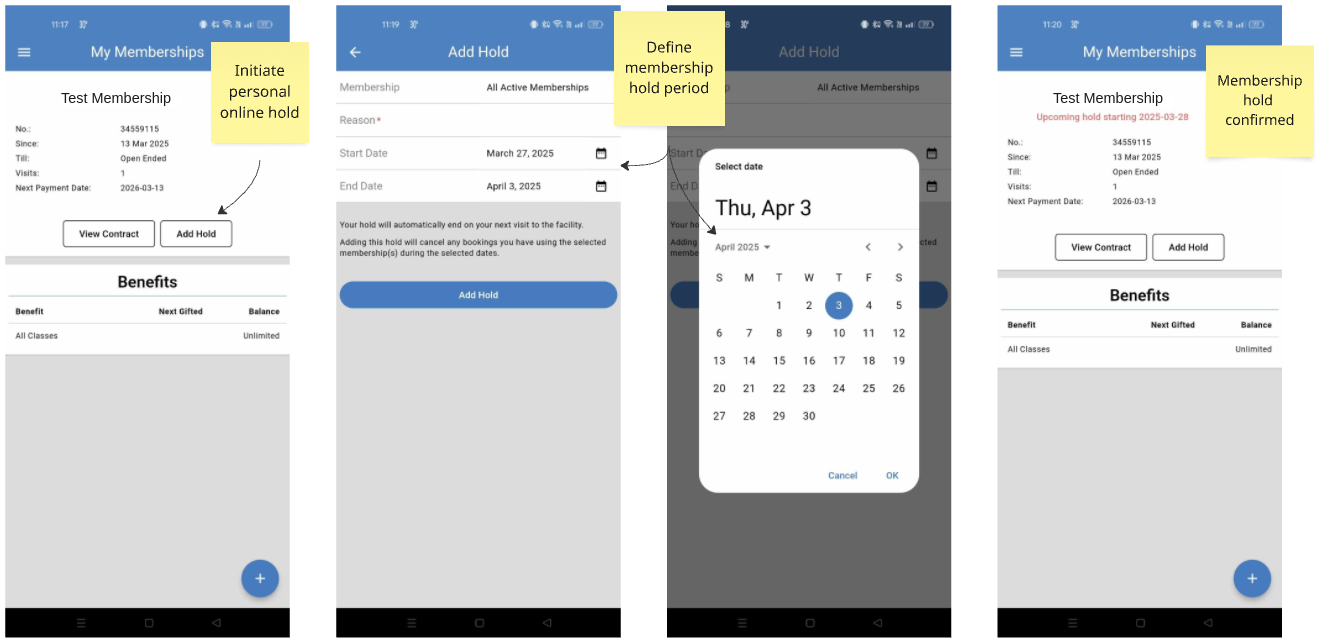
- Select Add Hold on a current membership
- Select to add hold to that membership only, or to All Active Memberships (bottom of page)
- Add Reason for adding hold
- Select Start / End Date
- By default the end-date is inclusive, so end-date selected is the last day that the hold is active
- Select Add Hold
Note - restrictions will apply based on settings applied when setting up Manual Holds and Online Holds
Membership/s will be on hold as of start date selected
By default the end-date is inclusive, so end-date selected is the last day that the hold is active
Next - Automated Holds

 2026 © Treshna Enterprises Ltd.