
GymMaster Gym Software Manual
Member Portal
This guide walks through the Member Portal from the member’s point of view, explaining what each section does and how it can be enabled.
The Member Portal is your online platform where members can access and manage their account through a web browser or the Member App.
From here, members can book classes and services, view schedules, make purchases and payments, and manage key aspects of their membership.
Today’s members expect to interact with your club easily from their desktop or phone, booking and cancelling sessions, receiving reminders, updating payment details, or even pausing a membership without needing to contact staff.
By setting up your Member Portal and Member App, you give members the ability to self-manage these actions, based on the permissions and settings you choose to enable.
Note: The Member App uses the same underlying settings as the Member Portal, but has its own visual and navigation setup. See LINK TO APP SETUP for guidance on configuring the app’s appearance.
Login Page
The login page connects your website to the GymMaster Member Portal.
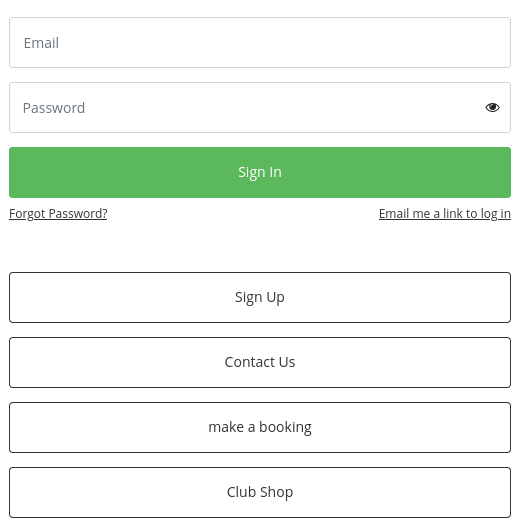
Member Login
Email: Members log in using the email address they used when signing up. This acts as their username, so an active email address is required.
Password: Members use their password as set during signup. If a password is forgotten, it can be reset using the Forgot Password link.
Once both details are entered, selecting Member Login opens the Member Portal.
For a full guide to allowing member access to portal, and failed login queries, see Member Portal: Member Access
Non-Members
For non-members, the page also provides several entry points;
Sign-Up: Allows prospective members to join your club online. See Member Portal: Sign Up Online for full setup steps.
Contact Us: Links to an inquiry form, allowing anyone to send a message to your club. Inquiries sent to the facility email set in Club Details.
The Contact Us form is configured under Settings > Member Portal > Contact Us.
Make a Booking: Allows non-members to book classes or services, controlled via Member Portal Configuration > Bookings > Enable non-members to book online.
Shop Online: Allows non-members to purchase products, enabled under Settings > Member Portal > Point of Sale > Allow non-members to shop online.
Member Portal Overview
Once logged in, members see an overview of their account, including bookings, memberships, and any actions you’ve made available through Member Portal Configuration.
Member Details
At the top of the page, the member’s photo, name, member number, and account balance are displayed.
If passcodes are installed and enabled, the member passcode is also shown here.
From this area, members can select Edit Profile to update their details, including their photo, when photo uploads and editing are enabled in Settings > Member Portal > Member.

Bookings
Upcoming bookings are shown on the main page, including date, time, and location.
Depending on your settings, members may be able to cancel bookings or create repeat bookings.
These options are controlled under Settings > Member Portal > Bookings.
Also see the full guide Member Portal: Bookings and Classes

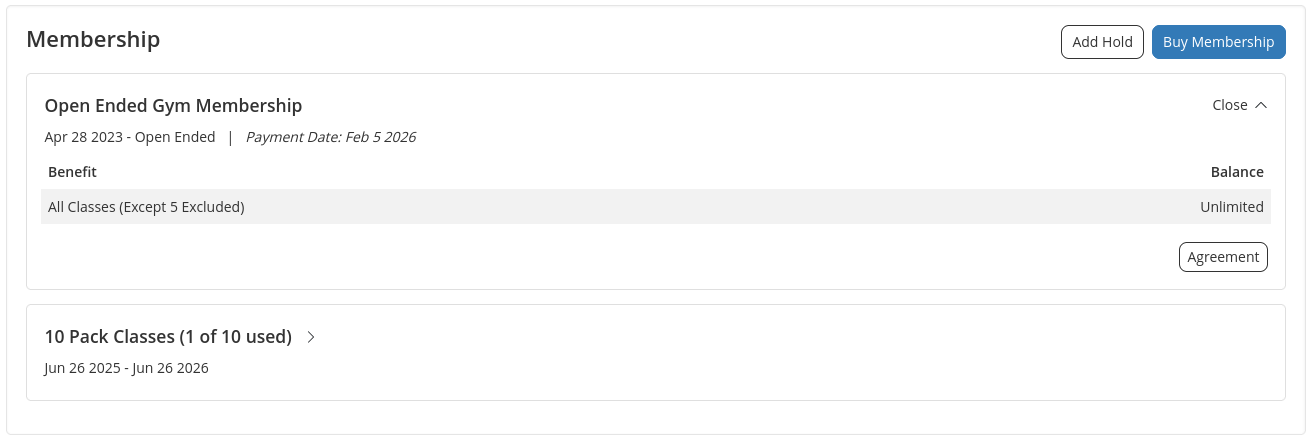
Memberships
Members can view their current memberships, showing next payment date and benefits.
Based on your configuration, members may be able to cancel, renew, or place a hold on their membership.
These options are managed under Settings > Member Portal > Memberships.
Portal Menu
The main navigation menu in the Member Portal is found along the top bar.

- Account allows members to manage their profile, change passwords, refer friends, view awards, and more.
- Booking provides access to class bookings, service bookings, and the class timetable.
- Training displays assigned workout plans and exercises.
- Purchase allows members to buy memberships, products, and other items online.
Sub-menu items can be enabled, renamed, reordered, or removed to suit your club’s offering.
All menu customisation is managed under Settings > Member Portal > Edit Portal Buttons.
See the guide Member Portal: Customize how portal looks for more details on editing your portal menu.
Club Notices
Club notices appear as a banner along the top of the portal and member app. Use these to communicate club wide notices to your members.
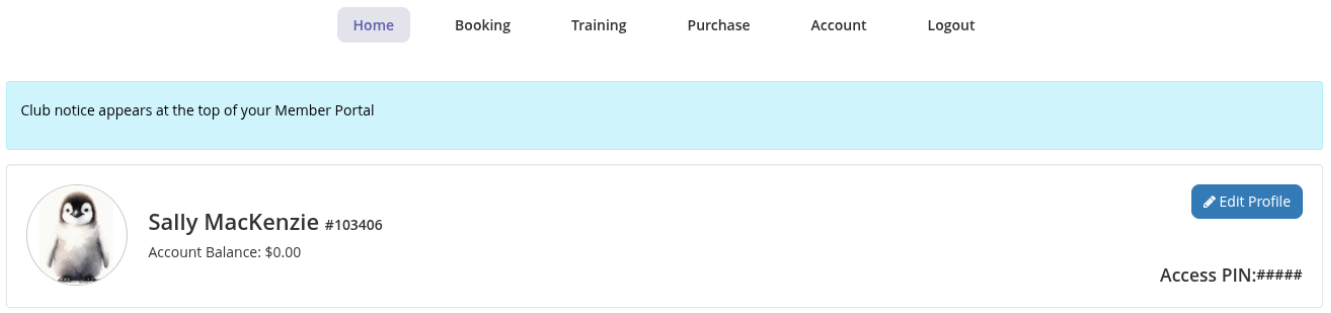
Club notices are created within Settings > Club Details > Member Portal
Customise How the Portal Looks
The basic visuals and menu content for both the Member Portal and Member App can be adjusted within GymMaster.
For Member Portal colour and menu changes, see Member Portal: Customise how the portal looks.
For Member App colour settings and home menu widget options, see ADD LINK.
If you’re looking for customisation beyond what’s available in GymMaster, this can be discussed on a case-by-case basis. Contact your GymMaster Sales Representative for more information.

 2026 © Treshna Enterprises Ltd.
