
GymMaster Gym Software Manual
Customising Your Member Portal Look
Your Member Portal should feel like a natural extension of your club.
The Portal Editor makes it easy to align the look and feel with your brand, so members feel immediately at home.
Changes made here apply only to the online Member Portal. The Member App has its own navigation and visual settings.
To customise the app experience, follow the Member App setup guide.
Color Scheme
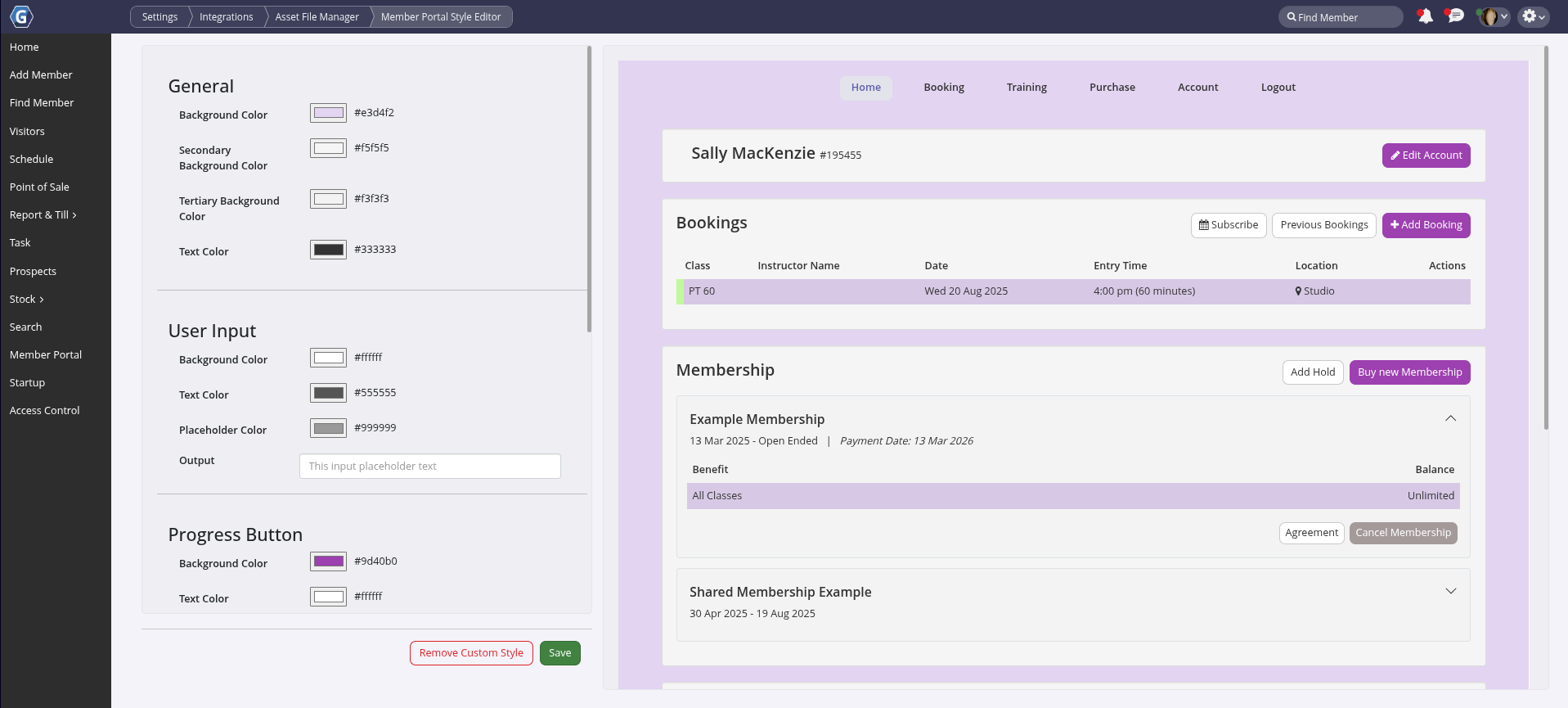
You can quickly bring your club’s branding into the portal by applying custom colours. This is one of the simplest and most effective ways to personalise the Member Portal.
Navigate to Settings > Integrations > Asset File Manager > Member Portal Style Editor.
From here, you can define colours for backgrounds, buttons, and text.
Note: changes made here apply to the online Member Portal only. To customise colours in the Member App, refer to the Member App guide under Visual Elements.
Portal Menu
When members log in to the Member Portal, they’ll see four main menu sections:
- Booking
- Training
- Purchase
- Account
Each of these main menu items contains sub-menu options that you can tailor to suit your club. You can rename items, change their order, add new options, or enable and disable specific entries, while the core functionality of each section remains intact.
To customise the portal menu, go to Settings > Member Portal Configuration and select Edit Portal Buttons in the top-right corner of the page.


 2026 © Treshna Enterprises Ltd.
