
GymMaster Gym Software Manual
Allow your classes and services to be booked (and cancelled) online
You can allow both members and non-members to book into classes and services online, at any time.
Once enabled, members can easily book and cancel selected classes and services through the Member Portal and the Member App.
Start with your classes and services
Begin by deciding which classes and services you want available for online booking.
Go to Settings > Bookings and Classes > Classes or Services. From here, either edit an existing class or service, or create a new one. Scroll to the Online Bookings section, enable Bookable Online, and add a short description. This description is what members will see in the Member Portal. Review any other details as needed, then save.
Repeat this for each class or service you want to make available online.
Configure the Member Portal
Next, review how bookings behave in the portal and app.
Go to Settings > Advanced Configuration > Member Portal Configuration and work through the settings for Bookings, Classes, and Class Schedule. These options allow you to fine-tune how bookings are displayed and managed. Any settings applied here are used by both the Member Portal and the Member App.
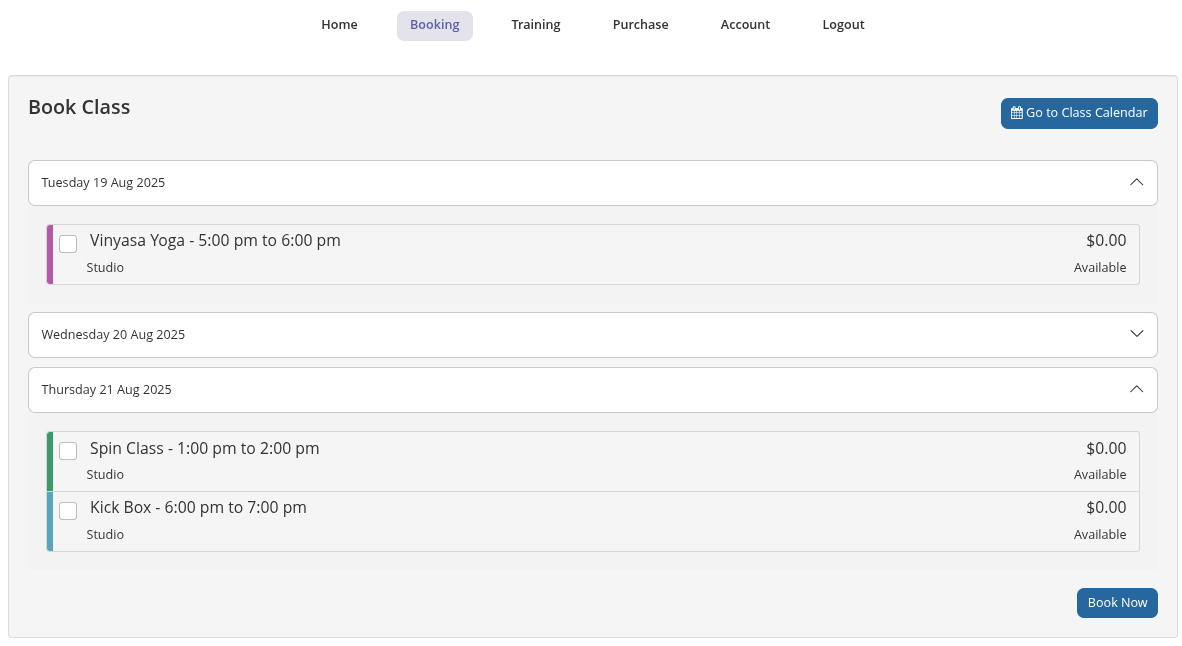
Example of how classes can be displayed in the Member Portal
Choose booking widgets for the Member App
The Member App includes optional booking-related widgets that can be shown on the app home screen. These provide a clear, visual way for members to view and manage their bookings.
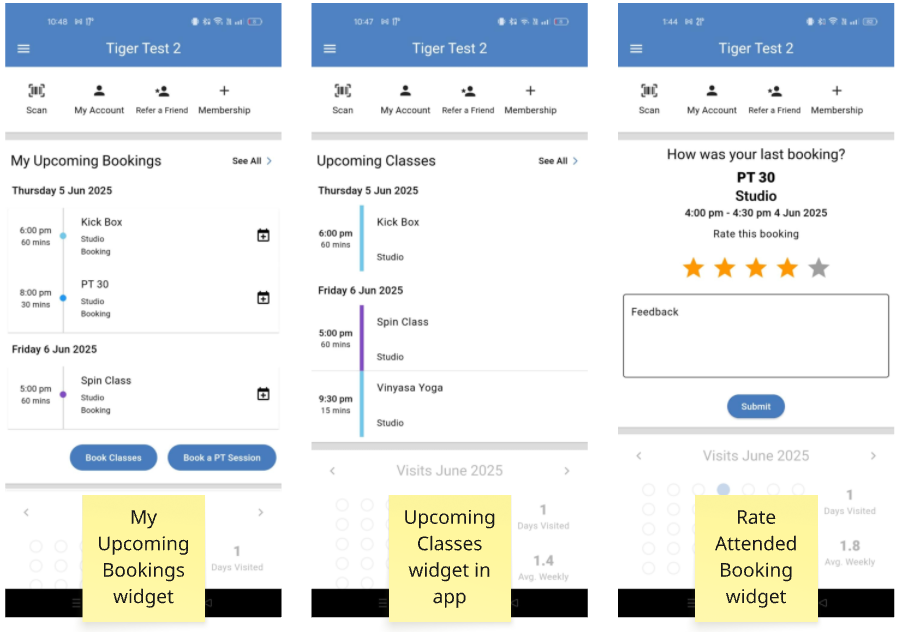
The available widgets are:
- My Upcoming Bookings, which shows a member’s upcoming classes and services and allows them to make new bookings.
- Upcoming Classes, which displays your scheduled classes and allows members to book directly.
- Rate Attended Booking, which prompts members to rate a class or service after they’ve attended.
To enable these, go to Member Portal Configuration > Customize Member App. Locate the widgets in the list and check Visible to turn them on. You can drag and drop widgets to control the order in which they appear on the app home screen.
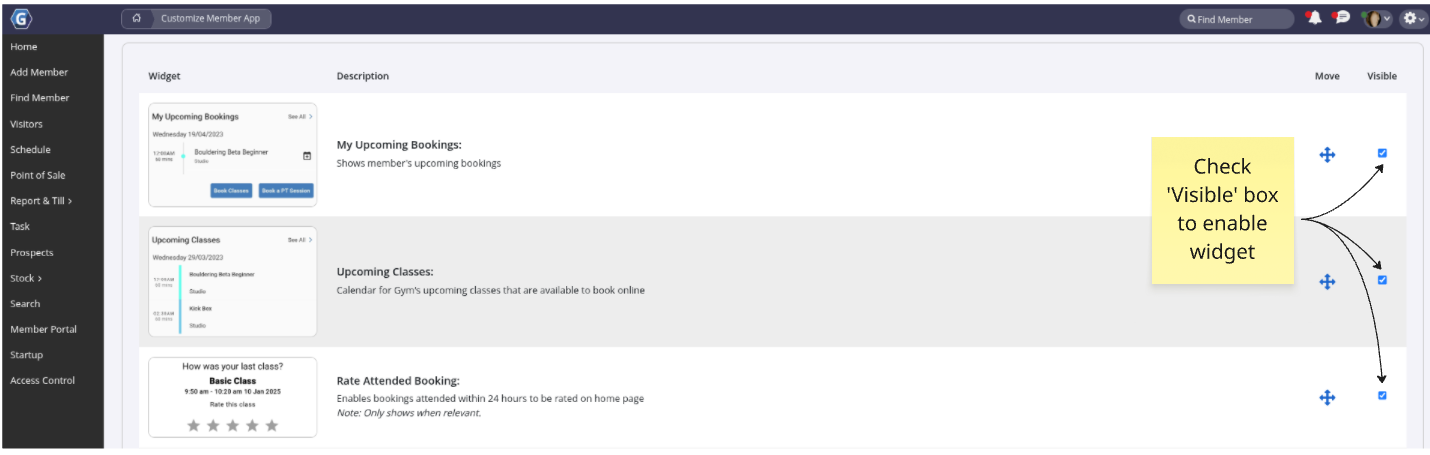
Once enabled, the selected widgets will appear on the Member App home screen in the order you’ve set.
Allow members to cancel bookings online
You can also allow members to cancel their bookings online, within rules you define.
Go to Settings > Advanced Configuration > Member Portal Configuration > Classes and Services, then enable cancellation of class bookings online and cancellation of service bookings online.
Once enabled, additional cancellation options become available. Here you can define how close to the booking start time cancellations are allowed, and whether any cancellation fees apply.
These settings act as the default rules for all bookings. If needed, they can be overridden for individual classes or services by editing them under Settings > Bookings and Classes.


 2026 © Treshna Enterprises Ltd.
