Memberships form the core agreement between your club and your members. They define exactly what a member is entitled to access, such as doors, classes, services, bookings, and product discounts, as well as how and when they are billed for those benefits.
Because memberships bring together many different parts of GymMaster, they are typically created later in the setup process.
For more in depth reference guide defining each option, see Membership Categories
Membership categories define functional settings that all memberships added under the category will inherit.
Settings selected here will automatically apply to every membership created within the category.
For more in depth reference guide defining each option, see Add Membership Type
Membership Types are the different types of Memberships the club offers to its members.
Memberships can vary based on the level of access or benefits that are included with the membership, as well as duration or payment frequency of membership.
Work through each section carefully; view additional guides which elaborate on particular areas.
Start by defining the membership’s identity and structure. These settings form the foundation for all pricing, billing, and access rules that follow.
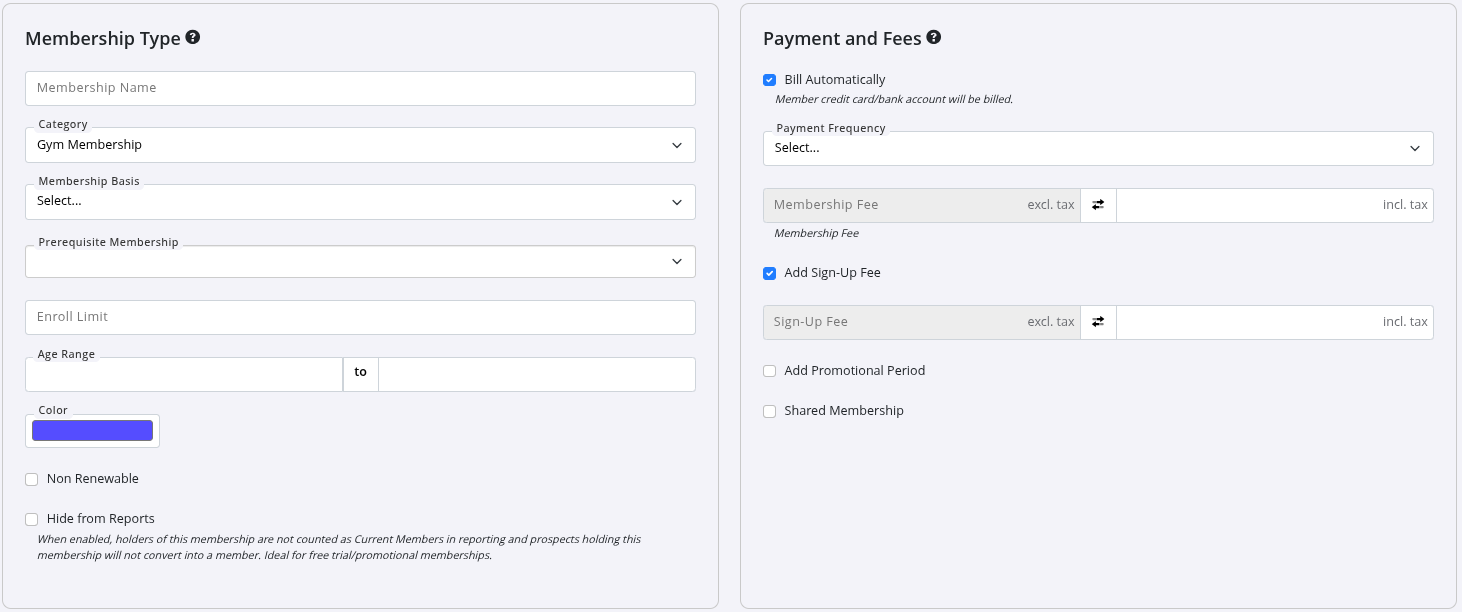
ADD ALL OPTIONS
After defining the membership’s structure, you need to set the financial details. This section determines how much members pay, how often they are billed, and any additional fees or promotional options.
If required, add any of these additional options;
For a step-by-step guide to creating benefits, see Membership Benefits

Membership benefits define the perks, privileges, and limitations included with a member’s plan. They determine what a member can access and any discounts or extras they receive. Common benefit types include:
Take your time to ensure these are set correctly, as they form the foundation of each membership.
New memberships automatically receive default benefits:
If these defaults are not required, use the black edit or red delete icons to adjust the benefits.
For more in depth reference guide defining each option, see Sell Membership Online
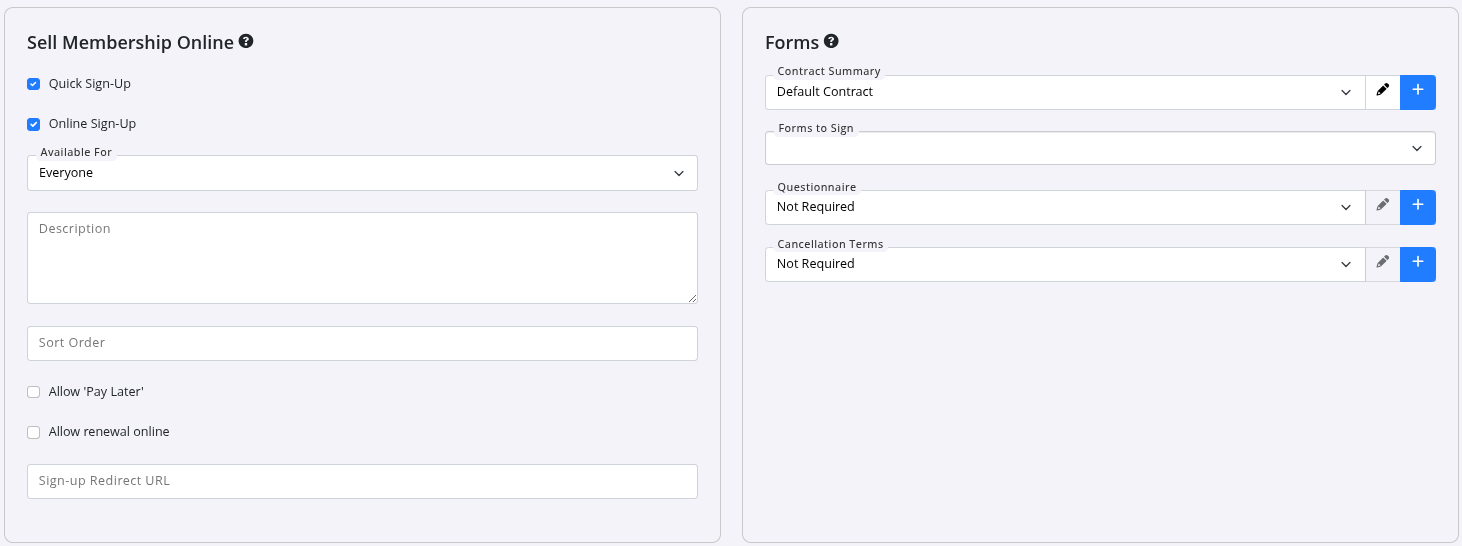
Note: When online membership are be enabled in your Membership Type settings, this membership will appear online even if Quick Sign-Up or Online Sign-Up aren’t selected. The options control what is available during sign-up and who can purchase this membership.
Buy Links and Quick Signup Links provide URLS which can be used in promotions and within your website to link members directly to a sign up page for this membership.
Select the forms and waivers to be attached to your membership. These may include;
These will be viewed and signed by member upon sign up.
Save
Tip: To save time when creating multiple similar memberships, open an existing membership and select Duplicate in the top right.
Update the copied details (including the membership name), make any required changes, and save.



 2026 © Treshna Enterprises Ltd.