
GymMaster Gym Software Manual
Add / Edit Membership
This is your setup screen for creating and managing memberships in GymMaster.
Here you define the type of membership, payment structure, benefits, online sign-up options, and forms associated with the membership.
Use your Membership Type settings to control which options are available when configuring a membership.
Membership Type
Begin with the name and structure of your membership.
Membership Name:
The name displayed to staff and members when selecting, purchasing, or managing the membership.
Use a clear and descriptive name that reflects what members receive.
Category:
Assign the membership to a Membership Category.
Memberships inherit the default settings defined in their category, making it easier to maintain consistency across similar memberships.
Club:
Define which club location the membership is valid for.
This works alongside Door Access Benefits to control where members can access the facility.
Membership Basis:
Define how the membership is structured, including how it starts, how long it lasts, how it is billed, and how it concludes.
-
Open Ended Contract: No fixed end date. Continues until cancelled.
Members are charged on a recurring cycle, such as fortnightly or monthly, to maintain ongoing access. -
Renewal Based Contract: Automatically renews after a set period, such as monthly or annually, until cancelled.
Members are charged at the start of each renewal period to maintain uninterrupted access. -
Preset Date Program: Has fixed start and end dates.
Ideal for seasonal programs, terms, challenges, or other limited-duration offerings. -
Club Visit Pack: A prepaid pack with a defined number of club visits that must be used within a set period.
-
Add-On Program: An optional upgrade added to an existing membership to provide additional classes, services, facilities, or other benefits.
The Add-On fee is billed in addition to the main membership. -
Class & Booking Pack: A prepaid pack with a defined number of class or service bookings, usable within a set period.
-
Trial: A short-term introductory membership for prospects.
Active for a set number of days and cannot be renewed.
Limit:
Set how many times a member can hold or purchase the same membership.
Useful for controlling trials, promotional memberships, packs, upgrades, or other limited-use memberships.
Follow-On Membership:
Automatically move a member to another membership when the current membership ends.
Useful for transitioning members from trials, programs, or promotional memberships to an ongoing membership.
Prerequisite Membership:
Require a member to already hold, or have previously held, another membership before they can purchase this membership.
Use your Membership Type settings to determine whether the prerequisite membership must be active.
Enroll Limit:
Set the maximum number of members who can have this membership in use at one time.
Age Range:
Restrict who can purchase or use the membership based on a specified age range.
Color:
Choose the background color displayed for this membership during online sign-up and within the Member Portal.
Non Renewable:
Enable this option to prevent the membership from being renewed once it expires.
Hide from Reports:
Useful for free trials, promotional memberships, or other memberships that should not contribute to member counts.
When enabled, holders of this membership are excluded from Current Member reports, and prospects with this membership will not automatically convert to members.
Payment and Fees
Define how members are charged and any additional or promotional fees that apply.
Bill Automatically:
When enabled, GymMaster charges the member’s saved payment method according to the membership’s payment frequency.
Payment Frequency:
Determine how often members are billed.
Available options depend on the membership basis and may include monthly, annual, fortnightly, or per-visit billing.
Membership Fee:
The base fee charged for membership access at each billing interval.
Membership fees are generally charged in advance.
Add Sign-Up Fee:
Apply a one-time fee when the membership is first purchased.
Commonly used for joining, administration, access cards, key fobs, or onboarding costs.
Add Promotional Period:
Offer a discounted rate or free period at the start of the membership.
Once the promotional period ends, billing returns to the standard membership fee.
- Promotion Price: The discounted rate charged during the promotional period.
- Free Until: Start the membership with a free period before billing begins.
- Duration: Define how long the promotional period lasts before standard billing resumes.
Shared Membership:
Allow multiple people to access the same membership and share its benefits.
Useful for families, couples, or small groups.
- Additional Member Limit: Set the maximum number of additional members who can be added. Leave blank to allow unlimited sharing.
- Additional Member Price: Set the additional fee charged for each additional member.
Membership Benefits
Benefits define the experience members receive with the membership, so make sure the complete benefit package is configured correctly.

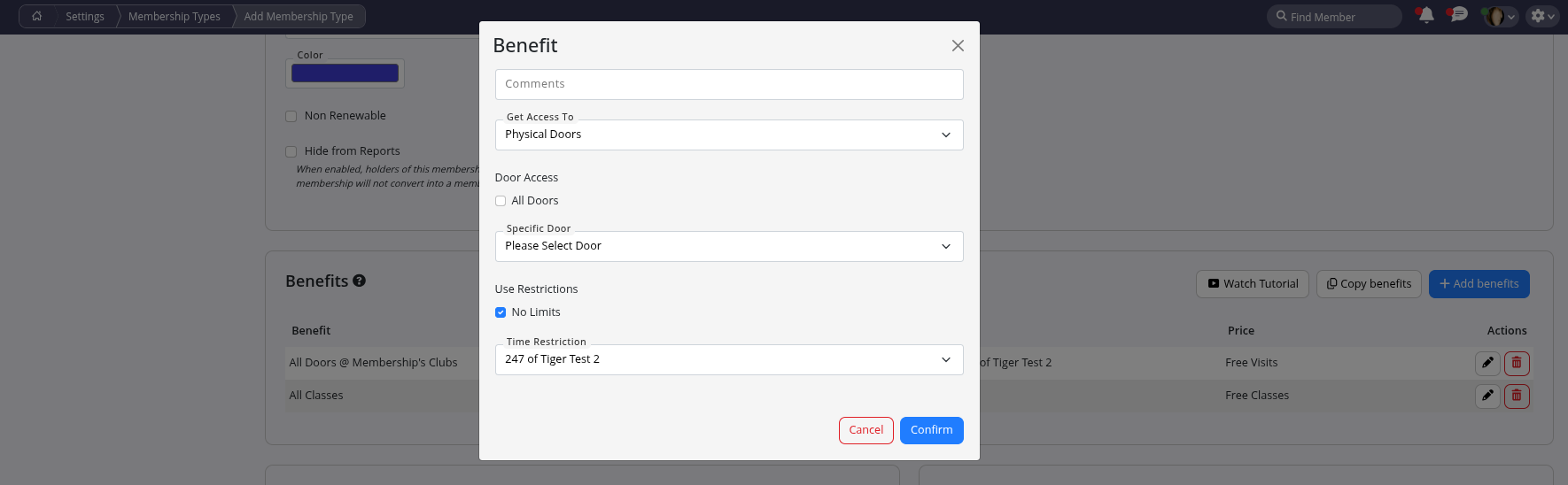
Physical Doors:
Grant members access to selected doors during defined hours.
-
Door Access
- All Doors: Members can access all doors with their key card or Bluetooth device.
- Specific Door: Grant access to a single door. Add multiple door benefits to provide access to additional doors.
-
Use Restrictions
- No Limits: Unlimited club access within the applicable period.
- Time Restriction: Restrict access to specific hours or days. Choose an existing roster or create a new one.
Classes:
Enable free or discounted access to all classes or selected categories/classes.
-
Category: Allow access to all classes within a category or a single category. Add additional benefits for multiple categories.
-
Class: Allow access to all classes in a category or a single class. Add additional benefits for multiple classes.
-
Use Restrictions
- No Limits: Unlimited class attendance.
- Usable Only at Member’s Club: Restrict use to the member’s home club. Leave blank to allow chain-wide access.
-
Price per Use
- Free: No charge for selected classes.
- Base Price set on Booking: Charge the class’s base price configured in Bookings & Classes.
- New Price Per Use: Set a custom price per class.
Booking Services:
Offer free or discounted access to services.
-
Service Group: Allow access to all services in a group or a specific group. Add multiple benefits if needed.
-
Service: Allow access to all services in a group or a specific service. Add multiple benefits as needed.
-
Use Restrictions
- No Limits: Unlimited service bookings.
- Usable Only at Member’s Club: Restrict bookings to the member’s home club. Leave blank to allow chain-wide access.
-
Price per Use
- Free: No charge for selected services.
- New Price Per Use: Set a custom fee per service.
Products:
Offer discounts on all products or selected product types/items.
-
Product Type: Apply discounts across all product types or a single type. Add multiple benefits as needed.
-
Product: Discount all products within a type or a single product. Add additional benefits for multiple products.
-
Use Restrictions
- No Limits: Unlimited discounted purchases within the applicable period.
-
Discounted Products
- Sell at Purchase Price: Charge the purchase price listed in Products configuration.
- Discount %: Apply a percentage discount to selected product types or products.
- New Price: Set a fixed discounted price for specific products.
Guest Passes:
Allow members to bring guests into the club.
-
Use Restrictions
- No Limits: Unlimited guest visits within the applicable period.
-
Price per Use
- Free: Guests enter at no cost.
- New Price Per Use: Set a per-visit price for guest access.
Sell Membership Online
Configure how members can purchase and sign up for this membership through your online portal.
Note: When online membership sales are enabled in your Membership Type settings, this membership can appear online even if Quick Sign-Up or Online Sign-Up options are not selected. The options below control how the membership is presented and who can purchase it.
Sign-Up QR Code:
Generate a QR code that directs members to the sign-up form for this membership only.
Copy Buy Online Link:
Generate a URL that links directly to the sign-up form for this membership.
Useful for linking to memberships from your website or promotional material.
Quick Sign-Up:
Enable a streamlined enrolment form that collects only the essential details needed to activate the membership.
The Quick Sign-Up link must be used to access the Quick Sign-Up form. Other sign-up links continue to use the regular form.
Copy Quick Sign-Up Link:
Generate a URL that links directly to the Quick Sign-Up form for this membership.
Quick Sign-Up is enabled under Settings > Member Portal > Sign-Up > Quick Sign-Up.
Quick Sign-Up form can be personalised under Settings > Member Portal > Portal Buttons > Custom > Quick Sign-Up.
Online Sign-Up:
Configure how this membership behaves when purchased online;
- Available For: Choose who can purchase this membership online, such as new members, existing members, or everyone.
- Description: Add the member-facing description displayed in the online portal. Keep it clear and practical so members understand what they are choosing.
- Sort Order: Control the order in which memberships appear within their category.
- Fixed Period: Set a fixed start and end date. Useful for term-based programs, challenges, or other limited-time offerings.
- Allow ‘Pay Later’: Allow members to complete sign-up without making an immediate payment. Useful when payment is handled in-club or separately.
- Allow Renewal Online: Allow existing members to renew this membership online without staff assistance.
- Sign-Up Redirect URL: Send members to a specified URL after completing sign-up. Useful for welcome pages, onboarding instructions, or other content.
- Online Cancellation Fee: Apply a fee if a member cancels this membership online, according to your business rules.
Forms
Attach paperwork members need to complete when signing up.
Contract Summary:
Select the membership contract summary that will be presented to members during sign-up.
Forms to Sign:
Choose additional forms that members must review or sign when joining.
This may include terms and conditions, waivers, or other required agreements.
Questionnaire:
Attach a questionnaire to collect additional information from members as part of sign-up or onboarding.

 2026 © Treshna Enterprises Ltd.
