
GymMaster Gym Software Manual
Custom Fields
Tailor fields and sections within GymMaster to align with the unique requirements of your club.
- Member Input Fields
- Labels
- Promotions
- Prospect Funnel
- Membership Cancel Reasons
- Booking Cancel Reasons
- Prospect Not Interested Reasons
Add Custom Member Fields to Online Sign-Up
Note that a range of sign-up fields already exist, but may not yet be enabled.
Enable Pre-Existing Fields
GymMaster comes loaded with additional fields that may not yet be enabled within your sign-up form.
Check these and enable any relevant fields;
- Go to Settings > Advanced Configuration > Member Portal Configuration > Sign-Up
- Select Enable Online Sign-up and check through available options that can be enabled.
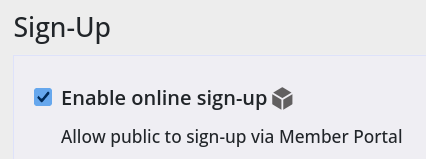
Enable Custom Fields on Sign up Form;
If a custom field is required, create this and enable;
- Create required fields via Create Custom Member Fields
- Save
Note Input Name of custom field; eg Checkbox Field 1
- Go Settings > Advanced Configuration > Member Portal Configuration > Sign-Up
- Enable Online Sign-Up
- Enable Custom Fields on Sign-Up
- Select the custom field you wish to enable on Sign-Up Form, eg Checkbox Field 1
- If response to this field is required, select Require Checkbox Field 1 (for example)
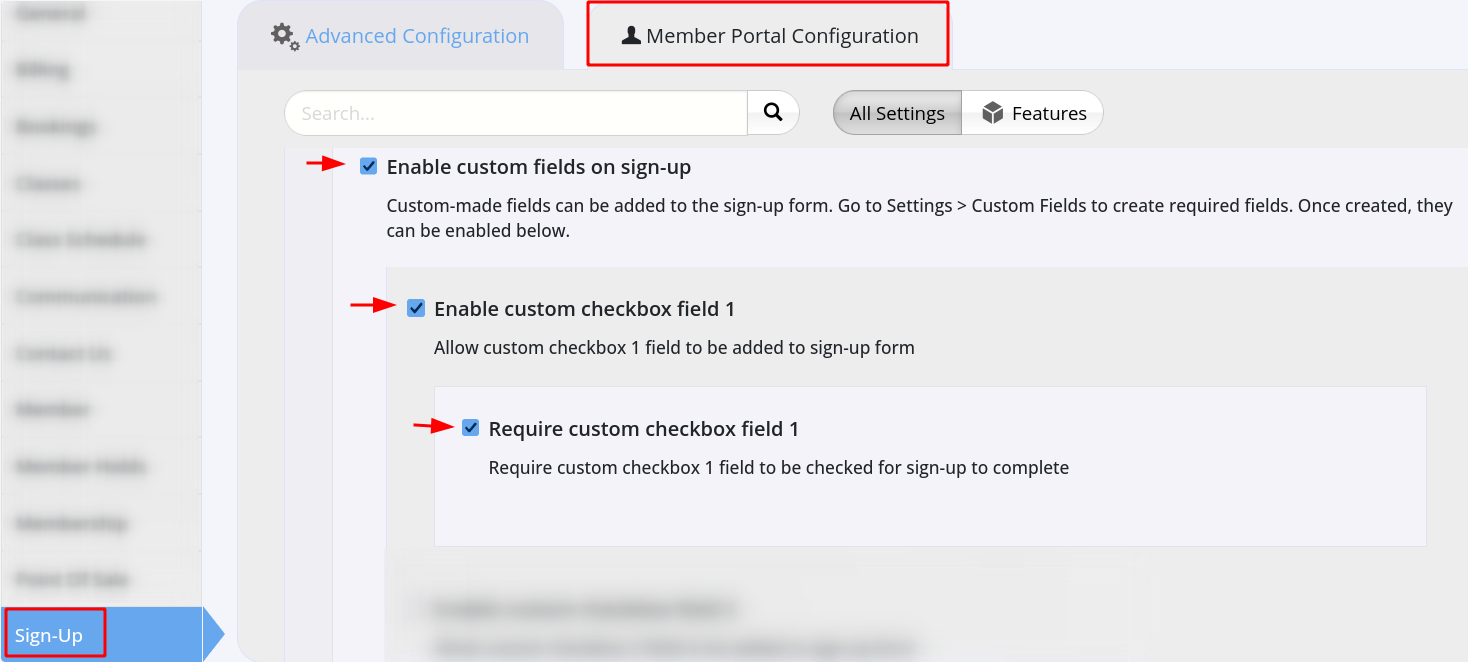
- Enable Custom Fields on Sign-Up
- Save
This field will now appear during the Online Sign Up process.
Member Fields Complete
Next - Labels

 2026 © Treshna Enterprises Ltd.
