
GymMaster Gym Software Manual
Bookings and Classes
This is the back-end of your Schedule. Set up your facilities, staff / trainers, classes and services to allow them to be scheduled and booked
Add Classes
Once the settings are complete and your categories are set, you can begin to add your classes to GymMaster.
Click Add Class button located on the top right corner of the Classes page

Class Details
- Enter Class Name and select the appropriate Class Category that it belongs to
- Set Duration of your class, keeping in mind that the actual run-time of the class can be adjusted if needed when it is added to the schedule
- Choose Participant limit that can be booked into the class
- If the Waitlist option is enabled, additional enrolments can be added to the waitlist when the class is full

- If the Waitlist option is enabled, additional enrolments can be added to the waitlist when the class is full
Class is For
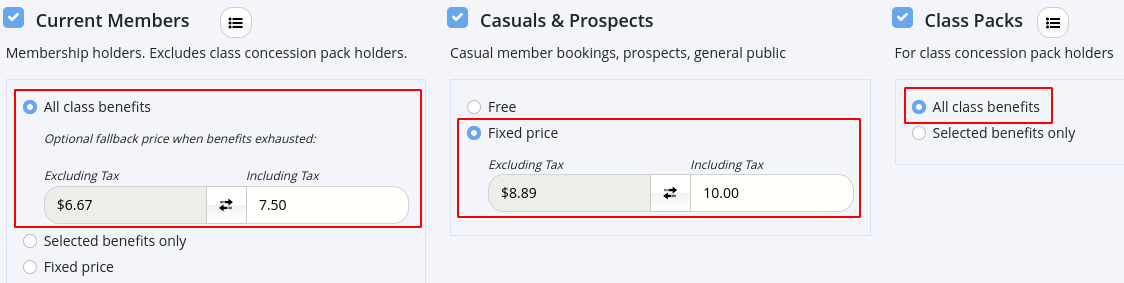
Choose access or price based on member type
- Current Member - member who has an active contractual membership with the club and has access to all facilities
- Casual Member - individual without a long-term contract or regular recurring payments to your club. They may use club/class visit packs or hold a charge-per-visit membership
- Class Pack - prepaid bundle of visits that members can purchase to access classes at their discretion over a period of time
In example below; Current Members may attend this class for free, when included in their benefits. If their benefits do not apply, the price for Members is $7.50.
Casual Members can attend for $10.00 per class.
Class Pack Holders can use their class allowance to attend this class.
Enable Online Booking
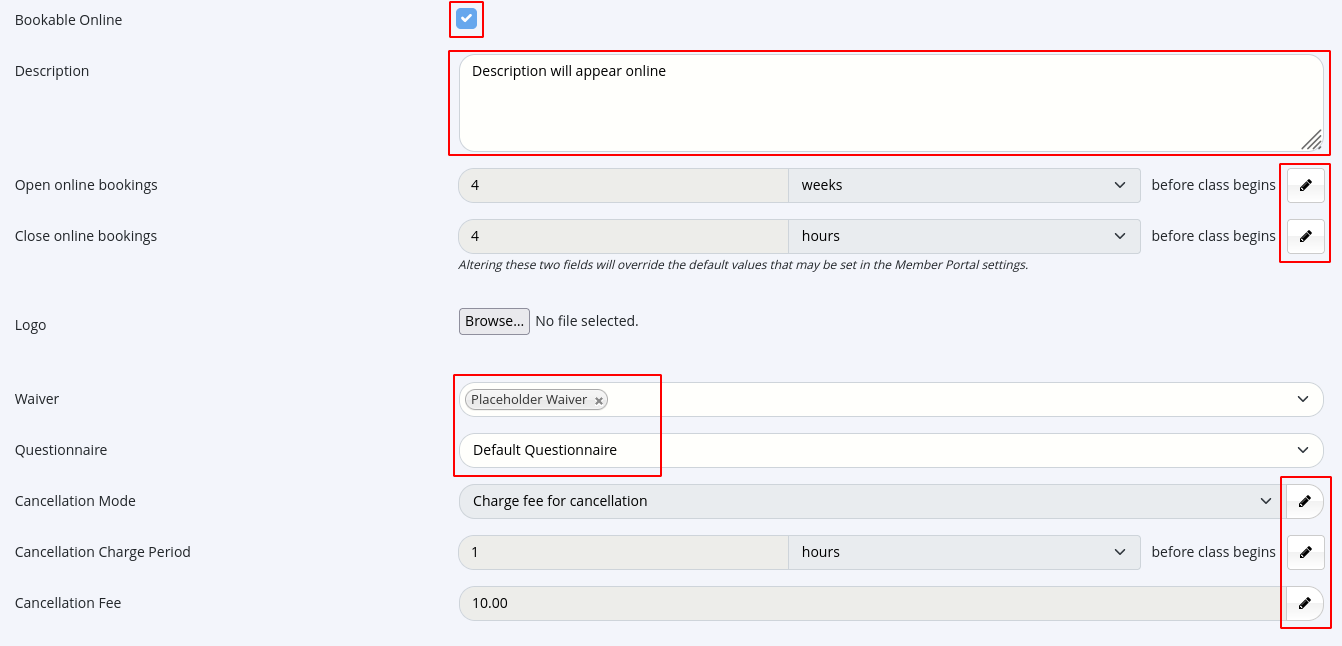
Allow members to book class through Member Portal and Member App
- Open and Close Online Bookings - default is set within Class Settings; use edit icon to edit for this class only
- Logo - will be displayed on Member Portal / Member App
- Cancellation Mode - default is set within Class Settings; use edit icon to edit for this class only
- Cancellation Charge Period - default is set within Class Settings; use edit icon to edit for this class only
- Cancellation Fee - default is set within Class Settings; use edit icon to edit for this class only
- Save Class
Classes Complete
Next - Services

 2026 © Treshna Enterprises Ltd.