
GymMaster Gym Software Manual
Training Configuration
Trainers can set up the back-end of their workout programs, measurement settings and grading levels to apply to members
Workout Configuration
Build workouts from the exercise library, put them into programs, and give the programs to members
| Definition | Example | |
|---|---|---|
| Exercise | One movement | Goblet Squat |
| Workout | Exercises with sets, for one session | Lower Body Strength |
| Program | Workouts in order, for one member, a membership type or every member | 6 Week Strength Starter |
Go to Settings > Workout Configuration
Workout Configuration has three tabs: Exercises, Exercise Settings and Workouts. Staff need the Workout settings role (or Support or Admin settings) to open it.
If you see separate Exercise List, Workout Library and Program Library pages and no tabs, you have the earlier layout. To use the tabs, go to Settings > Advanced Configuration > Workouts, tick Use tabbed view for Workout Configuration, then Save.
Exercises
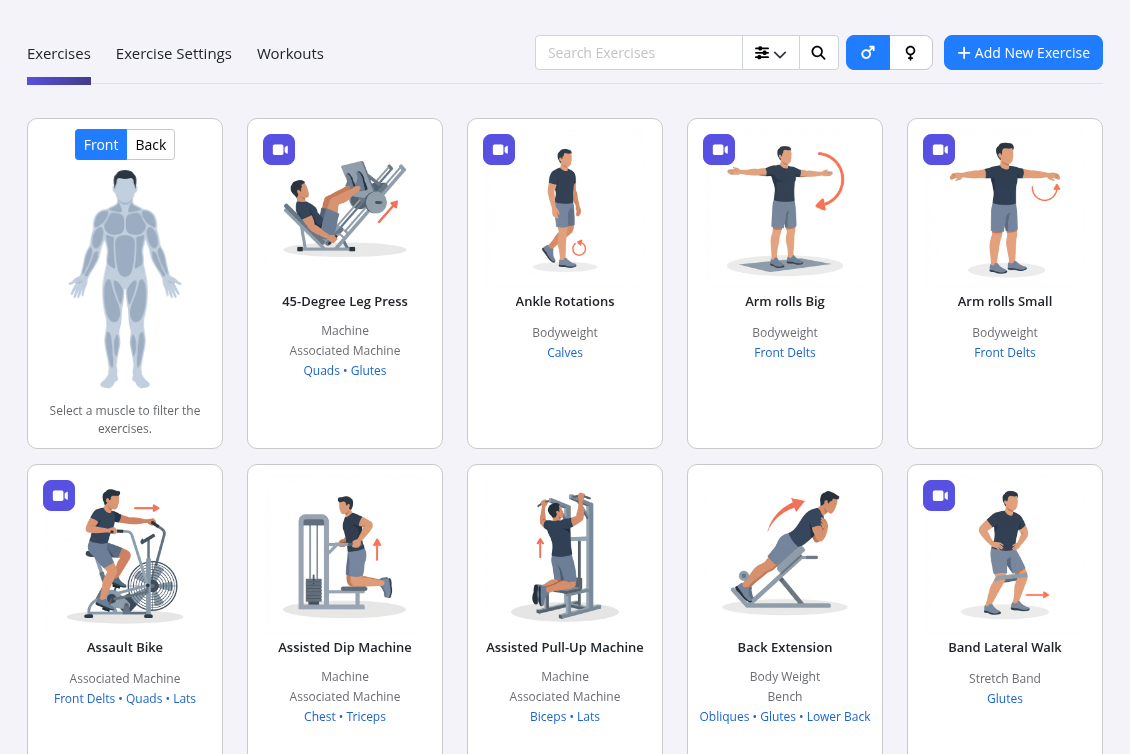
GymMaster gives you the GymMaster 2026 Exercise Library: more than 220 exercises with descriptions, illustrations and, for many, a video. Exercises with a video show the video icon.
Find an Exercise
- Type in Search Exercises
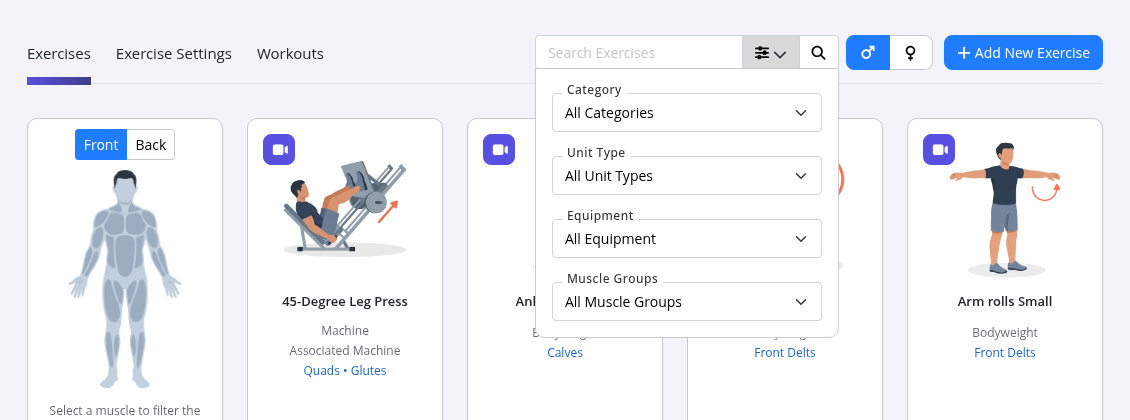
- Select the filter button to filter by Category, Unit Type, Equipment or Muscle Groups
- Or select a muscle on the muscle map. Select Front or Back to turn the body
- The male and female buttons change the illustrations
Add Your Own Exercise
- Select Add New Exercise
- Enter the Exercise Name. This is the only field you must fill in
- Check the Category
- Select what the exercise is Measured by, for example Reps or Time, and optionally what it is done At, for example Weight. The example line under the fields shows how a set reads, for example “10 Reps at 20 kg”
- Optional: select the Equipment and Muscle Groups, so the filters and the muscle map find the exercise
- Optional: select Add description and link to add a Description and an External Link
- Optional: select Add Image to upload a PNG or JPEG
- Save
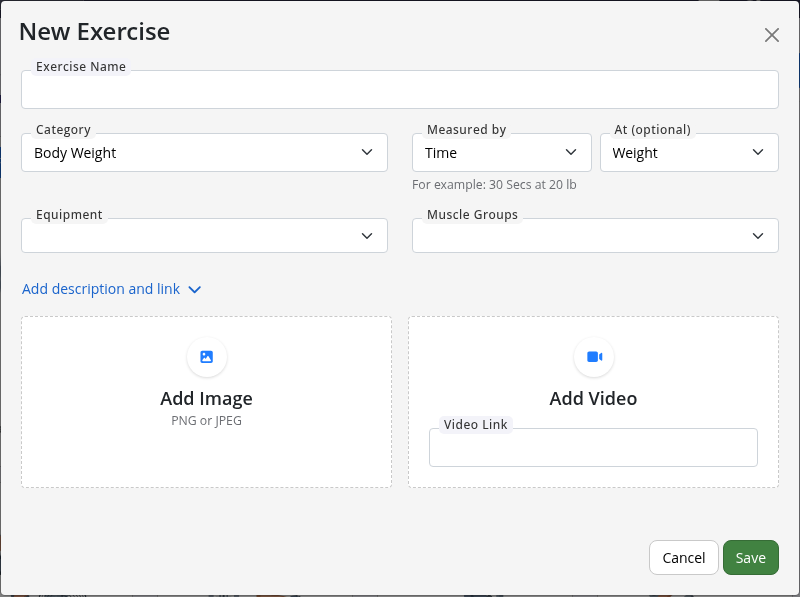
After the first save, the window stays open and shows Saved. You can then attach a video. Add Video opens the video library, where you can choose a video, upload an MP4, or add a YouTube or Vimeo link. If the video library is not available on your account, paste a video link in Video Link.
New exercises go to the top of the list with a New tag until you refresh the page.
To change an exercise, select its tile.
Update GymMaster Exercises
Most clubs got the 2026 library automatically. If you changed or deleted the earlier GymMaster exercises, the Exercises tab shows Update GymMaster Exercises instead.
- Select Update GymMaster Exercises
- Read the list. It shows the GymMaster exercises that replace your changed versions, and the deleted exercises that come back
- Select Update exercises
Exercises that you made yourself do not change. If one of your exercises has the same name as a GymMaster exercise, you keep yours and get the GymMaster one next to it.
Exercise Settings
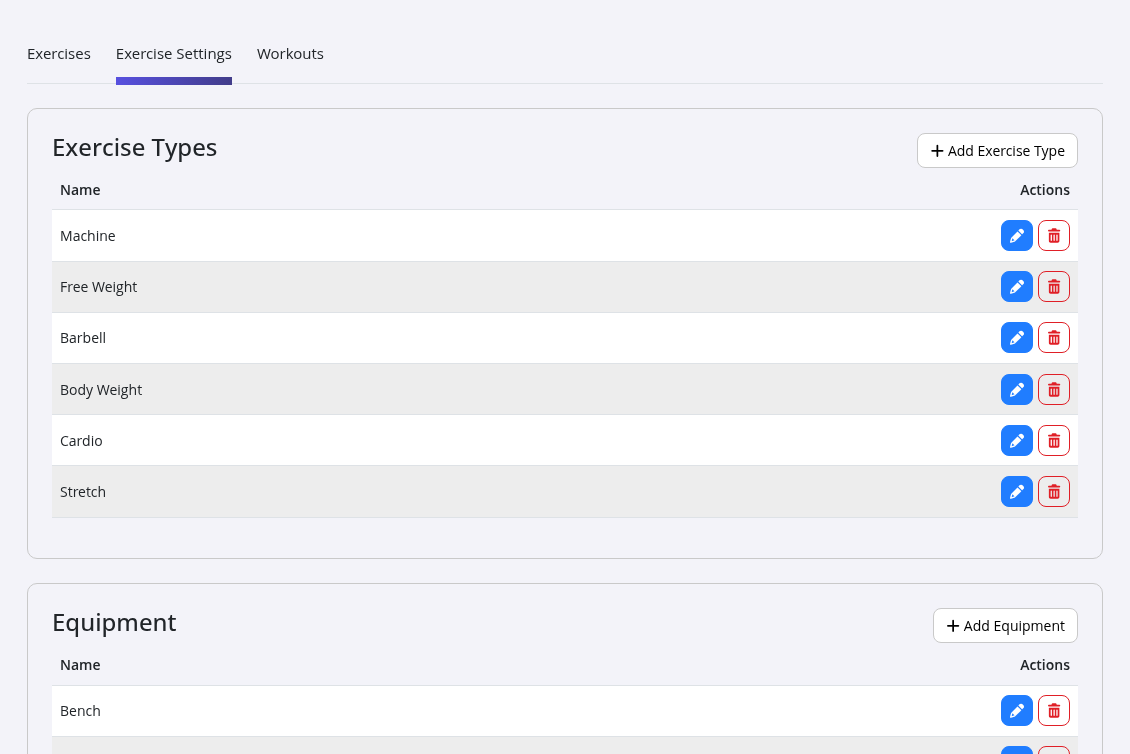
Exercise Settings holds the lists that you choose from when you add an exercise:
- Exercise Types: the Category, for example Machine, Free Weight or Stretch
- Equipment
- Muscle Groups
- Primary Units: shown under Measured by, for example Reps, Time or Distance
- Secondary Units: shown under At, for example Weight or Level
Use the Add button on each list to add an item. For a unit, enter the Unit name, the Unit Display Name (the short name, for example kg) and the Unit Input Type: Number, Time in Seconds, Time in Minutes, or No Input, Only display unit.
The library gives you standard units: Reps, Time (seconds, minutes, hours), Distance (km or mi, metres, steps), Weight (kg or lb), Intensity, RPE, Calories, Watts and Level. Clubs that use pounds get lb and mi. Units that you added or changed stay as they are.
Workouts and Programs
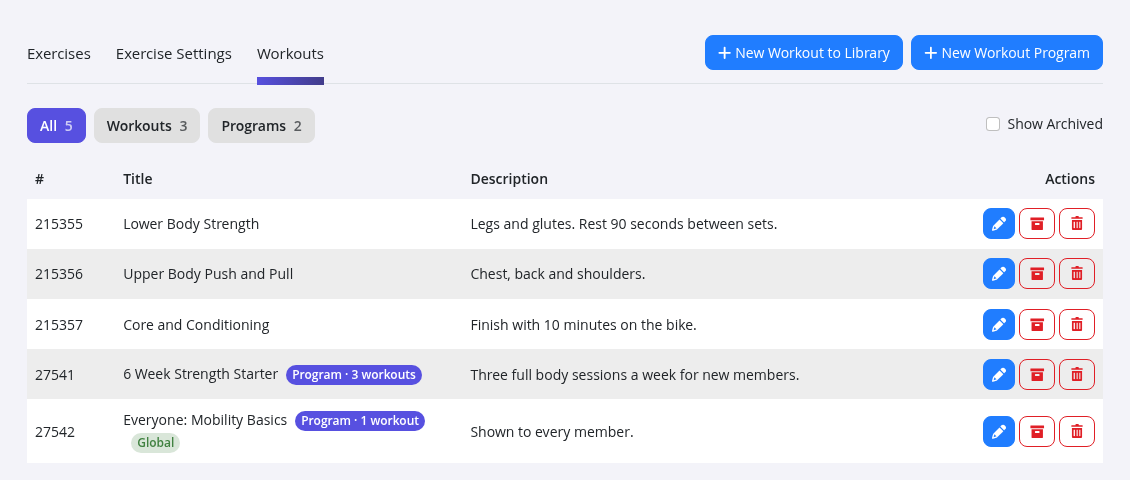
The Workouts tab lists the workouts and programs in your library. Select All, Workouts or Programs to show one kind. Programs show the number of workouts they have.
- Edit: open the workout or program
- Archive: hide it from the list. Tick Show Archived to see archived items, then select Restore to bring one back
- Delete: remove it
- Reorder (Workouts only): change the order of the library, then Save
Make a Workout
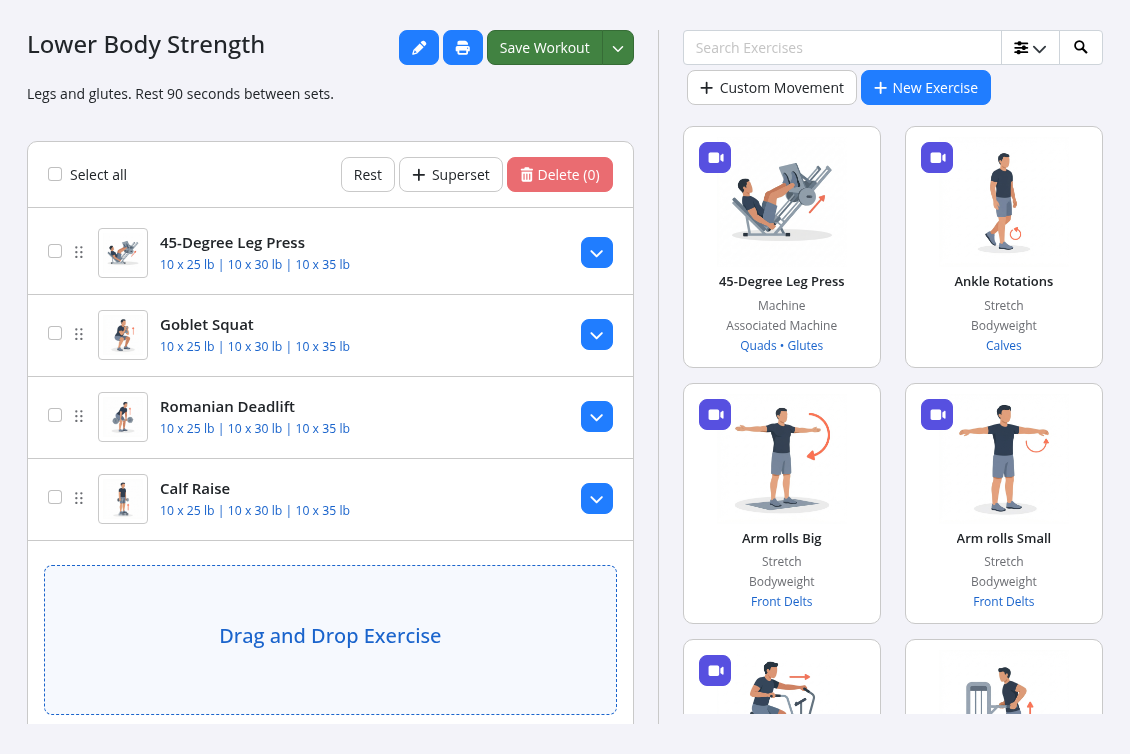
- Select New Workout to Library
- Enter the workout name and description
- Select exercises on the right. Each one goes to the bottom of the workout. You can also drag an exercise into the workout
- Select the arrow on an exercise to set its sets
- Use Rest to add a rest between exercises, and Superset to group exercises that the member does one after the other
- Use Custom Movement for a movement that is not in the library, and New Exercise to add an exercise to the library
- Select Save Workout
Sets
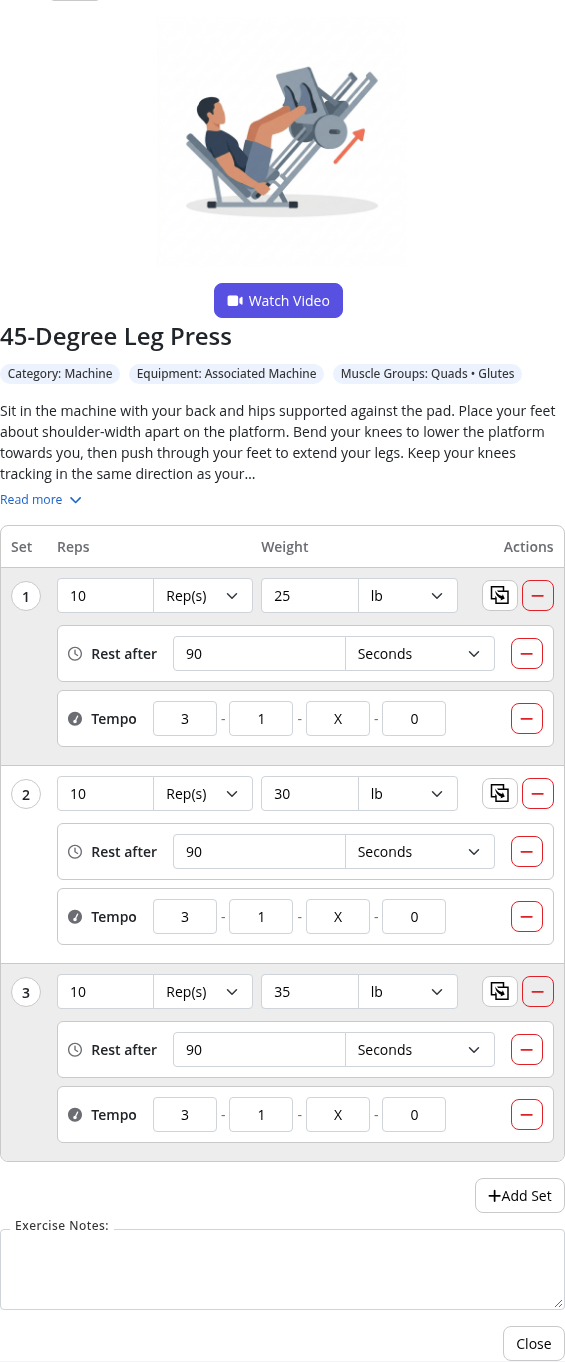
For each set, enter the values for the exercise units, for example 10 Reps at 25 kg. You can also:
- Add Set, Remove Set or Duplicate a set
- Add rest after the set, in seconds or minutes
- Add Tempo: four boxes, for seconds lowering, seconds paused at the bottom, seconds lifting and seconds paused at the top. Enter X for explosive. For example 3-1-X-0. To show Add Tempo, go to Settings > Advanced Configuration > Workouts and tick Allow tempo in workouts
Your set changes go into the workout as you type. Select Save Workout to keep them. If you leave the page before you save, GymMaster asks you first.
The arrow next to Save Workout gives:
- Save & Duplicate: save, then make a copy of the workout
- Save & Copy to library: save, and put a copy in the workout library. Use this for a workout you made for one member that you want to use again
The print button prints the workout. The printout shows each set, with its rest and tempo. To set the paper size and orientation, go to Settings > Advanced Configuration and change Workout PDF page size and Workout PDF page orientation.
Make a Program
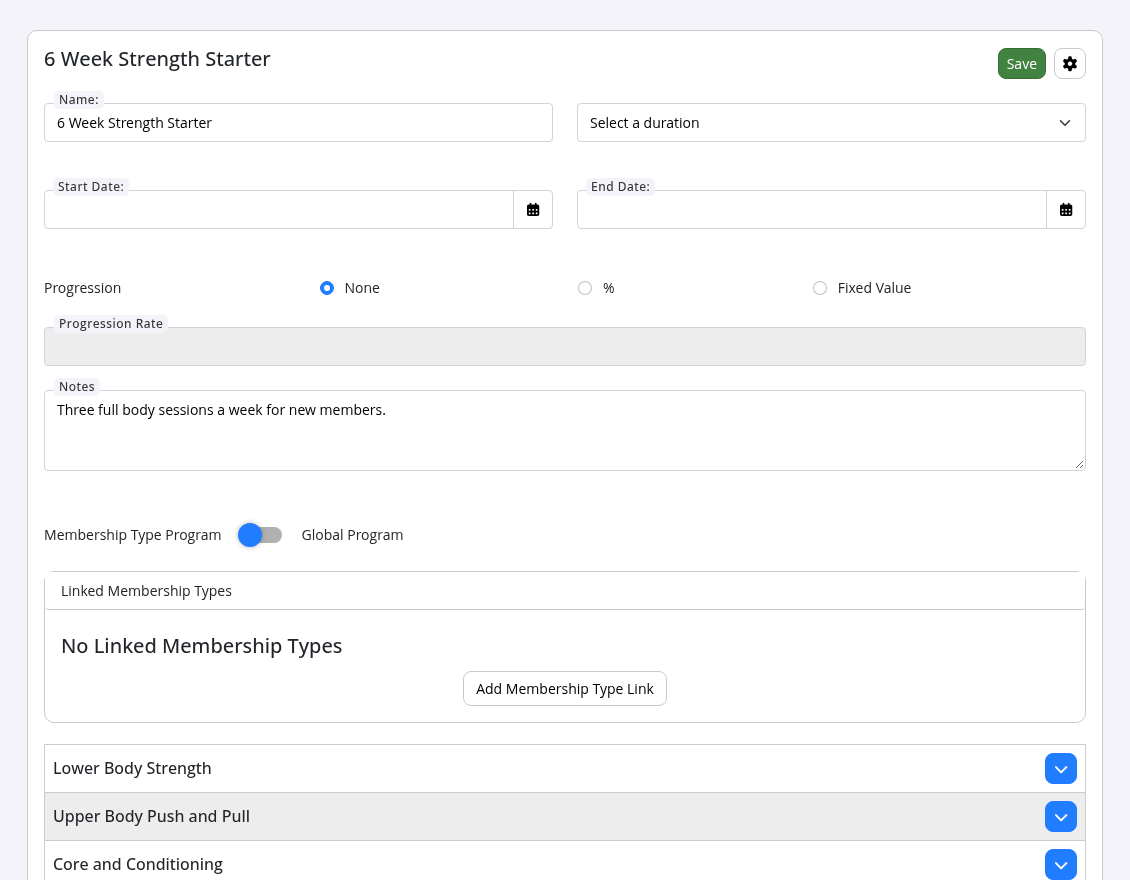
- Select New Workout Program
- Enter the Name. Optional: select a duration or a Start Date and End Date, a Progression, and Notes
- Choose who gets the program:
- Membership Type Program: select Add Membership Type Link and choose the membership types. Members with that membership type get the program
- Global Program: every member gets the program
- Add workouts to the program
- Save
To give a program to one member, use the Training tab on their member page. See Workout Programs.
Members
Members see their programs in the Member App and the Member Portal: their own programs, the programs linked to their membership type, and global programs. They can watch the exercise videos, and record their results with Submit Workout Progress.
To show workouts to members, add the Workouts and Workout Results buttons in Settings > Member Portal > Edit Portal Buttons. See Customise your Account Buttons.
To let members read and reply to trainer feedback on their results, go to Settings > Advanced Configuration > Member Portal Configuration and tick Workout Result Feedback Chat.
Workout Configuration Complete

 2026 © Treshna Enterprises Ltd.