
GymMaster Gym Software Manual
Rosters and Open Hours
Rosters are used to set availability of trainers and facilities in schedule and assign door access hours for staff and members
Resource / Facility Rosters
Optional
Resource (Facility) rosters can be used for specific Facilities, when their ‘bookable hours’ differ from any of your System Rosters.
If your facility availability will always match a system roster - eg Open Hours, 24/7, then select this as it’s roster.
For Example
- If your Yoga Room is always available for scheduling during your Open Hours;
- You can apply the Open Hours Roster when setting up your facilities under Bookings and Classes > Facilities
- If your Open Hours are ever changed within Roster and Open Hours, this will automatically apply to your Yoga Room hours too
However
- If your Yoga Room is only available for scheduling within limited hours, eg 5am - 9am and 5pm - 8pm;
- You can go to Rosters and Open Hours and create a roster to suit
- Select Add

- Choose a name (eg Yoga Room Roster)
- Select Roster Type - in this case you would select Resource
- Save
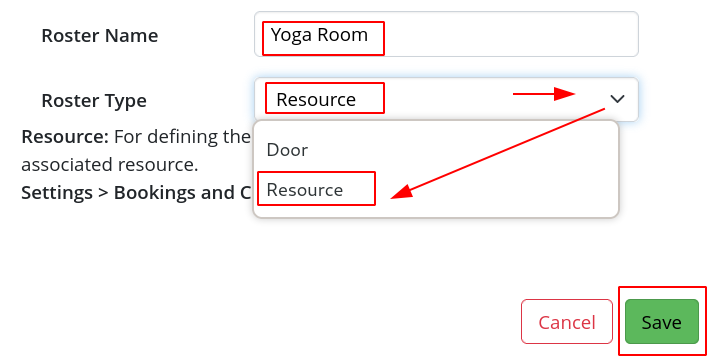
- Next, scroll down your roster list until you find Yoga Room
- Input the hours this facility is available, in this case;
- 5am - 9am AND 5pm - 8pm
- Once set, you can apply this roster to your Yoga Room facility, within Bookings and Classes > Facilities

- Input the hours this facility is available, in this case;
See Edit Roster to learn how to adjust times within a Roster
Please note:
- ‘0:00am’ refers to midnight at the beginning of the day
- ‘12:00am’ refers to midnight at the end of the day
- Available selections are in 30min time periods; can be overwritten directly
- Take care to select correct AM and PM time
Next - Door Rosters

 2026 © Treshna Enterprises Ltd.
