Before enabling access to the Member App, ensure your Member Portal is fully configured. Most settings carry across to the app.
While members can access the portal via desktop, most will primarily use their phone through the Member App.
Your core Member Portal settings carry over to the app; however, the visual presentation differs significantly, and some features are exclusive to the app.
This guide explains how to configure the look and behaviour of the Member App and how to enable access for your members.
The Member App home screen can be customised per club by selecting and ordering a range of widgets.
Widgets are small app components that appear on the home screen, providing quick access to key information and shortcuts to deeper areas of the app.
Widgets are managed via Settings > Member Portal > Customize Member App.
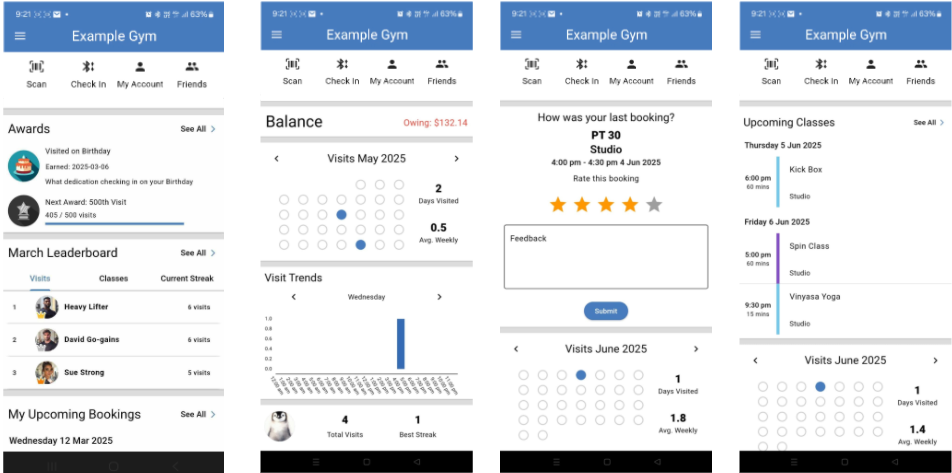
Available widget options include:
Note that some widgets require the setting being enabled within member portal configuration before they appear.
For example, the Friends and Leaderboards widget requires Settings > Member Portal > Member > Enable friends feature on app to be enabled.
The app colour scheme and button colours are configured in Settings > Member Portal > Customize Member App — the same area used to manage widgets.
When creating individual classes and services, you can set the logo, background colour, and description.
To display these in the app homescreen, enable one or more booking-related widgets for upcoming bookings or classes.
Additional booking behaviour is determined by your portal button settings.
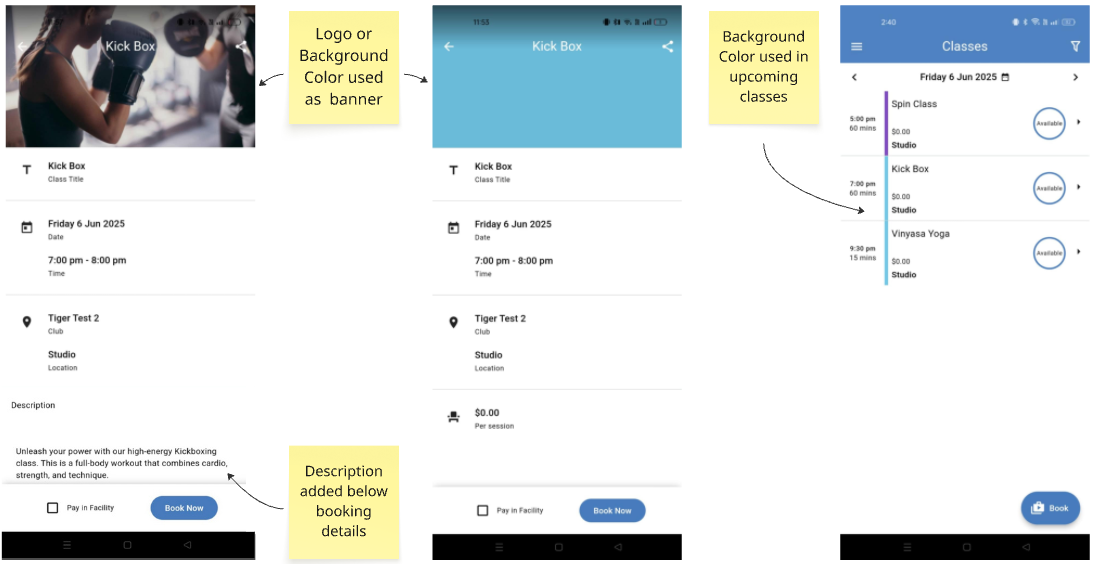
Note: Classes appear greyed out on the schedule when full or unavailable. For best visibility, choose colours that contrast clearly with grey.
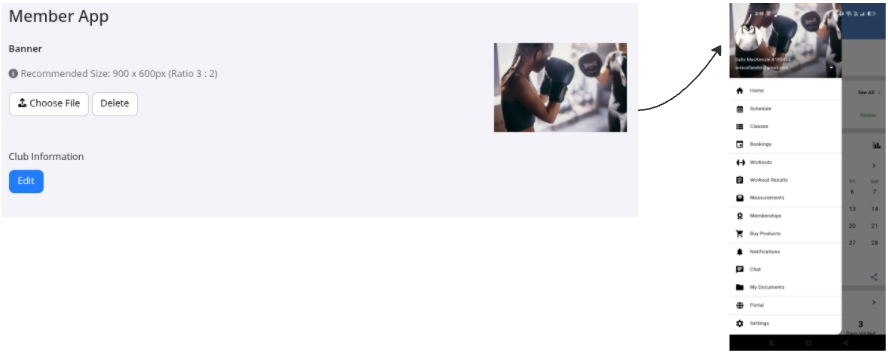
You can optionally upload a branded image to display at the top of the main menu in the Member App. Go to Club Details > Member App > Banner and upload your chosen image. The recommended aspect ratio is 3:2 (approximately 900 × 600 pixels).
Note: The logged-in member’s profile photo and name display over the banner image.
The same menu options enabled in Member Portal > Portal Buttons will be enabled in the Member App, although they display differently visually.
To learn how to enable, disable, or rename portal menu options, see Portal Menu.
Once the app is configured to look and function as required, you can enable member access to the app. Go to Settings > Advanced Configuration > General > Enable Mobile App Access for Members.
Note: It may take up to one hour for this setting to sync across all member accounts.
Including download and login instructions in your welcome email ensures members can access the app from day one.
Members can download the GymMaster Member Portal App from:
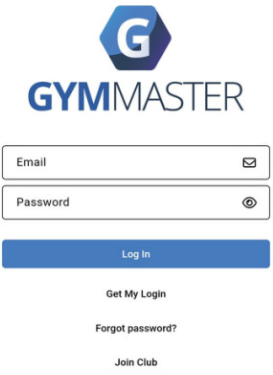
Once installed, members can log in on their smartphone or tablet using:
Member forgotten password? Tap Forgot Password on the login screen and follow the prompts.
To receive push notifications, members must enable notifications for the GymMaster App in their device settings.
See Login FAQs to answer some common login questions.
When enabled and used with compatible hardware, members can unlock club doors via Bluetooth or QRCode using the GymMaster Member App from their first visit.
This provides a seamless, contactless entry experience directly from their smartphone.
Learn more in the Bluetooth Access and QRCode Access guides



 2026 © Treshna Enterprises Ltd.