
No-Show Fees and Booking Blocks
A no-show is a booking the member didn’t turn up to and didn’t cancel. Empty spots in a full class, or a trainer left waiting, cost your club money. GymMaster gives you two tools for this:
- No-show fees: a fee is added to the booking when it is marked as a no-show. You set the fee on each class or service.
- Booking blocks: after a set number of no-shows, the member can’t book online for a while. Staff can still book for them.
You can use either one or both.
This article covers:
- How a No-Show is Recorded
- Turn On No-Show Fees
- Set the Fee on a Class or Service
- When the Fee is Charged
- Block Online Booking After No-Shows
- Free Cancellation and Cancellation Fees
- Things to Know
How a No-Show is Recorded
A booking only becomes a no-show when it is marked as one. You can do this by hand, or have GymMaster do it each night.
Class bookings
- Open the class on the Schedule
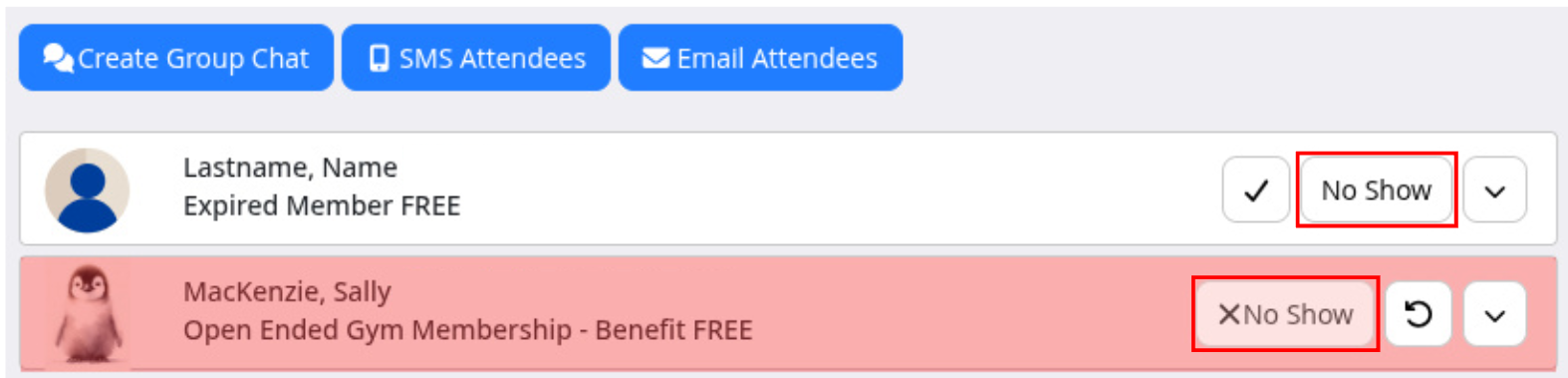
- In the attendee list, click the No Show button next to the member (the tooltip says Mark Attendee As A No-Show)
- The attendee now will display as red, shows No Show, with an Undo No-Show button next to it
Service bookings
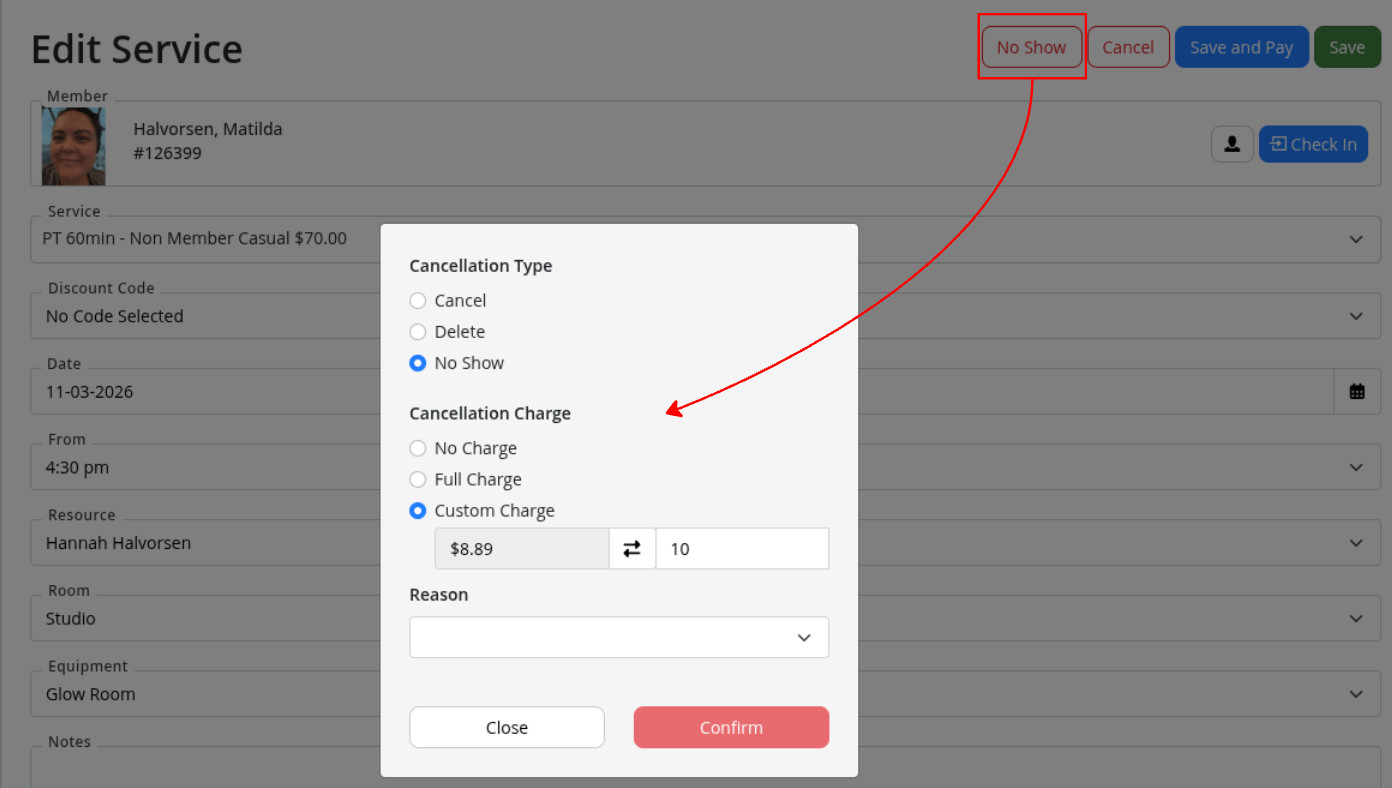
- Open the booking on the Schedule and select No Show
- Under Cancellation Charge, choose one:
- Full Charge: the booking charge stays and the no-show fee is added, if the fee applies (see When the Fee is Charged)
- No Charge: refunds the booking charge, does not use a pack session, and charges no fee
- Custom Charge: charges the amount you type in place of the booking price. The box starts with the service’s no-show fee, and you can enter it with or without tax
- Click Confirm
Automatically each night
- Go to Settings > Advanced Configuration > Bookings
- Find Action when members do not attend a booked class or service
- Choose No Show
Each night, GymMaster marks past bookings from the last 7 days that were not checked in or cancelled as no-shows. The full no-show charge applies, as if staff had chosen Full Charge. These bookings can also count towards a booking block. The other options are No Action (the default) and Check In, which marks those bookings as attended.
Only staff with full schedule access can mark a no-show or undo one. Staff with restricted or basic schedule access can’t.
Turn On No-Show Fees
No-show fees are switched on separately for classes and for services. These settings are hidden on most accounts. Contact GymMaster support and ask them to turn on:
- No show fee for classes enabled: charge a fee when a booked attendee doesn’t show up to a class
- Enable no show fee for service bookings: charge a fee when someone doesn’t show up to a service booking
Support can also turn on separate fees for members and non-members:
- Separate class no show fees for members and non-members enabled
- Separate service no show fees for members and non-members
These two are older options that are being phased out. Most clubs should use one fee.
Set the Fee on a Class or Service
Once the setting is on, each class and service gets a no-show fee box. There is no club-wide fee. A class or service with an empty box charges no no-show fee.
For a class:
- Go to Bookings and Classes > Classes and edit the class
- In Who Can Attend This Class, open Advanced Options
- Enter the No Show Fee
- Save the class
For a service:
- Go to Bookings and Classes > Services and edit the service
- In Who Can Attend This Service, open Advanced Options
- Enter the No Show Fee
- Save the service
Tax: the fee box works like the price boxes. You can enter the amount with tax or without tax, and GymMaster works out the other amount from the class or service tax rate. The amount with tax is the amount added to the booking.
Separate member and non-member fees: if support has turned this on, you see two boxes instead: No Show Fee for Members and No Show Fee for Non-members.
- Anyone whose status is not a current member, such as a prospect or an expired member, pays the non-member fee
- If the non-member box is empty, non-members pay no no-show fee
When the Fee is Charged
The no-show fee is only charged for bookings the member did not pay for. This is a booking with no price, such as a free class from a class or service benefit.
When a booking is marked as a no-show (with Full Charge, the class No Show button, or the nightly action):
| The booking… | What happens |
|---|---|
| Has no price and did not use a pack | The no-show fee is added to the booking and charged to the member’s account |
| Has a price (for example $20) | No fee is added. The member is charged the booking price as normal |
| Used a pack (a Club Pack or Class & Service Pack) | No fee is added. One session is used from the pack |
| Belongs to a member with a Free cancellation benefit that has No no-show fee | No fee is added. See below |
“Has a price” means the booking has a price, whether or not the member has paid it yet. A $20 booking that is still owing gets no extra fee.
On the member’s account, the charge reads like this: Personal Training on 12 Nov 2026 10:00 AM - No-show $10.00 fee.
Undoing a no-show: click Undo No-Show on the class attendee list or the service booking. GymMaster takes off only the fee that the no-show added. A booking that had a price keeps its price. If the booking used a pack, the session goes back on the pack.
You can’t undo a class no-show if the class is now full, or if the member’s seat has been given to someone else.
Block Online Booking After No-Shows
You can stop members booking online after they miss too many bookings. Blocked members can’t book through the Member Portal or the member app. Staff can still book for them.
To turn it on:
- Go to Settings > Advanced Configuration > Bookings
- Block online bookings after no-shows: enter how many no-shows in the last month will block a member (for example 3). The number must be 1 or more. Leave it empty to turn blocking off.
- Block online bookings for: how long the block lasts, counted from the end of the member’s latest no-show. This is 1 month if you leave it empty. You can choose hours, days, weeks, months or years.
How the block works:
- GymMaster checks each time a booking is marked as a no-show, by staff or by the nightly action
- It counts the member’s no-shows (classes and services) that ended in the last month
- If the count reaches your number, the member is blocked from booking online
- The block lasts until the end of their latest no-show, plus the Block online bookings for time. For example, with a block length of 1 month, a no-show on 3 March blocks online booking until 3 April
- When the block ends, GymMaster turns online booking back on by itself, within about 10 minutes
Some older accounts also have Block member check period, which sets how far back to count no-shows. Most accounts don’t have this setting and always count the last month.
What the member sees: when a blocked member tries to book in the Member Portal, they see: “You are currently unable to make bookings online. Please contact facility.”
What staff see: the member’s profile shows a warning such as “Member is blocked from making online bookings until [date] due to too many no shows.”
To lift a block early (or block a member by hand):
- Open the member’s Bookings tab
- Click Unblock Online Bookings (the button says Block Online Bookings if the member isn’t blocked)
- In the Member Online Bookings window, set the switch to Enable Online Booking and click Save
- To block a member, set the switch to Disable Online Booking, choose a Blocked until date, and click Save
You can also click the link in the warning on the member’s profile. You need the schedule admin or member admin role to change a block. See also Enable / Disable Online Booking.
Free Cancellation and Cancellation Fees
Free cancellation benefit
The Free cancellation benefit lets you give some memberships a break on cancellation and no-show charges. It is hidden on most accounts. Contact GymMaster support to turn on Enable Free cancellation benefit.
Once it’s on, edit a membership type, click Add benefits and add Free cancellation for classes or services (all, one category, or one class or service). Choose one or more options:
- No cancellation fee: no cancellation fee when the member or staff cancel, and the member doesn’t lose a session
- Cancel at any time: the member can cancel online right up until the booking starts
- No no-show fee: when the booking is marked as a no-show, the class or service no-show fee is not added
With No no-show fee, staff can still charge a no-show by hand by choosing Custom Charge when they mark it. The benefit counts when the member, or the main member on a shared membership, has a current membership on the booking date.
Cancellation fees
Cancellation fees and no-show fees are separate:
- A cancellation fee applies when a booking is cancelled late. You set it in the Cancellation Fee box on the class or service, or in your club’s default cancellation settings (see Member Portal Cancellations)
- A no-show fee applies only when a booking is marked as a no-show
Like the no-show fee, the Cancellation Fee box on a class or service now takes an amount with or without tax. Only the amount with tax is saved.
For example, you could add a cancellation fee and a no-show fee to your classes, then give your limited memberships the Free cancellation benefit.
Things to Know
- Fees are per class or service. If the fee box is empty, no fee is charged, even with the setting on.
- Members aren’t shown the no-show fee when they book. Let members know about your no-show policy, for example in your booking terms or a reminder.
- The class No Show button always uses the full charge. To take the fee off a class booking, use Undo No-Show.
- Undoing a no-show rechecks an automatic booking block. If the member is now under the limit, the block is lifted. If they’re still over it, the block runs from their latest remaining no-show. A block staff set by hand is left as it is.
- The block is checked when a no-show is recorded. Turning blocking on does not block members who already have enough no-shows. They are blocked at their next no-show.
- More no-shows don’t make a block longer. While a member is blocked, new no-shows don’t change the block end date.
- After staff unblock a member, automatic blocking for that member waits until the original block end date has passed.
- A short block can repeat quickly. If Block online bookings for is shorter than a month, no-shows from the last block still count. One more no-show can block the member again.
- Follow up with tasks. Task automations can create a task when a member misses a class or service. See Task Overview.
- For help reading booking charges on a member’s account, see Why Is This Member Being Charged for Their Booking.
Also see FAQs about Bookings & Schedule
Common Questions this Covers
- How do I charge a no-show fee
- Charge members who don’t turn up to a class
- Why wasn’t a no-show fee charged
- How to stop members booking online after missing classes
- Member can’t book online, says contact facility
- How to unblock a member from online booking
- Remove a no-show fee from a booking
- Waive no-show fee for some memberships

 2026 © Treshna Enterprises Ltd.