
Create and Book Your Services
Before members can book a service, you’ll first need to create the service, then schedule when and where it will be available for booking.
Most clubs only need to create a service once. After that, it can be scheduled as many times as needed with different days, times, instructors, and locations.
Think of the service as the template, and the schedule as when and where the service is available for booking.
Service Settings
Begin at Bookings and Classes > Services > Service Settings.
Review both the Advanced and Member Portal Configuration tabs before creating your services.
- These settings control the default behaviour for all services, including booking rules and cancellation options.
- While these defaults apply to every service, many settings can be overridden when creating an individual service.
Create Service
A service contains the information that stays the same each time it is booked, such as its name, description, duration, capacity, pricing, and booking rules.
Begin at Bookings and Classes > Services
- Select Add Service
- Complete the service details, including the category, duration, availability, and the colour used to display the service on your schedule
- When adding booking buffer, note buffer will be included within default booking length, not added as additional time. Adjust default booking length as required.
- Note Club List and Allowed Resources are set within selected Service Category
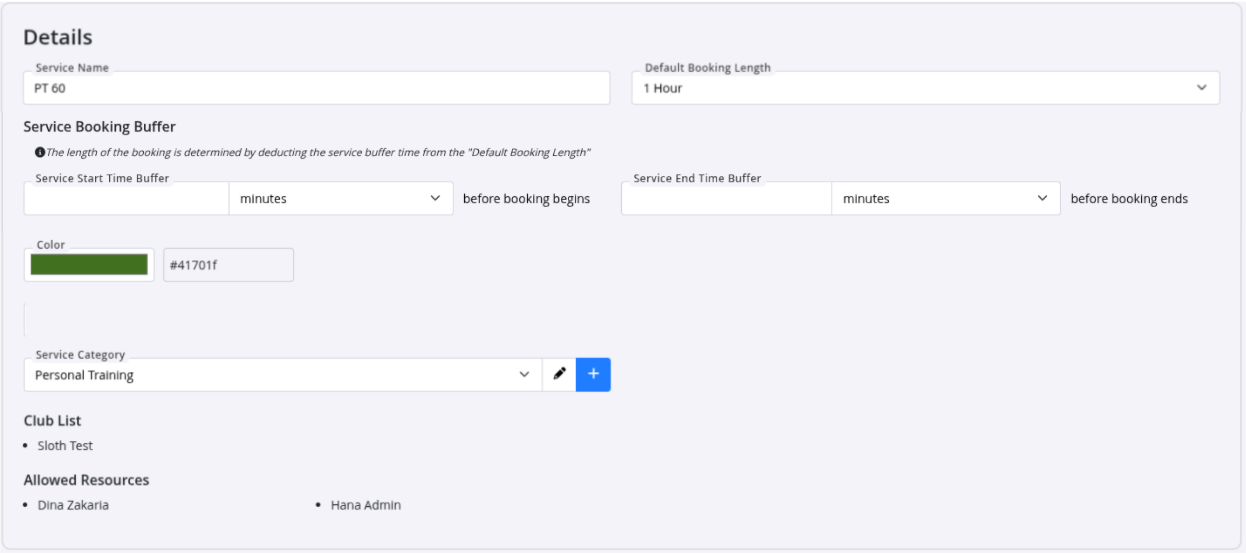
Next, select Who Can Attend This Service. You can enable one, several, or all booking options, each with its own pricing.
For example, a service may be available to current members with benefits, current members paying a set price, casual customers, and Service Pack holders.
- Current members with service benefits can book according to their membership benefit rules
- Current members without service benefits can pay the base price
- Casuals and prospects can book at the Casuals & Prospects price. This includes members whose memberships are not counted as current, such as pack only or trial only members
- Service Pack holders can redeem one pass to book the service, whether or not they are current members
Who is a current member depends on the Membership Basis of their membership. See Members, Casuals and Prospects for Classes and Services.

- Add any restrictions that apply to the service

To make the service available for online bookings through the Member Portal and Member App:
- Enable Bookable Online under Online Bookings
- Complete the remaining options. Greyed-out fields inherit the default settings from Service Settings, but these can be overridden for this service using the Edit icon.
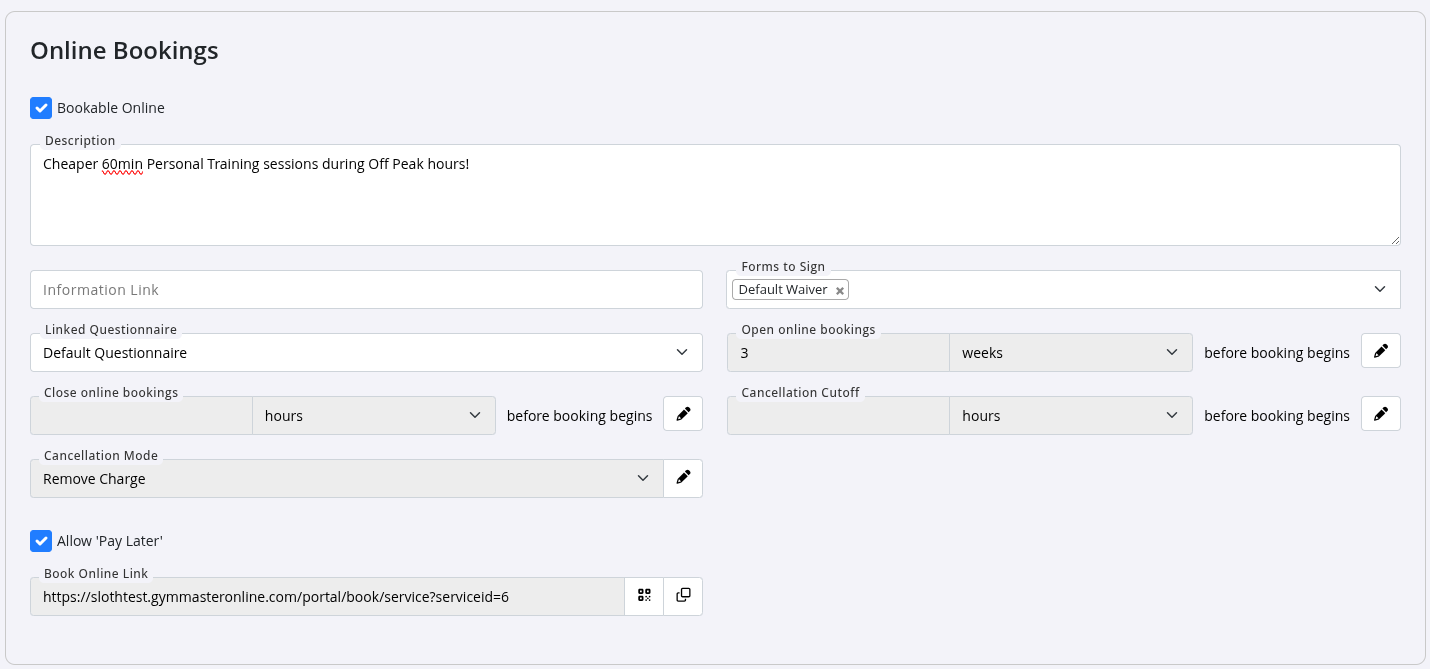
- Add group booking and commission details if required
- Save
Book Service
After saving your service, members can book individually either in person or online, depending on the availability set within the schedule.
Availability rules differ depending on whether the service is being booked by staff or online by members.
| Options | Can be booked | Location Set |
|---|---|---|
| Bookable Hours | By Staff | Bookings and Classes > Services |
| Available Time | Online | Schedule > Make Available |
Staff can book members into a service at any time within its bookable hours, provided a matching instructor is available.
Members can book the service online during times that have been made available in the schedule.
Add Available Time
Go to: Schedule > Select Timeslot > Make Available
- Create open time slots in the schedule that members can book online
- When members book online, GymMaster will display availability based on these settings, while also checking that the facility and service requirements are met
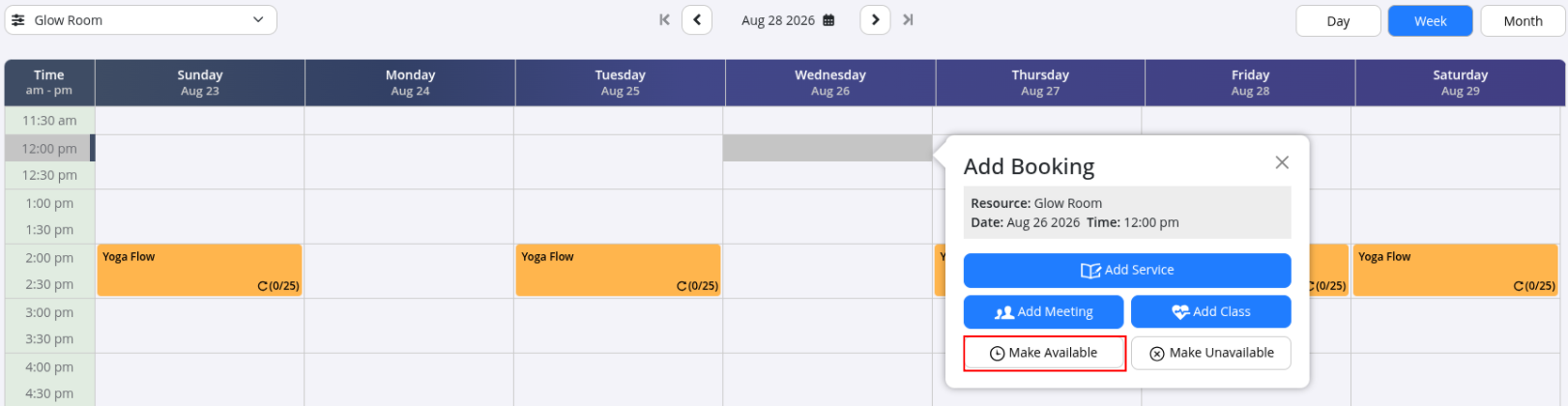
- When adding Available Time, use the custom repeat option to set availability across multiple days at once. This makes creating and managing your service schedule faster and easier.
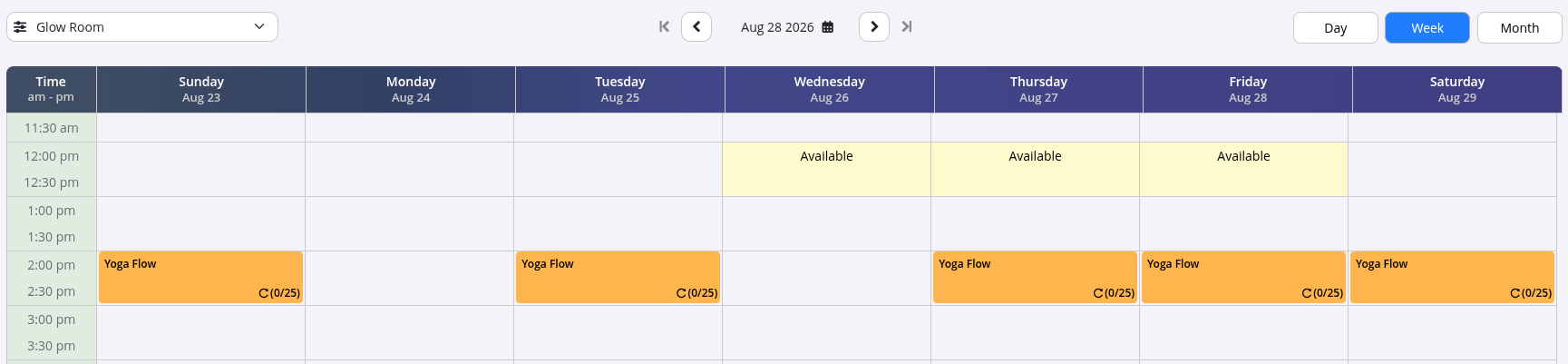
- Available Time will appear like this on your schedule:
Staff Bookings
Staff can add bookings in person.
- Click on desired timeslot
- Select Add Service
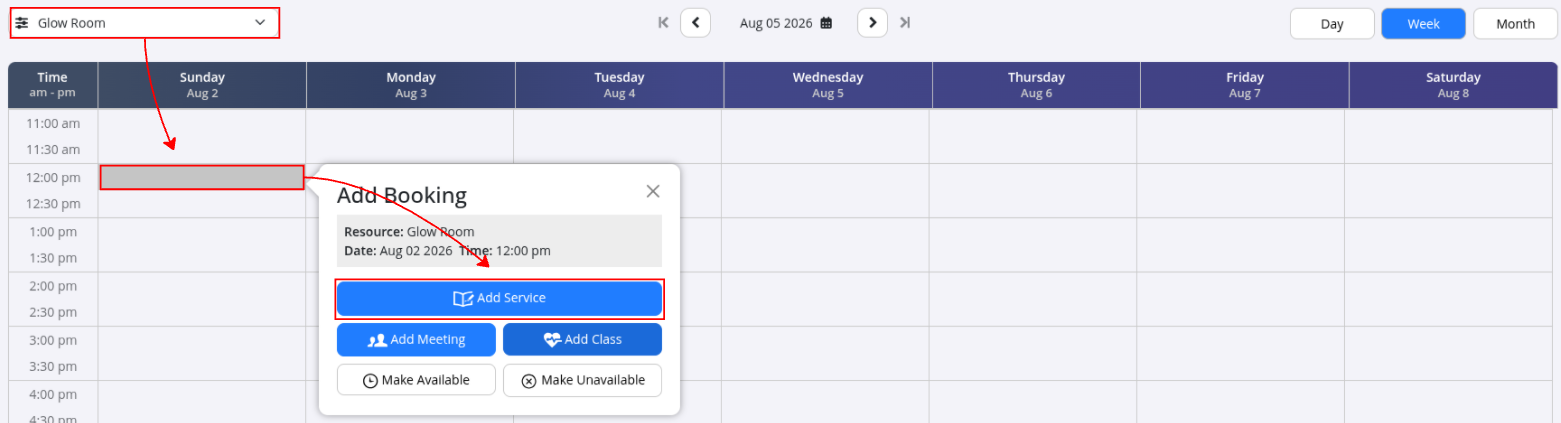
- Add member to booking
- Select service type
- Complete all details
- Use repeats function as required
- Save or Save and Pay to confirm
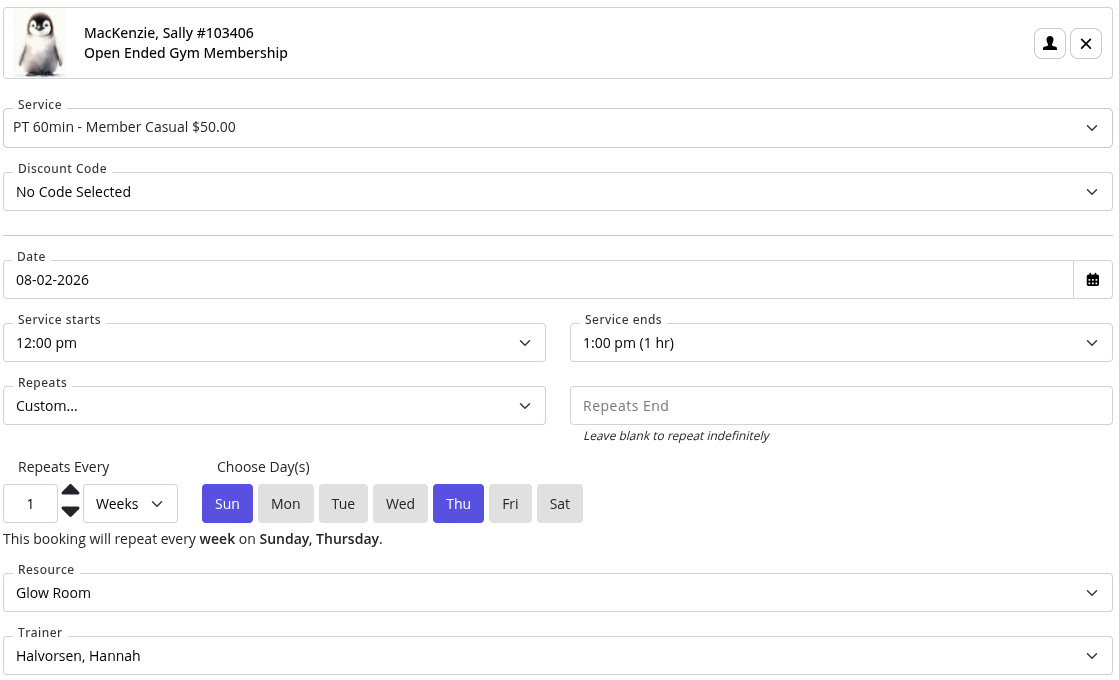
Also see Manage Services from Schedule
Common Questions this Covers
- How do I create a service in GymMaster
- How do I add a new service to GymMaster
- How do I schedule a service in GymMaster
- How do I add a service to the schedule
- How do I create a recurring service timetable
- How do I make a service available for online bookings
- How do I set who can book a service
- How do I add an instructor to a service
- How do I set service pricing and booking rules
- What is the difference between creating and scheduling a service

 2026 © Treshna Enterprises Ltd.