
GymMaster Gym Software Manual
User Administration
Add and manage staff user accounts within GymMaster
Staff User Details Tab
Add staff details here first, including;
- Name
- Date of Birth
- Contact Details
Key Fob and Access
Allocate staff a key fob, allowing secure staff specific access to the club;
- Click the Fob Number field to assign access key fob
- Swipe the fob that will be allocated to the staff member
- See glossary Key Fob
- Allocating an Access Roster here designates staff member allowed door access hours
- This will be different from their working roster hours
In example, Staff Member has key fob #56321. They are able to enter club at anytime during Open Hours, regardless of their own scheduled roster. Their First Aid Certificate will expire in Feb 2025.
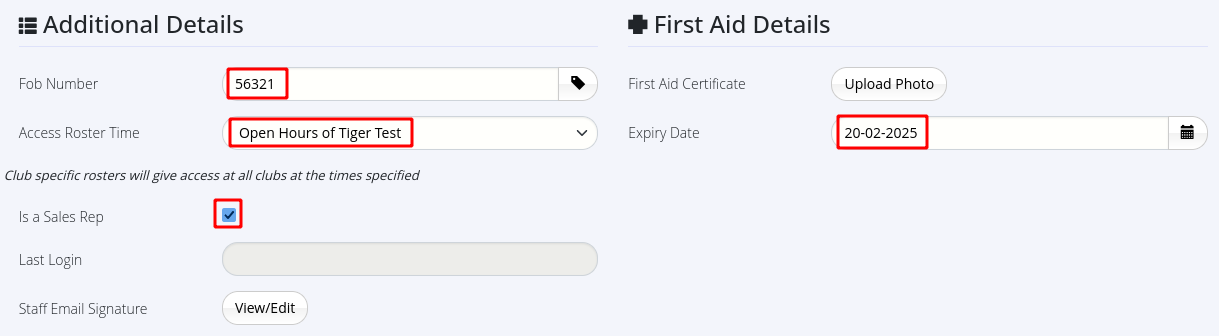
Additional Details
- Is a Sale Rep - Sales Reps can be designated ‘Is a Sales Rep’
- They can then be assigned to members as their sales representative
- Upload Staff Email Signature and First Aid Certificate
Timesheet and Attendance
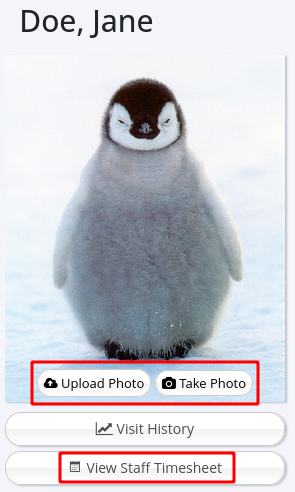
View staff timesheet via the left side menu.
- The Timesheet displays the staff member’s days and hours worked, absences, and any manual adjustments needed
- It also shows appointments, classes, and members signed up, providing an overview of staff activity
- The resulting information can be printed or exported for payroll management
- Staff attendance within their rostered work hours is recorded on staff Timesheet, based on when they Clock In or Clock Out via swiping key fobs on entry / exit, or manually via their Account menu
See glossary Clock In
See glossary Clock Out
Take / Upload Photo
Photo options are found on left side menu.
- Trainers / instructors who are taking classes / bookings will have their profile photo shown on the Member Portal and Member App
- To get the photo as flattering as possible, make sure the image is square and around 350 x 350 pixels
Next - Security Tab

 2026 © Treshna Enterprises Ltd.