There are several reasons a member’s access may be denied at different times.
Most commonly, this relates to their membership’s door access settings, unpaid fees, or a membership or club pack that has expired.
When entry notifications are enabled, reception staff will see and/or hear an alert each time a member attempts to check in.
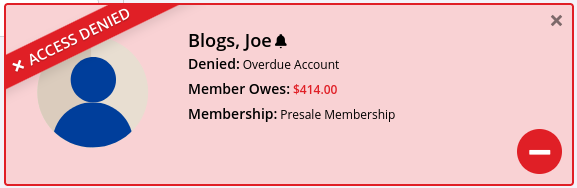
Red indicates access was denied. This can occur for several reasons. GymMaster logs every failed attempt and displays the reason for the refusal.
Entry notification pop-ups are managed under User Administration > Staff Accounts > Options > Pop-ups.
Entry notification sounds are managed under Settings > Doors and Readers > Notifications.
When door access fails, GymMaster records the attempt and provides a clear explanation.
All entry attempts are recorded. You can view recent access activity at any time from the Visitors page.
The most common reasons for failed access are outlined below.
No Membership
The member does not currently have an active membership.

Incomplete Membership
The membership purchase process has not been completed.
See Completing a Membership.

Overdue Account
The member’s outstanding balance exceeds your club’s allowed limit.
Manage under Settings > Advanced Configuuration > Doors and Readers > Stop after Owe threshold.

Expired
The member has a visit-based membership and has used up all available visits.
They’ll need to purchase another pack to regain access.

No Door Membership Benefits
The membership does not include access to this door.
Door access through membership is managed by adding Membership Benefits, Physical Doors.

Outside of Membership Benefit Door Time
The entry attempt was made outside the member’s permitted access times.
Manage access through Membership Benefits, Physical Doors > Time Restriction.

Stop at Gate Task
Entry has been prevented by a task: Member will need to resolve at reception.
Click on member account to identify issue.
Manage under Settings > Tasks
Green indicates the member is up to date with payments and has been granted access.

Yellow indicates the member has an outstanding balance but is still within the Stop after Owe threshold, and access has been granted.

Blue indicates successful entry that has triggered an Alert at Door action, via Tasks.
Manage under Settings > Tasks

Tip: You can also use the Find Member Recent Visitors search to view all recent entries, including both successful and failed access attempts.



 2026 © Treshna Enterprises Ltd.