Bluetooth Access is a popular access option, allowing members to enter using their mobile phone instead of (or as well as) a physical key fob.
Members simply use the GymMaster Member App, making access more convenient and enabling new members who sign up online to enter the club immediately, without waiting for a key fob to be issued.
Like Key Fobs, Bluetooth access is always linked to the member’s current account status, which means:
With the right hardware setup, clubs can offer both key fobs and bluetooth access to their members.
If you are planning new installations or upgrades, view our preferred readers on the GymMaster Website.
Bluetooth access requires compatible readers to be installed at entry points, which integrate with GymMaster software and our GateKeeper door access devices.
GymMaster door readers support both RFID key fobs and Bluetooth access.
You will need a technician to install all hardware, using our hardware setup guides.
Go to Settings > Member Portal Configuration. Enable;
Once assigned, members will be able access the club by opening the GymMaster Member App and using Bluetooth entry at the door reader, with access automatically controlled by their account and booking status.
New members who sign up online via the Member Portal can automatically receive Bluetooth access, allowing immediate entry without a key fob.
Access can be automated across all memberships, or for selected membership categories only.
Here’s how to set up for either of these options;
Enable per Membership Category:
Begin by navigating to Settings > Membership Types > Membership Category, and select Edit to category you wish to assign access to.
Open Access Control, selecting to enable Assign a Bluetooth Access Token,
Save
Enable for All Membership Categories:
Go to Settings > Advanced Configuration > General.
Enable Mobile App Access to Members and Assign Bluetooth Access Tokens by Default.
Save.
Once Bluetooth access has been enabled and Access Tokens assigned, members can enter your club using the GymMaster Member App on their phone.
To check in via the Member App, the member opens the app as they approach the access door and ensures Bluetooth is enabled on their device.
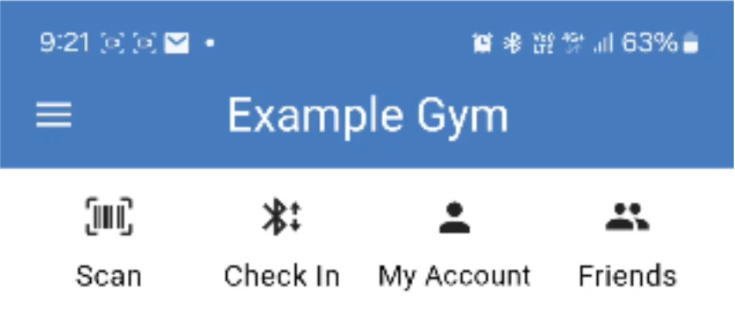
From the dashboard, they tap the Check In icon at the top of the screen.
The Check In icon will only appear if the facility supports Bluetooth access and the member has Bluetooth Access enabled on their account.
The app will begin scanning for nearby Bluetooth door readers. When a reader is detected, the reader will indicate the result:
Members need to be within a couple of metres of the reader for it to be detected. It is recommended that they do not hold their phone directly against the reader.
Bluetooth access is always linked to the member’s current account status. This means members can only enter within the door access limits of their active membership or casual booking. Members with failed billing attempts, active holds, expired memberships, or cancelled memberships will not be able to access the club until the issue is resolved.
Many of our most common questions regarding bluetooth are answered here.
If you cannot find the answer to your query here or elsewhere within the knowledge base, contact our support team.
Why shouldn’t a phone be placed directly on the reader when using Bluetooth?
Placing a phone directly on the reader can confuse the device, as it may attempt to read both RFID and Bluetooth signals at the same time.
This can result in a failed entry attempt. Members should initiate Bluetooth access from the Member App while standing approximately 1–2 metres from the reader.
What is the typical time delay when using Bluetooth access?
First-time access for a new member may take up to 7 seconds.
In most cases, regular check-ins take around 3–4 seconds. Delays can vary depending on phone model, brand, and age.
Can Bluetooth access be disabled?
Globally: No.
For future members: Yes.
To disable Bluetooth access for future sign ups:
To re-enable access, turn these options back on and assign Bluetooth Access Tokens to your existing members.
Why are some members experiencing Bluetooth access issues?
Check that the member:
Some phone brands, models, or older devices may also contribute to connection issues. If problems continue, contact our Support Team.
Why does the Bluetooth reader sometimes stop working during access attempts?
In many cases, rebooting the GateKeeper resolves the issue. If problems persist, older Bluetooth readers (e.g. Cidron models) may be the cause. These can occasionally exhibit reliability issues.
GymMaster’s Bluetooth Sentinel readers offer significantly improved reliability and support both Key Fob and Bluetooth access. If your Cidron reader is still under warranty, you may be eligible for a free upgrade. Contact us to confirm and discuss installation.
If you have a Cidrol reader, GymMaster can upgrade to Sentinel if still under warranty.
Why don’t recent changes seem to fix a door access issue?
Changes made in GymMaster need to synchronise with the Member App, which may take up to 10mins.
If issues persist, contact our Support Team.
How can we prevent members sharing bluetooth access
To prevent members from sharing access across multiple devices, a device limit can be configured at Settings > Advanced Configuration > General > Maximum number of authorized member app devices.
This setting restricts member app access to the specified number of devices per member, and therefor restricts bluetooth access.
If the limit is set to 1, the first device used to access Bluetooth will be registered as the authorised device.
The Member device reset limit option allows members to change their authorised device within a defined timeframe. This supports legitimate device changes (for example, when a member gets a new phone) while preventing frequent switching or access sharing across multiple devices.
To view or manage devices associated with a member account, go to Member Page > Details tab > Manage Devices. Staff can remove previously authorised devices here to allow a member to register a new device if required.
Want to allow staff and casual members to use bluetooth to access the club? See our access guides for Staff Access and Casual Members.



 2026 © Treshna Enterprises Ltd.