
GymMaster Gym Software Manual
Sleeping Members
Members who have stopped visiting are marked as sleeping. Your bulk emails and SMS then only go to members who still come in.
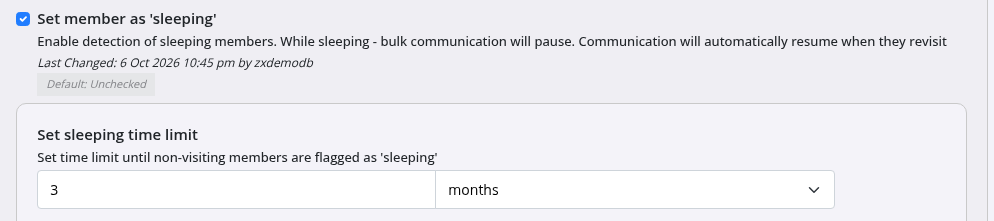
Go to Settings > Advanced Configuration > Member and tick Set member as ‘sleeping’.
Why use it
- Your campaigns go to members who still visit
- You pay for fewer SMS messages
- Fewer members unsubscribe or report your emails as spam. This helps your emails reach inboxes
How it Works
- Each night GymMaster checks when each member last visited or made a booking
- If this is longer ago than the time limit, GymMaster marks the member as sleeping
- The time limit is 3 months by default. Change it with Set sleeping time limit
- A sleeping member wakes up as soon as they check in or make a booking
Members who are never marked as sleeping
- Past members, such as members whose membership expired or was cancelled
- Members without a membership
- Members in their first 3 months
- Members on hold
- Prospects
A member coming off a hold, or starting a new membership, gets the full time limit before they can be marked as sleeping.
What Sleeping Members Do Not Get
- Bulk emails, SMS and WhatsApp messages
- Welcome and check-in task messages based on when the member joined or when their membership started. For example, a Member First Joined or Membership Starting task
What Sleeping Members Still Get
- Emails and SMS you send to one member
- Booking reminders
- Failed payment messages
- All other task messages
- Staff tasks for the member, such as a call list, still appear
See if a Member is Sleeping
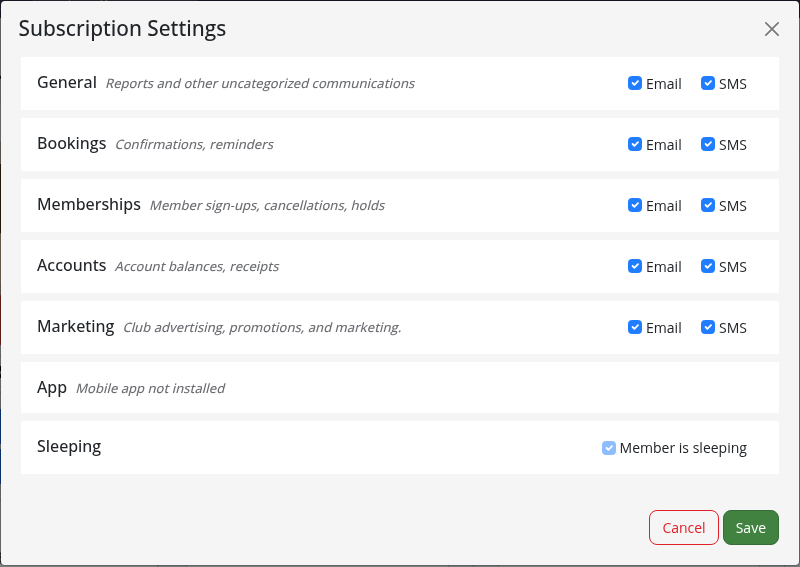
Open the member’s Details tab and click Manage Subscriptions. The Sleeping row shows Member is sleeping.
The member also shows the Sleeping Member icon {{:mrimpossible:bedsleeping.png?40|}}
Include Sleeping Members in a Bulk Send
When you send a bulk email or SMS, sleeping members show as Member is sleeping and are not selected.
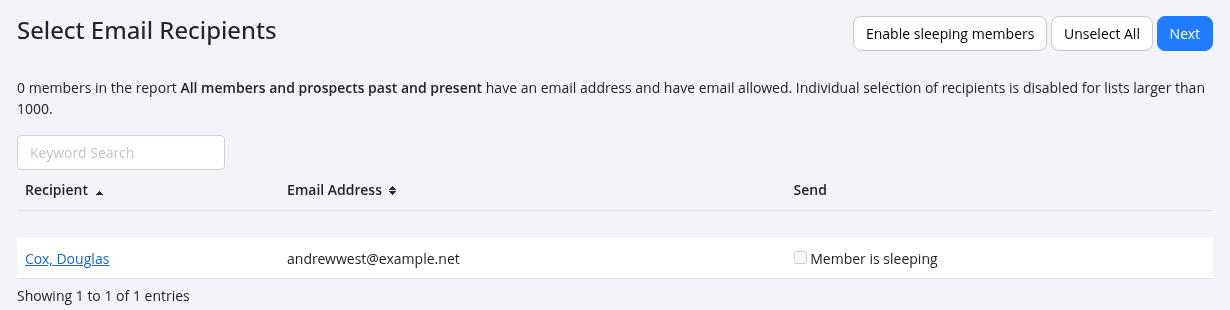
- Click Enable sleeping members at the top of the recipient list
- Sleeping members can then be selected for this send
This only changes this send. Sleeping members are skipped again in your next bulk send.
Frequently Asked Questions (Staff)
Why did a member not get my bulk email?
The member may be sleeping. Check their Subscriptions. To send to them, include sleeping members in the send, or send the email to the member by itself.
A member came back. When do they get bulk messages again?
As soon as they check in or make a booking.
Does a member on hold become sleeping?
No. When the hold ends, the member gets the full time limit before they can be marked as sleeping.
Can I send a win-back message to members who stopped coming?
Yes. Use a X Days No Visit task. Sleeping does not stop these messages. Past members are never sleeping, so bulk messages to them still go.
What happens if I turn it off?
All members wake up at the next nightly check. Bulk messages go to everyone again.
Back - Communication

 2026 © Treshna Enterprises Ltd.