While not everyone wants to bring their phone to the gym (required for bluetooth and QRCode access) most gym-goers will have their keys with them. Key fobs are cheap, durable, easily replace if lost. For all these reasons, key fobs remains the most popular long-term access method used by clubs. Key fobs can be issued in person and manually assigned to each member, usually during their first visit.
Like with all access methods, Key fob access is always linked to the member’s current account status, which means:
If you are planning new installations or upgrades, view our preferred readers on the GymMaster Website.
Key fob access requires RFID door readers to be installed at entry points, which integrate with GymMaster software and our GateKeeper door access devices.
GymMaster door readers support both RFID key fobs and Bluetooth access.
We also provide readers that support both key fobs and passcodes.
You will need a technician to install all hardware, using our hardware setup guides.
Order Key Fobs:
You can order your key fobs directly through GymMaster.
Key fobs can be assigned in person during sign up, or during a new members first visit to the club if they have signed up online.
Key fobs must be assigned manually, one at a time.
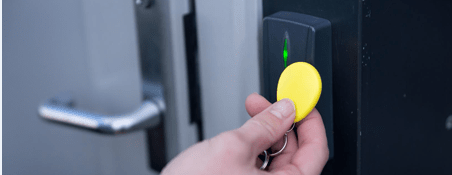
Once assigned, the member can access the club using their key fob. Each key fob is unique and linked directly to the member’s account. As a result:
Deactivating a key fob:
To deactivate key fob for this member, simply delete the key fob number within the key fob field.
Key fob can then be reassigned to another member.
Here are a few common additional queries and answers regarding Key Fobs.
Be sure to also read through our other guides covering door access and key fobs.
If you are unable to find the answer to your query, please contact our Support Team
What is the time delay when accessing a door using a key fob?
The expected time delay is typically between 2–4 seconds.
Can a member have multiple key fobs assigned?
By default, a member can only have one active key fob. Assigning a second fob will automatically deactivate the first.
If you need to allow multiple fobs per member, contact our Support Team to request this setting be enabled.
What should we do if a key fob is lost or stolen?
Open the member’s account, clear the Key Fob field, and save. This immediately deactivates the lost or stolen fob.
You can then assign a new key fob to the member in the usual way. The old fob will no longer grant access.
How can we find which member a key fob is assigned to?
Go to Settings > Doors and Readers > Assigned Key Fobs (top right), then enter the fob number in the search field.
If the fob is assigned, the member’s name will be displayed. If no name appears, the fob is not currently allocated.



 2026 © Treshna Enterprises Ltd.