
GymMaster Gym Software Manual
Add / Edit Class
This is your setup screen for creating new classes in GymMaster.
Define what the class is, who can book it, and how it appears in your online schedule.
1: Class Details

- 1.1: Class Name
- Choose a name that clearly identifies the class to members.
- 1.2: Duration
- Select the class length.
- You can adjust this per session from the schedule.
- 1.3: Max Participants
- Set the enrollment limit for this class.
- When full, new bookings will move to the waitlist (if enabled).
- 1.4: Color
- Select the background color for how this class appears on the schedule.
2: Class Is For
Control who can book and attend this class and how it’s paid for.
All member types can be included.

-
2.1: Current Members
- When selected, active members can book based on their membership benefits.
- Access excludes class packs.
- 2.1.1: All Class Benefits
- Members with an All Classes membership, or benefits for this class category, can book.
- Pricing follows the membership benefit.
- To include members without class benefits, set a base price.
- 2.1.2: Selected Benefits Only
- Only memberships with specific benefits that include this class can book.
- Pricing follows the membership benefit.
- To allow others to join, set a base price.
- 2.1.3: Base Price
- Allows current members without benefits to enroll at a set base price.
-
2.2: Casual & Prospects
- Allow casual visitors and non-members to book this class.
- Pricing is set below.
- 2.2.1: Free
- No charge for casual or non-member bookings
- 2.2.2: Fixed Price
- A set fee applies to all casual or non-member bookings.
-
2.3: Class Packs
- Allow members with class packs to book this class.
- 2.3.1: All Class Benefits
- Any All Classes pack holder can book.
- 2.3.2: Selected Benefits Only
- Only class packs including this class can book.
3: Restrictions
Toggle these options in class settings to control advanced booking restrictions.

- 3.1: Multiple Bookings
- Allow members to hold multiple bookings for the same class; ideal for crèche or family group sessions.
- 3.2: Seat Allocation
- Allow seat selection when booking; perfect for spin or equipment-based classes.
- 3.3: Waitlist Limit
- Set the maximum number of members allowed on the waitlist.
- 3.4: Waitlist Cutoff
- Define how long before the class starts new waitlist spots stop being offered.
4: Online Bookings
Control how and where this class appears for members in the Member Portal and Member App.
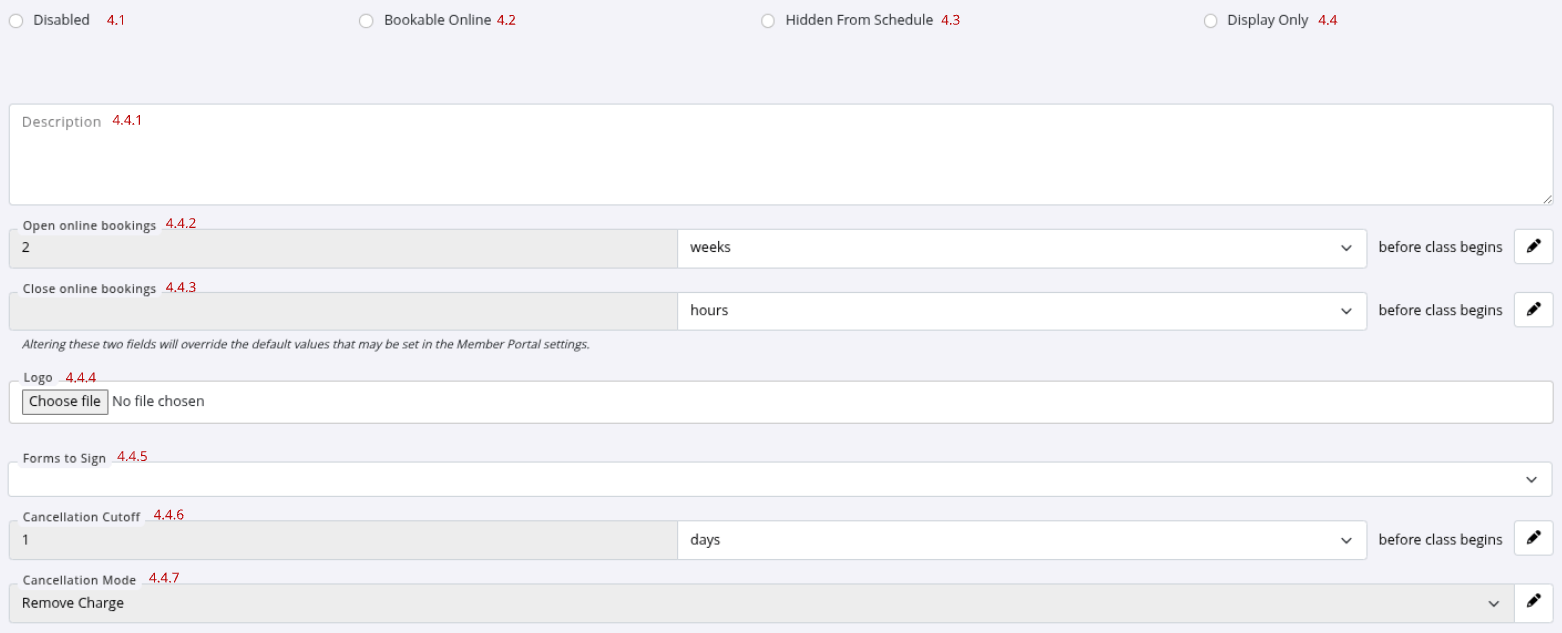
- 4.1: Disabled
- The class is not visible online
- Bookings can only be made by staff
- 4.2: Bookable Online
- Visible and open for booking online
- Members can self-book or be booked by staff
- 4.4: Hidden from Schedule
- Hidden from the online schedule but still visible elsewhere in the portal or app
- Bookings can still be made manually or by staff
- 4.4: Display Only
- Shown on the schedule but not bookable by members
- Staff can book members manually
- 4.4.1: Description
- Add a clear description for members
- Displayed in the Member Portal and App. Include any key class info or requirements
- 4.4.2: Open Online Bookings
- Set when online bookings open before class starts
- 4.4.3: Close Online Bookings
- Set when online bookings close before class starts
- 4.4.4: Logo
- Upload a logo to display alongside the class in the online schedule
- 4.4.5: Forms to Sign
- Attach forms or waivers members must complete to enroll
- 4.4.6: Cancellation Cutoff
- Set how close to class start time members can cancel their booking
- 4.4.7 Cancellation Mode
- Define what happens when a member cancels online

 2026 © Treshna Enterprises Ltd.