This is your setup screen for creating new classes in GymMaster.
Define what the class is, who can book it, and how it appears in your online schedule.
1: Class Details
1.1: Class Name
Choose a name that clearly identifies the class to members.
1.2: Duration
Select the class length.
You can adjust this per session from the schedule.
1.3: Max Participants
Set the enrollment limit for this class.
When full, new bookings will move to the waitlist (if enabled).
1.4: Color
Select the background color for how this class appears on the schedule.
2: Class Is For
Control who can book and attend this class and how it’s paid for.
All member types can be included.
2.1: Current Members
When selected, active members can book based on their membership benefits.
Access excludes class packs.
2.1.1: All Class Benefits
Members with an All Classes membership, or benefits for this class category, can book.
Pricing follows the membership benefit.
To include members without class benefits, set a base price.
2.1.2: Selected Benefits Only
Only memberships with specific benefits that include this class can book.
Pricing follows the membership benefit.
To allow others to join, set a base price.
2.1.3: Base Price
Allows current members without benefits to enroll at a set base price.
2.2: Casual & Prospects
Allow casual visitors and non-members to book this class.
Pricing is set below.
2.2.1: Free
No charge for casual or non-member bookings
2.2.2: Fixed Price
A set fee applies to all casual or non-member bookings.
2.3: Class Packs
Allow members with class packs to book this class.
2.3.1: All Class Benefits
Any All Classes pack holder can book.
2.3.2: Selected Benefits Only
Only class packs including this class can book.
3: Restrictions
Toggle these options in class settings to control advanced booking restrictions.
3.1: Multiple Bookings
Allow members to hold multiple bookings for the same class; ideal for crèche or family group sessions.
3.2: Seat Allocation
Allow seat selection when booking; perfect for spin or equipment-based classes.
3.3: Waitlist Limit
Set the maximum number of members allowed on the waitlist.
3.4: Waitlist Cutoff
Define how long before the class starts new waitlist spots stop being offered.
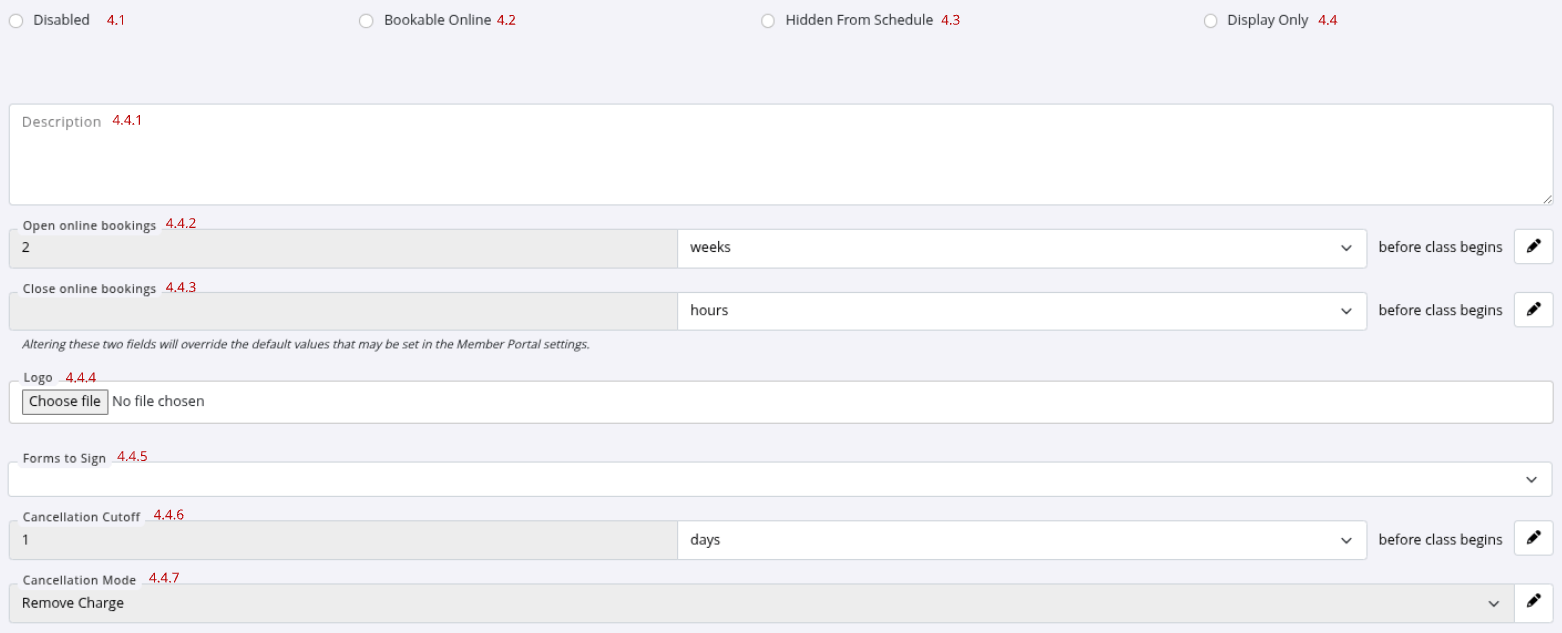
4: Online Bookings
Control how and where this class appears for members in the Member Portal and Member App.
4.1: Disabled
The class is not visible online
Bookings can only be made by staff
4.2: Bookable Online
Visible and open for booking online
Members can self-book or be booked by staff
4.4: Hidden from Schedule
Hidden from the online schedule but still visible elsewhere in the portal or app
Bookings can still be made manually or by staff
4.4: Display Only
Shown on the schedule but not bookable by members
Staff can book members manually
4.4.1: Description
Add a clear description for members
Displayed in the Member Portal and App. Include any key class info or requirements
4.4.2: Open Online Bookings
Set when online bookings open before class starts
4.4.3: Close Online Bookings
Set when online bookings close before class starts
4.4.4: Logo
Upload a logo to display alongside the class in the online schedule
4.4.5: Forms to Sign
Attach forms or waivers members must complete to enroll
4.4.6: Cancellation Cutoff
Set how close to class start time members can cancel their booking
We use cookies to provide the best user and customer service experience.
By using this website and clicking agree, you consent to our use of cookies in accordance to this policy.
If you would prefer to opt out, please click this link and send us a request.
We have Support Agents Based in
AustraliaNew Zealand






 2026 © Treshna Enterprises Ltd.