
GymMaster Gym Software Manual
Staff Attendance
Staff Attendance provides a detailed timesheet for all staff, using data collected throughout GymMaster.
It gives a clear view of when staff are working, what activities they are delivering, and how their time aligns with rosters and bookings.
Run the Staff Attendance Report
Begin at Reports & Till > Staff Attendance.
The report displays a range of attendance and performance information for the selected date range.
Clock-in / Clock-out shows the exact times a staff member starts and finishes work each day.
This can be tracked automatically or manually:
- Automated tracking records clock-in and clock-out when staff enter and leave the facility using their key fob, based on their rostered hours. Late arrivals or early departures are reflected automatically. Staff swipe twice in succession to clock out.
- Manual tracking allows staff to clock in and out when logging into GymMaster using the user menu in the top-right corner. This option can be enabled in Settings > Advanced Configuration > General.
The report also includes total Time Worked, showing hours worked per day or across the selected period.
Operational activity is summarised through Appointments (including personal training), Classes Taken, and Members Signed Up by each staff member.
Available / Roster Time shows the hours a trainer is available to be booked by members, based on their roster. This availability is managed under Schedule Trainers.
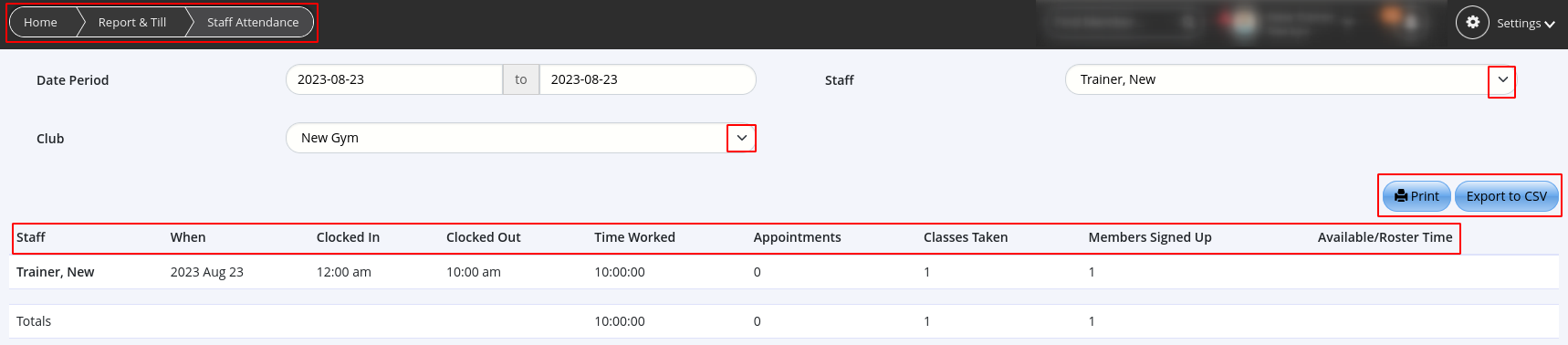
Reports can be printed or exported to CSV as needed.
Edit Staff Attendance
Clock-in and clock-out times can be edited by staff with Admin-level access to Reports, or by staff who have been granted permission to edit their own timesheet under User Administration > Staff Member Details > Options.
To edit attendance, run the Staff Attendance report via Reports & Till > Staff Attendance, or select View Staff Timesheet from the staff member’s record in User Administration.

Select the relevant staff member and date to make changes. You can edit existing entries or add new timesheet records for that day.
From the edit screen, you can adjust start and end times, add notes, add additional timesheets, or delete entries.

Save all changes using the blue tick icon.

 2026 © Treshna Enterprises Ltd.
