Automated billing removes the manual work involved in tracking recurring membership payments. Once set up, it becomes a largely set-and-forget process.
Members are prompted to provide their payment details when signing up for a membership, either online or in person.
Payment details are securely stored by the billing provider, not by GymMaster.
Based on the membership’s payment frequency and fee settings, GymMaster sends a payment request to the billing provider.
The billing provider then processes the request with the member’s bank, and the payment is settled back through GymMaster.
The full automated billing process typically takes 3–5 working days, though timing will vary depending on the billing provider and the member’s bank.
To understand how the process works, see Integrated Billing.
A billing provider is required to use GymMaster’s automated billing feature.
A billing provider is a third-party service that stores payment details and securely processes membership payments on your behalf. It integrates with GymMaster to manage automated and recurring billing, invoicing, and related financial transactions. GymMaster supports several providers, including Ezypay, Stripe, and Square.
Using a billing provider streamlines your billing processes, reduces administrative work, and gives members convenient, flexible payment options. It also ensures transactions are handled securely and in line with industry standards and compliance requirements.
The following links can help you understand billing providers and choose the option that best suits your club:
Right Billing Provider for Me
Best Provider for Your Club
Providers in Your Location
When signing up with a billing provider, use this link to ensure you select a GymMaster-compliant provider that is supported in your region;
PCI Compliant Billing Providers per Region.
Go to Settings > Financial Configuration > Billing Settings.
Select Add Billing Provider
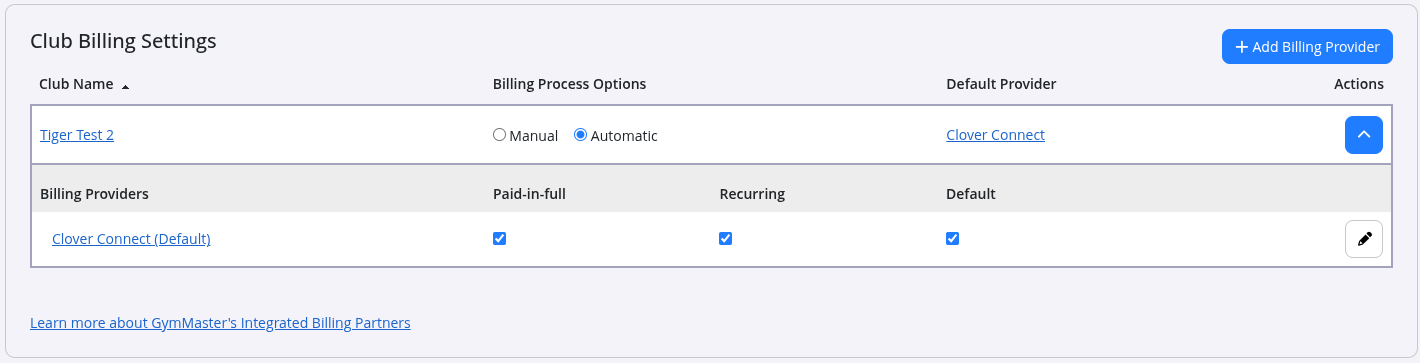
Select Billing Provider/s:
Select your chosen billing provider/s from those listed; these are the billing providers available in your region.
Enter the API credentials supplied by your billing provider/s. These are usually emailed to you, or may be provided directly to GymMaster by the provider. Contact your billing provider if you cannot locate them.
Paid in full and recurring providers:
Select a billing provider for paid-in-full transactions - these include all paid in full memberships, and any booking or products purchases paid in full.
Select a billing provider for recurring payments - these are your regular recurring payments for memberships.
Both options must be selected, even if using the same provider for both.
Ensure Automatic is selected under Billing Process Options.
Complete the following sections:

Billing Currency: Select currency all billing will occur in here.
Note: This is set during your GymMaster signup and cannot be changed manually. If it needs to be updated, contact GymMaster Support.
Dishonor Fee:
Applies a fee to the member’s account when a payment is rejected with a dishonor response from the billing provider. Please note this mostly applies to the NZ/AU region.
This applies only to true dishonors where the member’s bank charges a fee (for example, insufficient funds), and does not apply to standard payment failures such as a closed bank account or an expired credit card. Because banks often charge dishonor fees to the billing provider or merchant, this setting allows the club to recover that cost from the member.
Billing Days:
Controls which days of the week and which days of the month can be selected for recurring automated billing.
These settings determine the valid billing dates when creating or editing recurring memberships. For example, you can restrict billing to specific weekdays, avoid weekends or public holidays, or limit billing to certain days of the month (such as the 1st, 15th, or 28th).
By defining allowed billing days, you can align billing runs with your banking processes, reduce payment failures, and keep billing consistent across all memberships.
For most clubs, we recommend leaving all days available unless you intentionally want to restrict billing to a specific day of the week or month.
Billing Settings
Review each option carefully and enable or disable settings to suit your club’s billing requirements.
Note: Additional general billing settings are available under Advanced Configuration; follow the link at the bottom of the page to view them.
Members signing up for memberships with recurring automatic payments will be asked to provide a payment method, usually a credit or debit card.
Payment details are collected during online sign-up via the Member Portal. When joining in person, staff will be prompted to request these details after the member has selected their membership type.
Payment details are securely stored by the billing provider and are not saved in GymMaster.
When automated billing is enabled, membership payments are processed automatically according to your billing cycle. The timing of each payment is determined by the membership’s payment frequency and the membership’s first payment date.
Further questions about billing? Look through our Billing FAQs.



 2026 © Treshna Enterprises Ltd.