
Bluetooth to Check-In
For members to access your facility using the access control, they will need either a Bluetooth Access Token or a Key Fob linked to their account. As with all access methods, Bluetooth access is always linked to the member’s current account status, which means:
- Members can only enter during the door access times allowed by their active membership or casual booking
- Members with failed billing attempts, account holds, expired memberships, or cancelled memberships will be denied access until the issue is resolved.
The following areas are covered in this article;
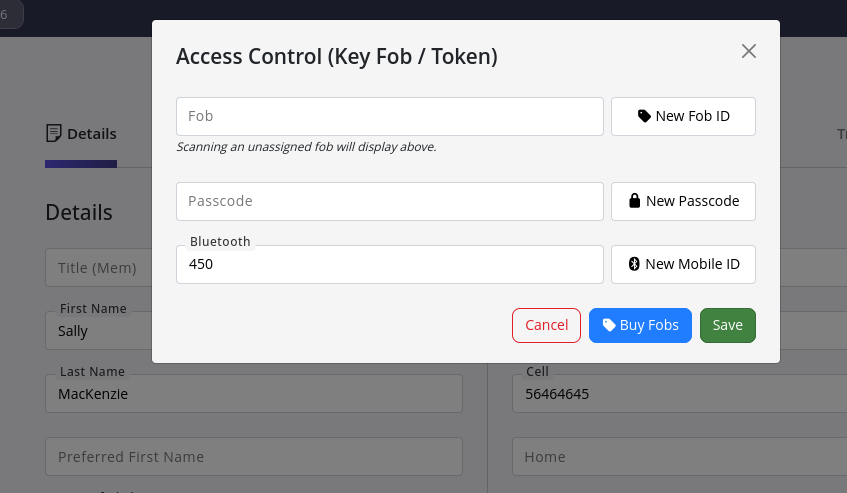
Assign Bluetooth Access Manually
- Open the member’s profile in GymMaster
- Click the button next to Key Fob / Token
- Select New Mobile ID
- Click Save
The system generates a unique identifier for that member. The token is now active and linked to their account.
Assign Bluetooth Access Automatically
You can automate token assignment in two ways.
Assign for bookings
- Go to Settings > Advanced Configuration > General
- Enable Assign a Bluetooth access token when booking
The system will assign a token the first time a member makes an online booking.
Assign on membership purchase, by membership category
- Go to Settings > Membership Types > Categories
- Edit the relevant category
- Enable Assign a Bluetooth Access Token (online and staff sign-up)
Any member placed on that category, whether signed up online or by staff, will automatically receive a Bluetooth token.
Use Bluetooth Check-in
Members must download the GymMaster Member App from;
To check in:
- Enable Member App Bluetooth Access in Settings > Advanced Configuration > Doors & Readers
- Members log into Member App using their email and password
- Switch on Bluetooth and allow Bluetooth permissions when prompted
- Tap Check-In at the top of the app when near the reader
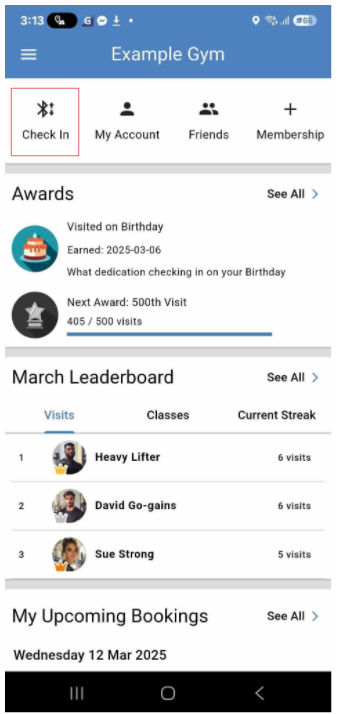
The Check In icon will only appear if the facility supports Bluetooth access and the member has Bluetooth Access enabled on their account. The app will begin scanning for nearby Bluetooth door readers. When a reader is detected, the reader will indicate the result:
- Green: access granted
- Red: access denied
Members need to be within a couple of metres of the reader for it to be detected. It is recommended that they do not hold their phone directly against the reader.
So long as the member has:
- An active Bluetooth Access Token
- Valid membership or booking access
The door will unlock and the visit will be recorded on the Visitors page.
If there are issues, see our Member Denied Entry troubleshooting page
Common Questions this Covers
- How to enable Bluetooth access
- How to allow members to use mobile phone to access club
- How to allow members to use cell phone to access club
- How to grant Bluetooth access per membership
- Can we automatically allow Bluetooth access to new members

 2026 © Treshna Enterprises Ltd.