
Featured
QR Code Access – Member Check-In
2 min read
Updated
8 days ago
QR Code entry lets members unlock doors using the Member App.
Access is always linked to the member’s live account in GymMaster.
Before Arrival
Full guide: QR Code Access - Club Setup.
Members need the GymMaster Member App installed and must be logged in with their email and password.
Their membership must be active and include valid access rights for that door and time of day. If access isn’t current, the door won’t unlock.
–
Opening Door
When arriving at the facility:
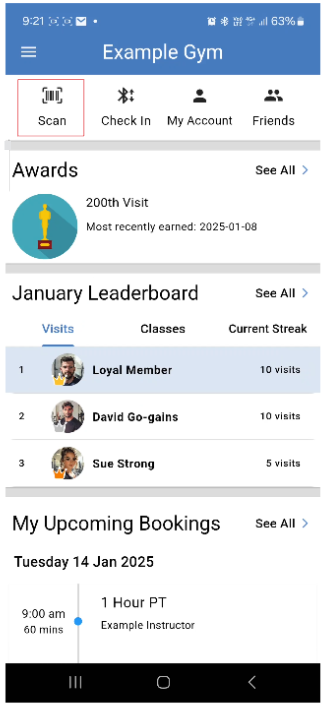
- Open the GymMaster Member App
- Tap Scan
- Scan the QR Code displayed near the door
If everything is in order, the door unlocks and the visit is recorded automatically.
The Scan icon only appears in the App when the club supports QR entry.
Denied Access
The most common reasons are:
- Membership is not active
- The member is outside permitted access hours
- Location services are disabled on the phone
Common Error Messages:
Missing co-ordinates for check in
- Your facility does not have an address set. Go to Settings > Club Details and enter your facility’s address
You’re too far away from the facility to check in
- GymMaster checks location to prevent remote check-ins
- Confirm the member is at the facility, their phone location settings are correct, and your club address is set correctly in Settings > Club Details
QR code expired
- Dynamic codes refresh every couple of minutes. Refresh the page if needed
Common Questions this Covers
- How do members check in using QRcode
- How do members enter club using phone
- Door access options for members
Get started with a free, no-obligation chat, and see how we can help you grow

Awards and recognition
- Deloitte Master of Growth Index 2025
- Deloitte Master of Growth Index 2024
- Software Advice FrontRunners 2023
- GetApp Category Leaders 2023
- Capterra Best Value 2022
- GetApp Best Functionality & Features 2022
- Software Advice Most Recommended 2022
- SoftwareSuggest User Most Likely to Recommend Summer 2022
- Software Advice Best Customer Support 2021
- Deloitte Technology Fast 500 Asia Pacific 2018
 2026 © Treshna Enterprises Ltd.