
Set Up and Allow Access to the Member App
Before enabling access to the Member App, ensure your Member Portal is fully configured. Most settings carry across to the app.
While members can access the portal via desktop, most will primarily use their phone through the Member App.
Your core Member Portal settings carry over to the app; however, the visual presentation differs significantly, and some features are exclusive to the app.
This guide explains how to configure the look and behaviour of the Member App and how to enable access for your members.
- Configure How the App Looks and Functions
- Enable Member Access to App
- Share App Download and Login Instructions
- Allow Members to use App for Access
Configure How the App Looks and Functions
Home Screen Widgets
The Member App home screen can be customised per club by selecting and ordering a range of widgets.
Widgets are small app components that appear on the home screen, providing quick access to key information and shortcuts to deeper areas of the app.
Widgets are managed via Settings > Member Portal > Customize Member App.
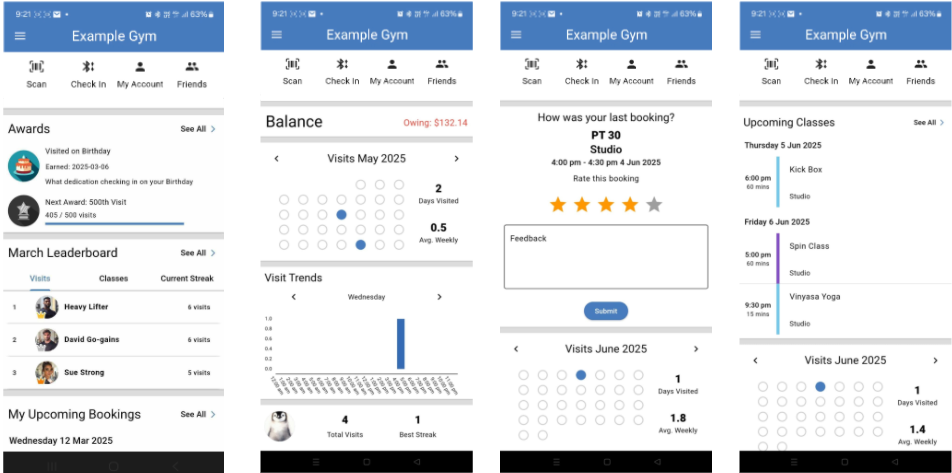
Note that some widgets require the setting being enabled within member portal configuration before they appear.
For example, the Friends and Leaderboards widget requires Settings > Member Portal > Member > Enable friends feature on app to be enabled.
Available widget options include:
| Widget | Description |
|---|---|
| Dashboard Actions | Action buttons such as check in, friends, account details |
| Club Notices | Displays the club notices as set in Settings > Club Details |
| Club Details | Contains contact information for the club, as set in Settings > Club Details |
| Open Hours | Displays clubs open hours, as set in Settings > Roster and Open Hours |
| Head Count | Allows members to view how many members are currently in facility |
| Leaderboards | Shows stats between member and their connected Friends |
| Awards | Displays most recent award, and provides direct link to Awards pages in App |
| Account Balance | Displays members current account balance on home page |
| Oustanding Balance | Displays outstanding balance on home page; only when relevant |
| My Upcoming Bookings | Shows member’s upcoming booked classes and services |
| Rate Attended Booking | Enables bookings attended within 24hrs to be rated by members |
| Upcoming Classes | Displays timetable for the clubs upcoming scheduled classes; link to book |
| Ending Memberships | Shows memberships that are ending soon; only when relevant |
| Visit Stats | Summary of visit stats and awards (if awards enabled) |
| Visit Trends | Showing visit trends over time; when member is visiting ; day of week and times |
| Visit History | Visual display of visits per month |
| Monthly Visit Stats | Combines stats with visual of monthly visits |
Personalise the app colour scheme
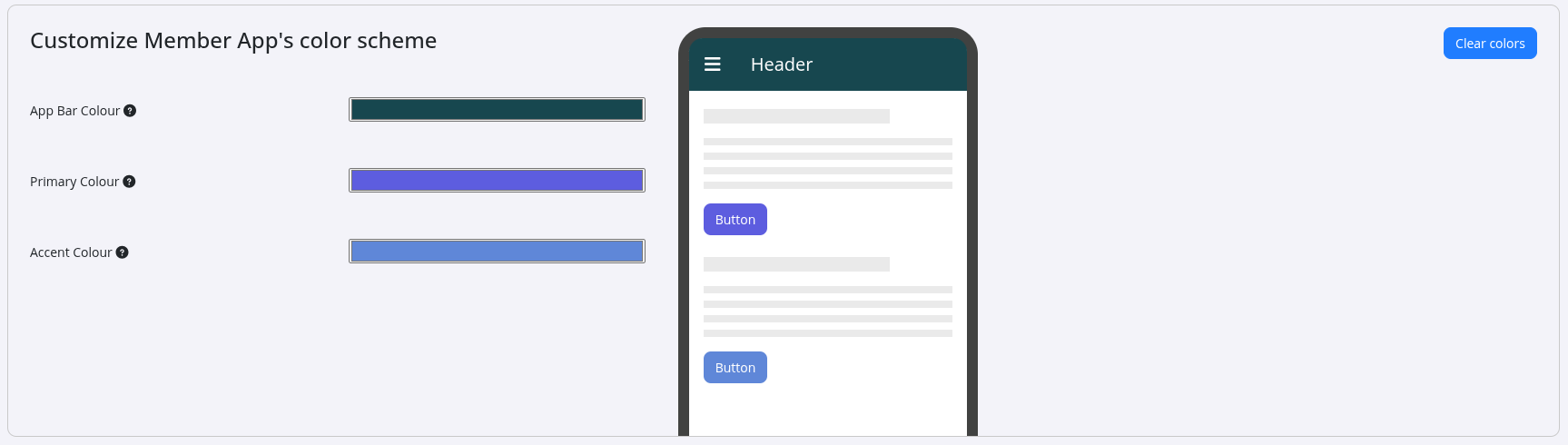
The app colour scheme and button colours are configured in Settings > Member Portal > Customize Member App — the same area used to manage widgets.
Control how classes and services appear in the app
When creating individual classes and services, you can set the logo, background colour, and description.
To display these in the app homescreen, enable one or more booking-related widgets for upcoming bookings or classes.
Additional booking behaviour is determined by your portal button settings.
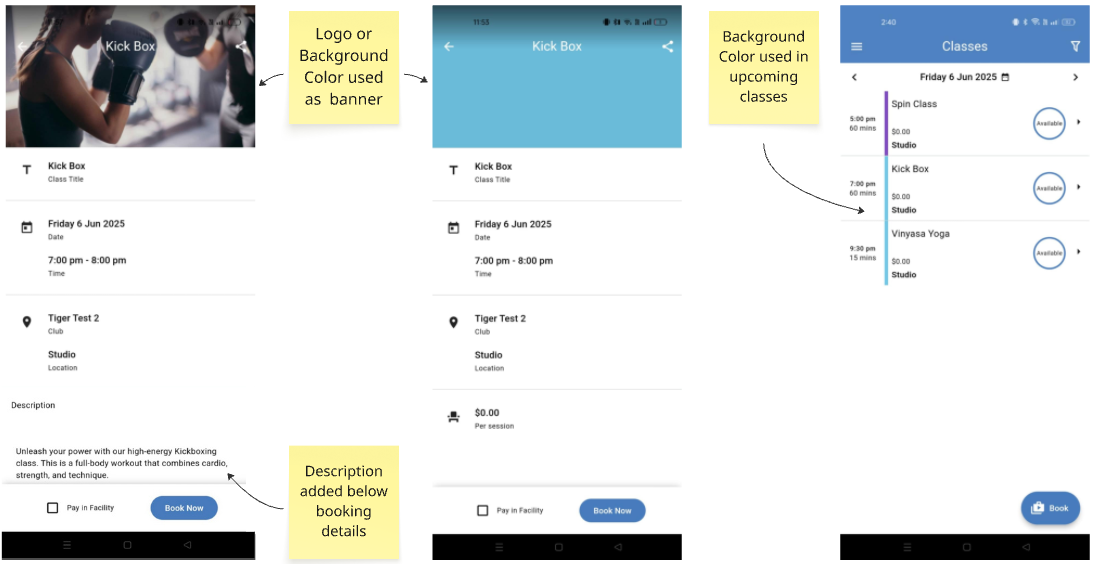
Note: Classes appear greyed out on the schedule when full or unavailable. For best visibility, choose colours that contrast clearly with grey.
Menu banner
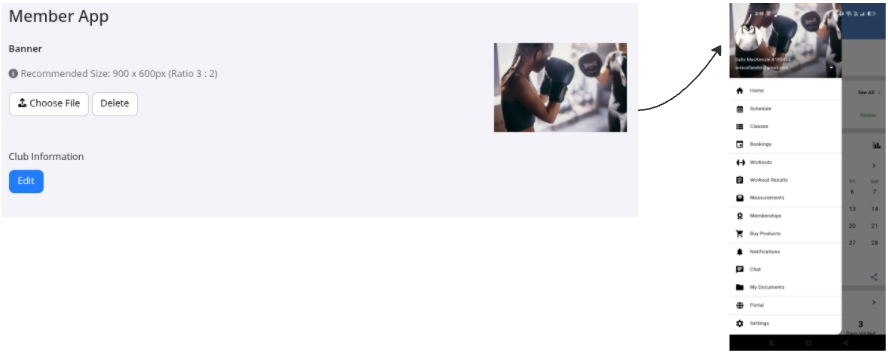
You can optionally upload a branded image to display at the top of the main menu in the Member App. Go to Club Details > Member App > Banner and upload your chosen image. The recommended aspect ratio is 3:2 (approximately 900 × 600 pixels).
Note: The logged-in member’s profile photo and name display over the banner image.
Menu options
The same menu options enabled in Member Portal > Portal Buttons will be enabled in the Member App, although they display differently visually.
Enable Member Access to App
Once the app is configured to look and function as required, you can enable member access to the app. Go to Settings > Advanced Configuration > General > Enable Mobile App Access for Members.
Note: It may take up to one hour for this setting to sync across all member accounts.
Share App Download and Login Instructions
Include download and login instructions in your welcome email ensures members can access the app from day one.
Download the app
Members can download the GymMaster Member Portal App from:
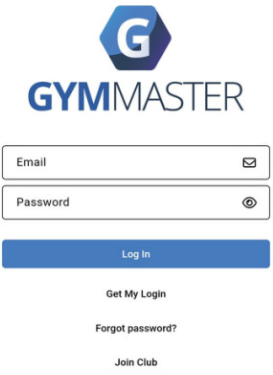
Log in to the Member App
Once installed, members can log in on their smartphone or tablet using:
- Login: The email address used during sign-up
- Password: The password created during sign-up
Member forgotten password? Tap Forgot Password on the login screen and follow the prompts.
To receive push notifications, members must enable notifications for the GymMaster App in their device settings.
See Login FAQs to answer some common login questions.
Allow Members to use App for Access
When enabled and used with compatible hardware, members can unlock club doors via Bluetooth or QRCode using the GymMaster Member App from their first visit.
This provides a seamless, contactless entry experience directly from their smartphone.
Common Questions this Covers
- How do I customise the look of my GymMaster Member App
- Where do I change the banner image in the member app
- How do I add images and descriptions to classes in the member app
- Why are my classes all showing the same colour in the app
- How do I set staff or trainer photos in the booking app
- Can I hide menu items in the member app to simplify what members see
- How do I turn off features I don’t use in the GymMaster app
- Where do I edit what appears in the class booking screen in the app
- How do I make my gym app more branded and professional looking
- What settings control how memberships and bookings display in the member app

 2026 © Treshna Enterprises Ltd.