
Group Communication
2 min read
Updated
1 month ago
Send one-off emails or SMS messages to multiple members or staff in a single action.
Note that this method does not use tasks, automation or templates.
Here are your key methods for one-off messaging a number of members at once;
Group Email or SMS
Members or Staff
One-off bulk messages are sent using Reports. Using reports allows you to communicate with specific groups of members or staff.
This method is ideal for ad hoc communication to members or staff, using live filters to build the exact audience you need.
To begin: navigate to Reports and Till > Standard Reports
- Select a report that best matches your audience (for example, Current Members)
- Select Edit to Filter, or select Show Report
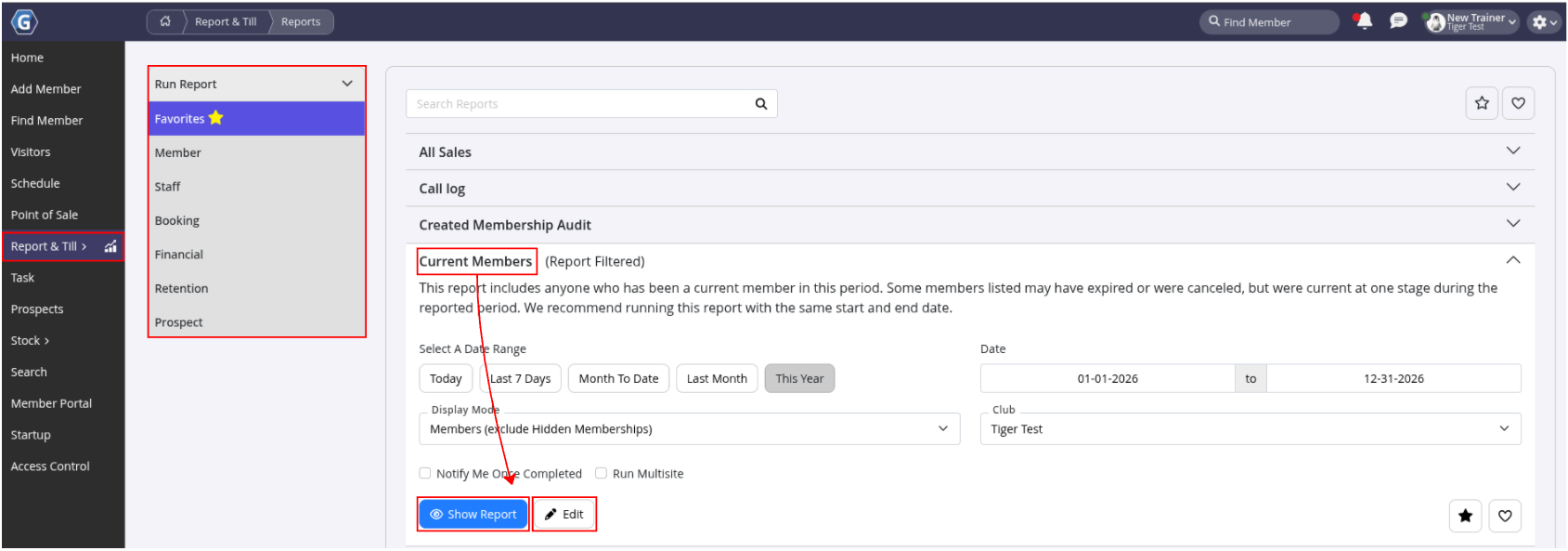
- Select Send SMS or Send Email along top menu bar
- Review and select recipients (Select All along top menu bar)
- Next
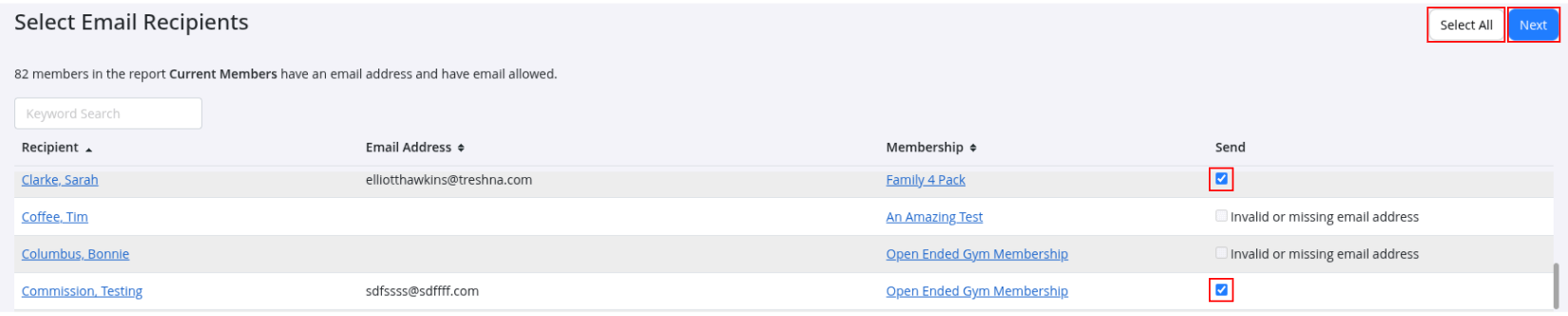
- Write your message
- Personalize using template fields
- Click Send
Messaging Class Attendees
Members
Send a one-off message directly to members booked into a specific class.
Begin at the Schedule
- Select Class from Schedule
- SMS Attendees or Email Attendees

- Select all attendees or choose specific members
- Next
- Write your message
- Personalize using template fields
- Click Send
Common Questions this Covers
- How do I send a bulk SMS or email to multiple members
- Can I email all current members at once
- How do I send a bulk message using reports
- How do I message everyone booked into a class
Get started with a free, no-obligation chat, and see how we can help you grow

Awards and recognition
- Deloitte Master of Growth Index 2025
- Deloitte Master of Growth Index 2024
- Software Advice FrontRunners 2023
- GetApp Category Leaders 2023
- Capterra Best Value 2022
- GetApp Best Functionality & Features 2022
- Software Advice Most Recommended 2022
- SoftwareSuggest User Most Likely to Recommend Summer 2022
- Software Advice Best Customer Support 2021
- Deloitte Technology Fast 500 Asia Pacific 2018
 2026 © Treshna Enterprises Ltd.