
Filtering Your Reports
Filters allow you to narrow down report results to show only the specific data you’re looking for.
For example, you might want to:
- Show only active members
- Find members with overdue balances
- Filter members born before the year 2000
- View memberships within a certain category
Add Filters to a Report
Start by selecting your report and clicking Edit. This will display all fields currently included in the report.
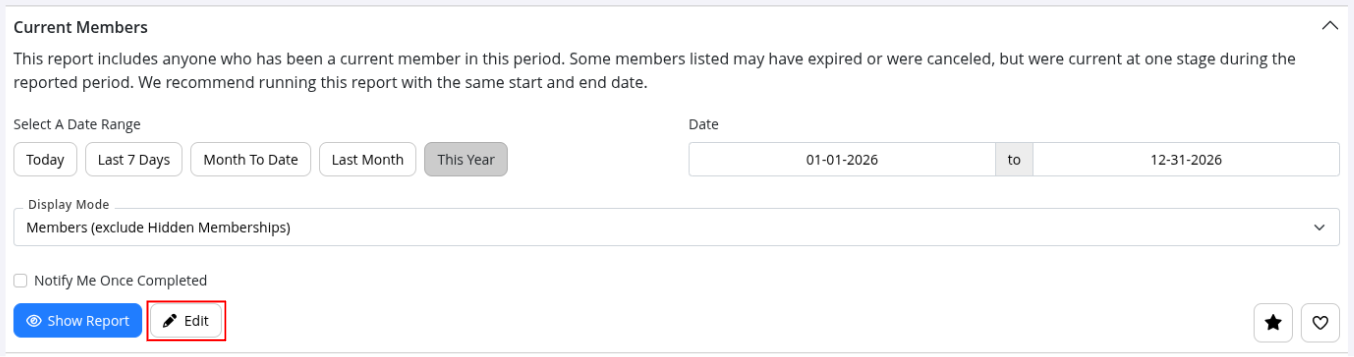
To add a filter:
- Locate the field heading under Edit Report you want to filter by
- Or select Add Field to add an option not available within list. See Customising your Reports
- Use the dropdown Filter menu beside the field
- Select a filter operator
- Enter the value you want the field compared against
Some fields require values to be entered in a specific format.
Before adding filters, it can help to first run the report and review the values already appearing in that field. This makes it easier to enter the correct filter value and avoid unexpected results.
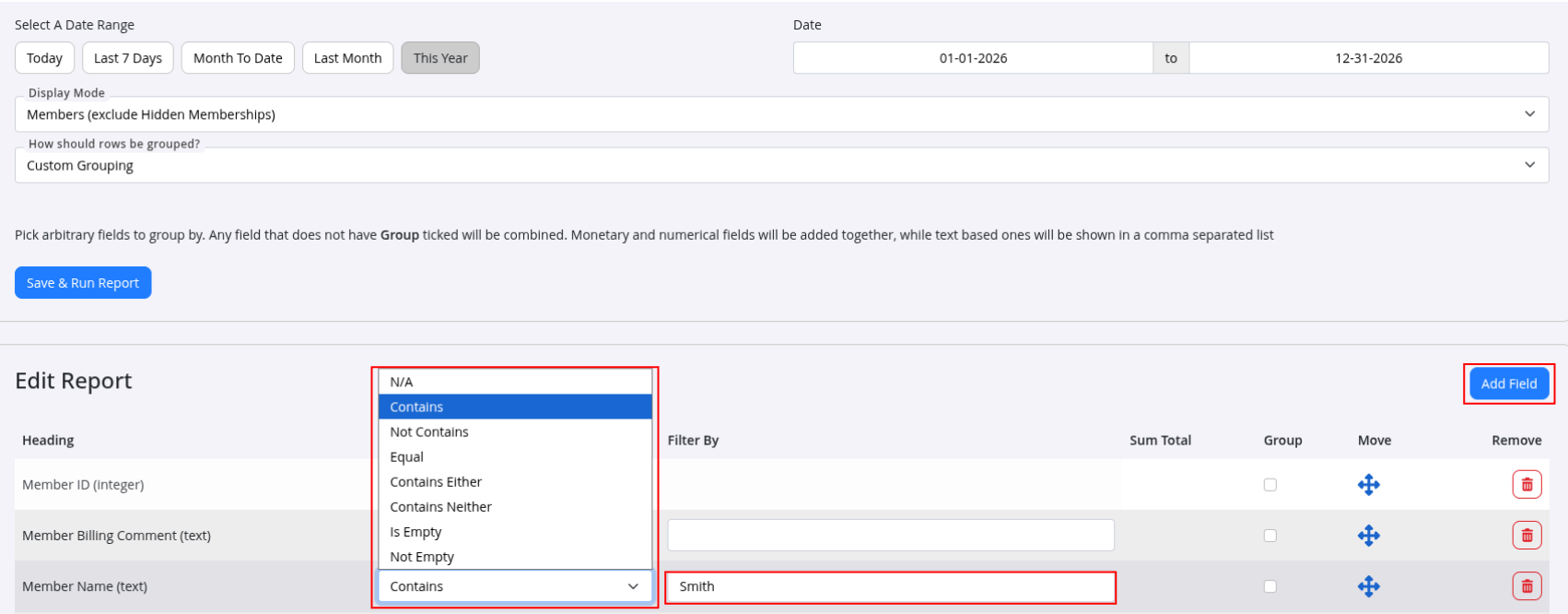
Once your filters are configured:
- Click Save
- Refresh the Standard Reports list if needed
Your customised report will then be available for future use.
Tip - Before a report we recommend clicking Create Duplicate first.
This keeps your original report untouched and gives you a safe version to customise for specific tasks or staff.
Filter Operators
Filter operators tell GymMaster how to compare the field value against the value you enter.
Available operators depend on the field type, such as:
- Text
- Numbers
- Dates
- Yes / No fields
For example, date fields and text fields support different comparison options.
All field types include these common operators:
- IS EMPTY — the field contains no value
- IS NOT EMPTY — the field contains a value
These are especially useful for identifying incomplete or missing information.
Example: The Membership End Date field will usually be empty for ongoing memberships with no fixed end date.
| Data Type | Description | Common Operators | Real-World Examples |
|---|---|---|---|
| integer | These are numbers | EQUAL, GREATER THAN, LESS THAN | How would you get a members older than 18? Column: Age. Filter: GREATER THAN. Filter By: 18 |
| text | These are words and sentences | CONTAINS, NOT CONTAINS | How would you get members with the last name Smith? Column: Member Name. Filter: CONTAINS. Filter By: Smith. |
| date | Dates | BEFORE, AFTER, AT, BETWEEN | How would you get members that signed up in 2019? Column: Member Joining Date. Filter: BETWEEN. Filter By: 01-01-2019 ro 31-12-2019. |
| boolean | True or False/Yes or No | IS, IS NOT | How would you get a list of members new to the club? Column: Is new member. Filter: IS. Filter By: True |
Common Questions this Covers
- How to filter report
- How to adjust report
- How to find specific information in report

 2026 © Treshna Enterprises Ltd.
