
SilverSneakers and GymMaster
GymMaster can help clubs manage SilverSneakers members and prepare visit reports for submission to the SilverSneakers program. This is done using custom member fields and GymMaster’s reporting functionality, rather than a direct integration.
This guide explains how to record SilverSneakers member IDs, create a report of successful visits, and export the information to CSV.
- Step 1: Custom Field for SilverSneakers IDs
- Step 2: Add SilverSneakers Membership or Tag
- Step 3: Add SilverSneakers Visit Report
- Step 4: Run and Export Report
Step 1: Custom Field for SilverSneakers IDs
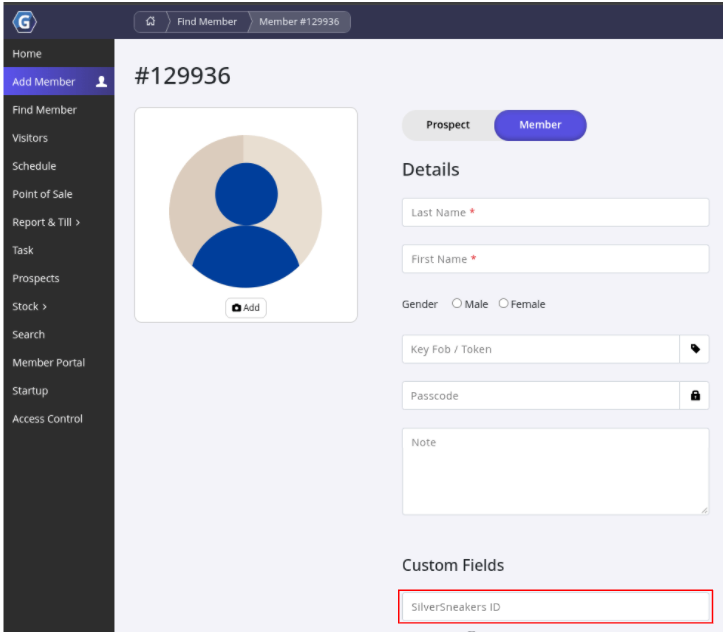
Create a custom field to store each member’s SilverSneakers ID;
- Go to Settings > Custom Fields
- Under Text Input Fields, enter a name for the field, such as SilverSneakers ID
- Click Save

- The field can then be used to record each member’s SilverSneakers ID on their member profile;
Step 2: Add SilverSneakers Membership or Tag
Full Guide: Creating Your Memberships and Using Digital Tags
- Ensure your club has a membership type OR a tag for SilverSneakers Members
- Ensure your SilverSneakers members are added to this membership, or have a tag added to their profile
- The report (next step) will use either of these to filter visits to the relevant members
Step 3: Add SilverSneakers Visit Report
Create a customised Visitor Log report to show successful visits by SilverSneakers members.
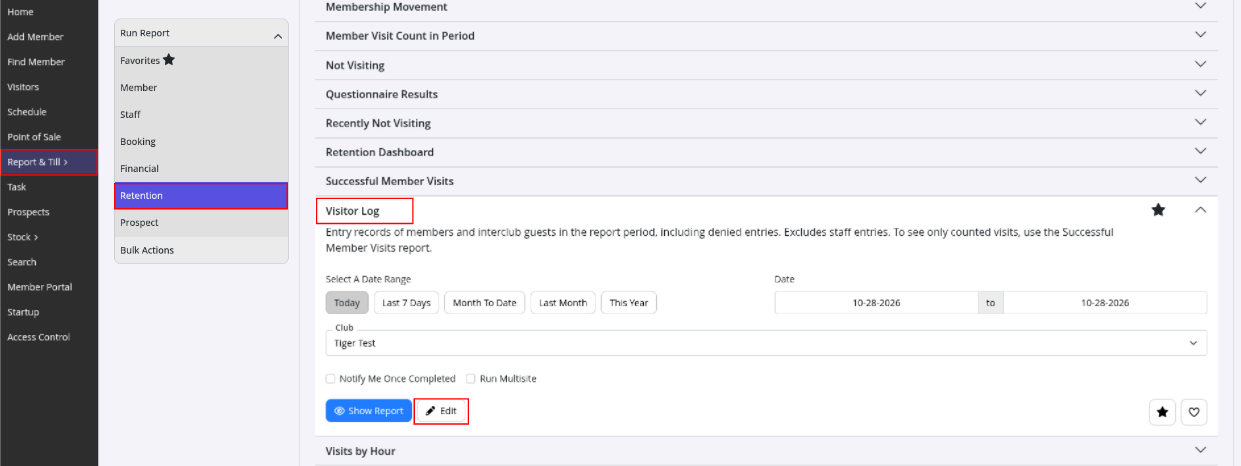
- Go to Report & Till > Standard Reports > Retention > Visitor Log
- Select the Visitor Log report and click Edit
- Create Duplicate (top right) and rename this report; eg Silver Sneakers Visitor Log
- This is to avoid overwriting your original plain visitor log report
- Enable Show Multiple Row under the Description settings, as described in the GymMaster guide

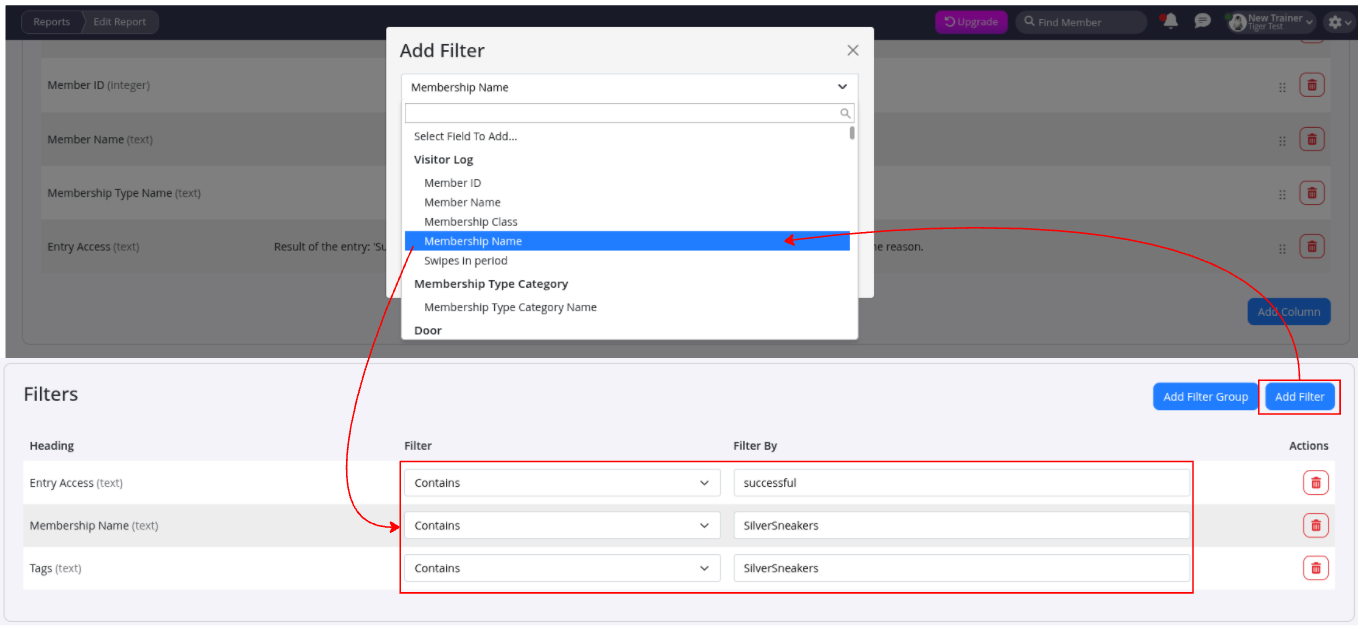
- Add a Tag OR Membership Name filter to contain SilverSneakers
- Add an Entry Access filter to contain successful, so the report includes visits where access was granted
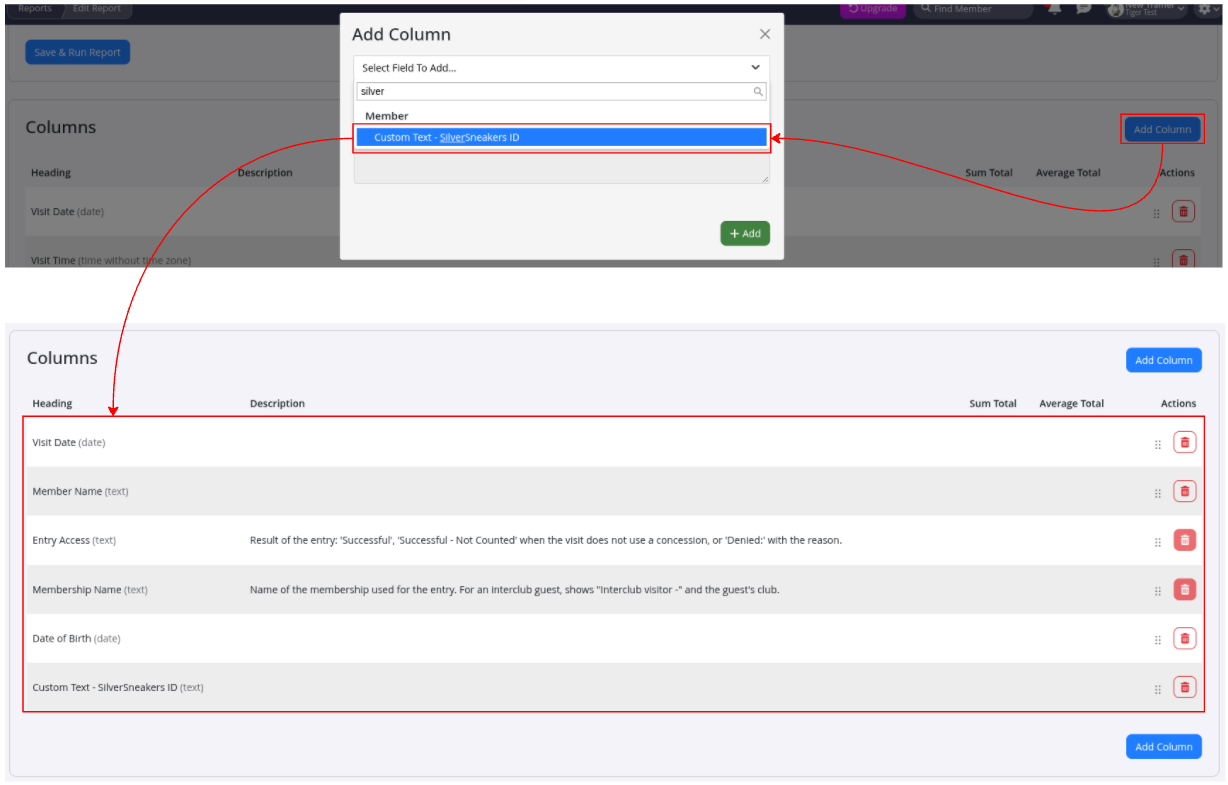
- Use the Add Column option to include the information required for reporting, such as:
- SilverSneakers ID
- Date of birth
- Any other fields required by SilverSneakers
- Remove columns that aren’t required
- Click Save to save the customised report
Step 4: Run and Export Report
Once the report has been saved, you can run it whenever you need to prepare SilverSneakers visit data.
- Go to Report & Till > Standard Reports > Retention
- Select your saved SilverSneakers Visitor Log
- Choose the date range you need to report on
- Click Show Report
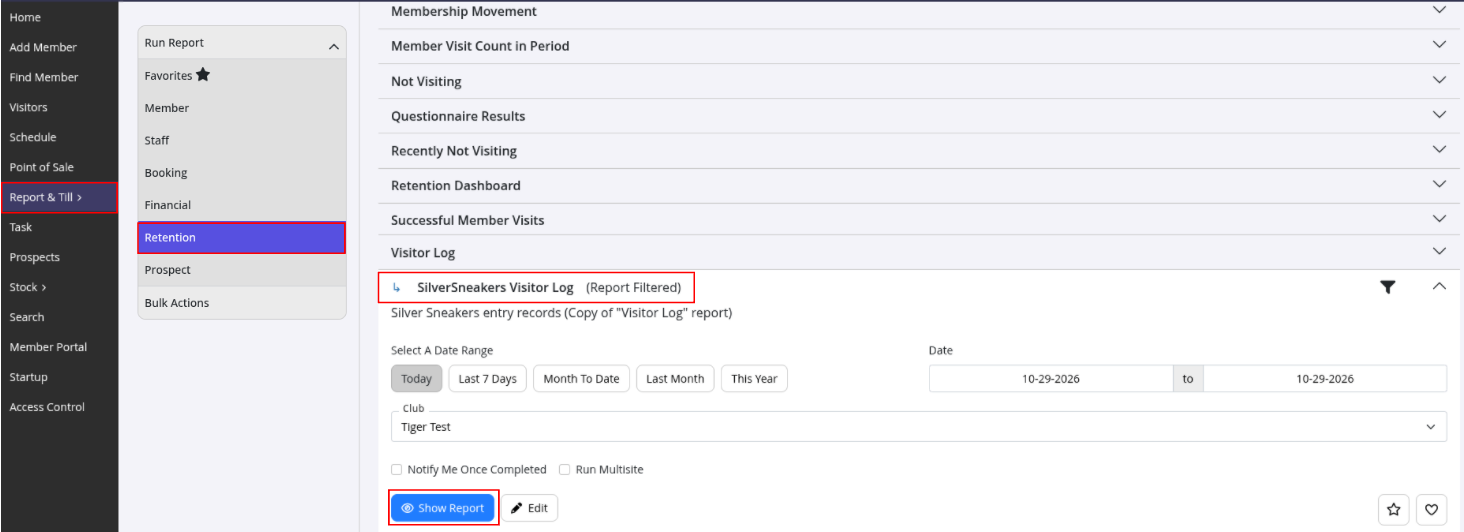
- Use the Export to CSV option to download the report
Before submitting the file, check the exported data against SilverSneakers’ current reporting requirements. Remove any fields that aren’t required and ensure the file contains the correct member details and visit information.
Important
- This is not a direct integration. The process uses GymMaster’s custom fields and reporting tools. The report must be run and exported manually.
- Record member IDs accurately. Make sure each SilverSneakers member’s ID is entered in the correct custom field.
- Check the required reporting format. Confirm the current fields and submission requirements with SilverSneakers before sending your CSV file.
- Menu names may vary. The setup steps are based on GymMaster’s published guide; your current interface may differ.
Common Questions This Covers
- Can GymMaster be used to manage SilverSneakers members
- Is SilverSneakers directly integrated with GymMaster
- How do I record a SilverSneakers member ID
- How do I create a SilverSneakers visit report
- How do I report successful SilverSneakers visits
- How do I export SilverSneakers visit data to CSV

 2026 © Treshna Enterprises Ltd.