
Creating Your Memberships
Memberships form the core agreement between your club and your members.
They define what a member can access, such as doors, classes, services, bookings, and product discounts, as well as how and when they are billed for those benefits. For an overview on the different kinds of membership you can create, see Building Your Memberships.
Before creating your memberships, make sure you have set up your tax rates, clubs and doors, classes, services, products, and forms and waivers.
Create Membership Categories
Full Guide: Membership Categories.
Membership Categories group similar memberships together and allow shared settings to be applied to all Membership Types within the category.
Settings selected at the category level are automatically inherited by memberships created within that category.
Begin at to Settings > Membership Types > Membership Categories > Add Category.
- Enter the category details and configure the required settings
- Select Save
- Repeat for any additional categories required
Once your categories are set up, move on to adding membership types.
Add your Membership Types
Create your first memberships; for inspiration see Building Your Memberships.
- Begin by navigating to Settings > Membership Types > Add Membership Type.
Work through each section carefully, using the related guides for more detailed information where required.
Membership Type
Start by defining the membership’s identity and structure. These settings form the foundation for the pricing, billing, access, and eligibility rules that follow.
- Give the membership a clear and recognisable name. This is what members will see when signing up or reviewing their membership.
- Select the Membership Categories the membership belongs to. Categories group similar memberships together and apply shared settings.
- Select the club or clubs where the membership is valid. This works alongside Door Access Benefits to control physical access.
- Select the Membership Basis. This determines whether the membership is ongoing, time-limited, pack-based, an add-on, or a trial. It also determines how the membership operates and which payment options are available.
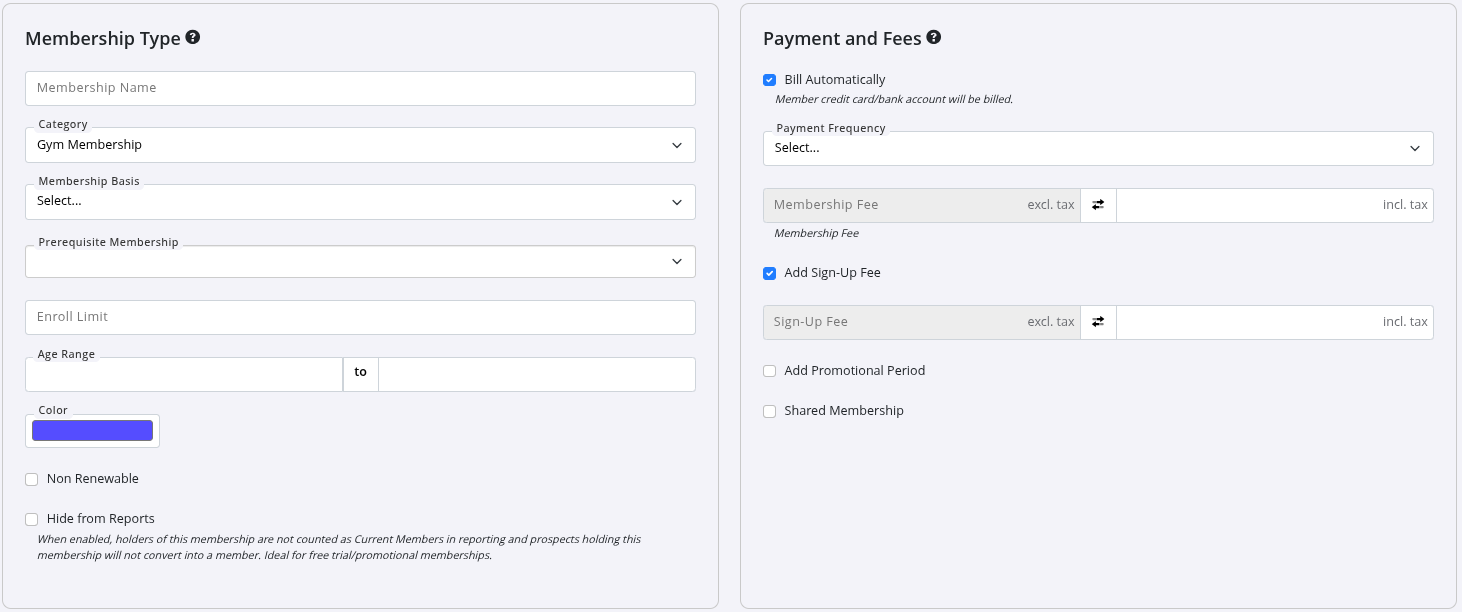
Depending on your Membership Settings, you may also need to configure:
- Limit: Controls how many times a member can hold or purchase the same membership.
- Follow-On Membership: Automatically moves the member to another membership when the current membership ends.
- Prerequisite Membership: Requires the member to hold, or have held, another membership before purchasing this membership.
- Enroll Limit: Limits the total number of members who can have the membership in use at one time.
- Age Range: Restricts who can purchase the membership based on age.
- Colour: Sets the colour used to identify the membership in online sign-up and the Member Portal.
- Non Renewable: Prevents the membership from being renewed once it expires.
- Hide from Reports: Excludes the membership from relevant member reports and counts. This is commonly used for trials or promotional memberships.
Payment and Fees
Set how much members pay, how often they are charged, and any additional or promotional fees.
- Select the Payment Frequency. This determines how often members are charged. The available options depend on the Membership Basis selected above.
- Enter the Membership Fee. This is the amount charged for each payment period and is collected in advance.
If required, configure any additional options:
- Sign-Up Fee: Add a one-time fee when the membership is first purchased. This is charged in addition to the membership fee.
- Promotional Period: Offer a discounted or free period at the beginning of the membership.
- Promotion Price: Set a discounted membership fee for the promotional period.
- Free Until: Allow members to use the membership at no cost until the specified date.
- Duration: Define how long the promotional period lasts before standard billing resumes.
- Shared Membership: Allow multiple members to share the same membership and its benefits, such as families, couples, or groups.
- Additional Member Limit: Set the maximum number of additional members who can be added.
- Additional Member Price: Set the additional fee charged for each additional member.
Membership Benefits
Full Guides: Membership Benefits
Membership Benefits define what members receive with their membership. They determine what members can access and any discounts or extras they receive.
Take time to check the benefits carefully, as they determine the access and privileges provided by the membership.
- Classes: Free or discounted access to group classes.
- Services: Free or discounted access to additional services.
- Door Access: Access to specific doors or clubs during designated hours.
- Products: Discounts on retail products.
- Guest Passes: Allow members to bring guests into the club.

Default Benefits
New Membership Types automatically receive default benefits:
- Access to all doors at the membership club(s) during Open Hours.
- Unlimited access to all classes, free of charge.
If these defaults are not required, use the Edit or Delete icons to adjust or remove them.
Sell Membership Online
Full Guide: Selling Memberships Online
When online membership sales are enabled in your Membership Type settings, the membership can appear online even if Quick Sign-Up or Online Sign-Up options are not selected. These options control the sign-up experience and who can purchase the membership.
Buy Online Links and Quick Sign-Up Links provide URLs that can be used on your website or in promotional material to direct members directly to the relevant sign-up page.
Configure the online membership options as required:
- Select who the membership is Available For:
- Everyone
- New members
- Existing members
- Add a Description to explain the membership to members during online sign-up.
- Use Sort Order to control the order in which memberships appear within their category.
- Enable Allow Pay Later if members should be able to complete their online sign-up and pay when they first visit the club.
- Enter a Redirect URL if members should be sent to a specific page after completing sign-up.
- Allow Renewal Online: Allows existing members to renew the membership online.
- Fixed Period: Limits online availability to a specified start and end date.
- Online Cancellation Fee: Applies a fee when the membership is cancelled online.
Forms
For more information, see Membership Forms and Waivers.
Select the forms, contracts, waivers, and questionnaires that members must complete when signing up.
These may include:
- Membership Contract Summary
- Terms and Conditions
- Waivers
- Questionnaires
Forms and waivers must be created in Forms and Waivers before they can be attached to the membership.
The selected forms will be presented to members during sign-up for completion and/or signing.
- Save
Common Questions this Covers
- How do I create a new membership in GymMaster?
- How do I set up a Membership Type?
- How do I create a membership category?
- How do I set the price and payment frequency for a membership?
- How do I add benefits to a membership?
- How do I set up door access, classes, and services for a membership?
- How do I make a membership available for online sign-up?
- How do I attach contracts, waivers, or questionnaires to a membership?
- How do I create multiple similar memberships quickly?
- What do I need to set up before creating my memberships?

 2026 © Treshna Enterprises Ltd.