
Using Digital Tags in GymMaster
Tags, also known as labels or digital labels, are customisable, coloured identifiers you can put on members and prospects. They help you group people by shared characteristics, interests, activities or status, without creating extra membership types or custom fields.
Common uses include:
- Member identification: Highlight VIPs, new members, trial members, or members who need extra help
- Interests and activities: Group members interested in powerlifting, Pilates, or a particular class
- Marketing: Build groups for targeted email and SMS campaigns
- Reporting: Filter reports to look at one group of members
- Member searches: Find members by tag when you don’t remember their names
- Automation: Add or remove tags automatically when an event happens
A member can have as many tags as you like, so they can belong to several groups at once.
- Create Tags
- Add and Remove Tags
- Manage Tags Automatically
- Use Tags to Find Members
- Use Tags for Communication
- Tags vs Custom Fields
Create Tags
Set up the tags your club uses in one place, so staff choose from the same list.
Navigate to; Settings > Custom Fields
- Scroll down to Tags and select Edit Tags
- Select Add Tag
- Enter a Name. Keep it short, as it shows on the member’s profile
- Add Hover Text describing what the tag is for. Staff see this when they hover over the tag
- Choose a colour
- Save
Note - You can also create a new tag straight from a member’s Tags field. Add hover text to it afterwards under Settings > Custom Fields > Tags, so other staff know what it’s for.
Add and Remove Tags
Add a Tag
- Open the member’s or prospect’s page
- Go to the Details section
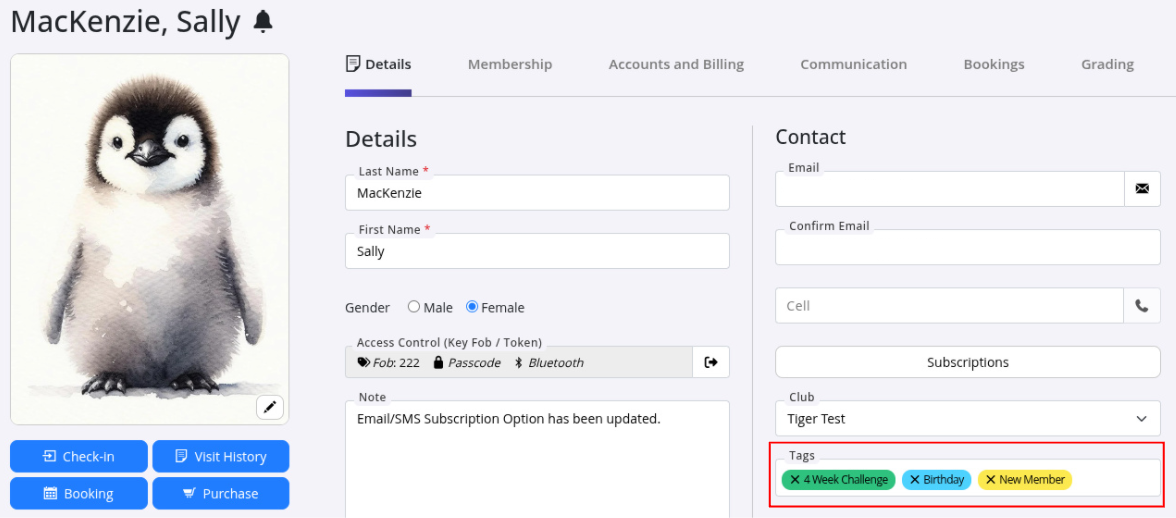
- Click the Tags field and select one or more tags, or create a new one
- Save the record
Remove a Tag
- Open the member’s Details section
- Delete the tag from the Tags field
- Save the record
Manage Tags Automatically
Task Automation can add or remove a tag when an event happens, so staff don’t have to update member records by hand.
Example: Add a Birthday Tag
A task can add a Birthday tag to a member’s profile on their birthday, so staff can wish them a happy birthday when they come in.
Navigate to; Settings > Task Automation > Add Task Type
- Choose the trigger, for example the member’s birthday
- Under Member Tag, select Add Tag
- Under Associated Member Tag, choose the Birthday tag
- Complete the rest of the task settings
- Save
The Member Tag options are:
| Option | What It Does |
|---|---|
| No Tag | Doesn’t change the member’s tags. This is the default |
| Add Tag | Adds the chosen tag when the event happens |
| Remove Tag | Removes the chosen tag when the event happens |
To remove the Birthday tag afterwards, create a second task type that uses Remove Tag at the right time, for example a few days after the birthday.
Note - Automated tasks are created every half hour, so there can be a short delay between the event and the tag being added or removed.
Use Tags to Target Tasks
Tags can also decide who a task runs for. For example, a task could send a follow-up email only to members with a particular tag, where the trigger and task settings support this.
Use Tags to Find Members
Tags can narrow down a member search or a report.
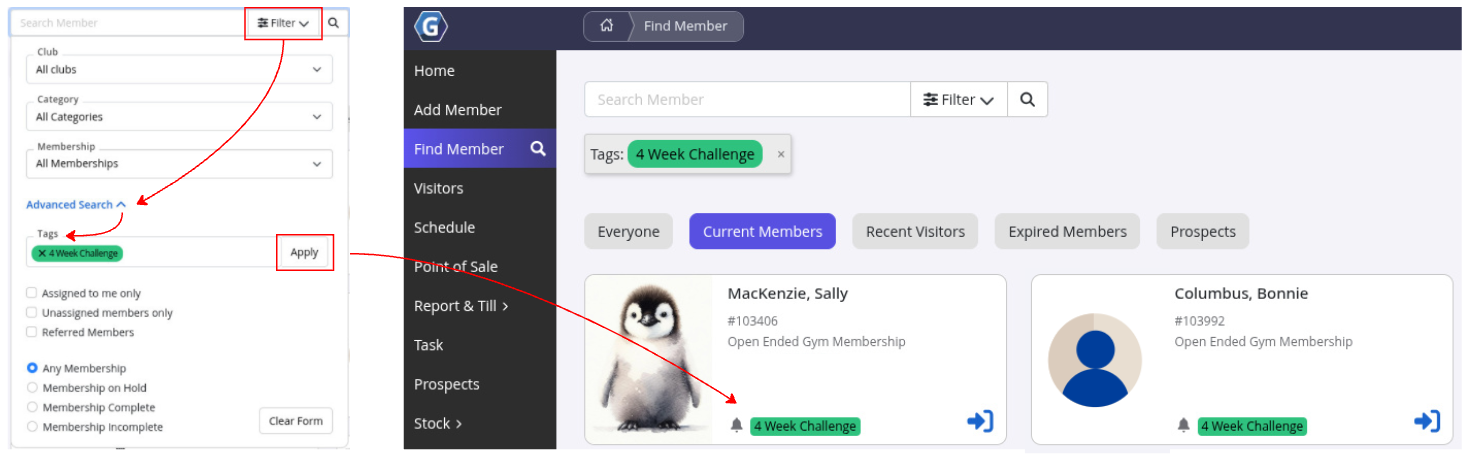
Find All Members with the 4 Week Challenge Tag
- Open Find Member
- Use the filters to select the tag, for example 4 Week Challenge
- Apply the filter to show the matching members
This finds a whole group at once, without searching for each member.
Use Tags for Communication
Tags help you build the right audience for an email or SMS.
Example: Promote a 4 Week Challenge
- Create a 4 Week Challenge tag
- Add it to members and prospects who are interested in the challenge
- Run a suitable report, such as Current Members
- Filter the report by the tag name 4 Week Challenge
- Select Send Email or Send SMS/Notification from the report to message the members in the list
You can combine tags to narrow a group down further, where the report’s filters support this.
Note - Before you send marketing, check each member’s marketing preferences.
Tags vs Custom Fields
Tags and custom fields both store extra information about members, but they do different jobs.
| Use a Tag When | Use a Custom Field When |
|---|---|
| You want to group members by something they share | You need to store a specific piece of information about one member |
| A member can belong to several groups at once | You need a unique value, such as an ID number |
| You want to filter reports or find a group of members | You want to collect the information through a sign-up form |
| You want a group for targeted marketing | The information doesn’t suit a category |
Also see Members FAQs
Common Questions this Covers
- What are tags or labels in GymMaster
- How do I create a new tag
- How do I change a tag’s colour or hover text
- Can I create a tag directly from a member’s page
- How do I apply or remove a tag
- Can a member have multiple tags
- How do I add or remove a tag automatically
- How do I add a birthday tag automatically
- Can a task run only for members with a particular tag
- How do I find members with a particular tag
- Can tags be used to filter reports
- How can tags help with targeted email and SMS campaigns
- What’s the difference between tags and custom fields

 2026 © Treshna Enterprises Ltd.