
Manage Classes from the Schedule
Once your classes have been created, the Schedule becomes the central place to manage your timetable.
From the Schedule, you can:
- Add Classes to Schedule
- Reschedule Class
- Book Members into a Class
- Message Class Attendees
- Cancel Class
Add Classes to Schedule
Begin at Schedule
- Select the appropriate Facility/Category (top left) where class will be held
- Click on the timeslot where the class will run
- Select Add Class
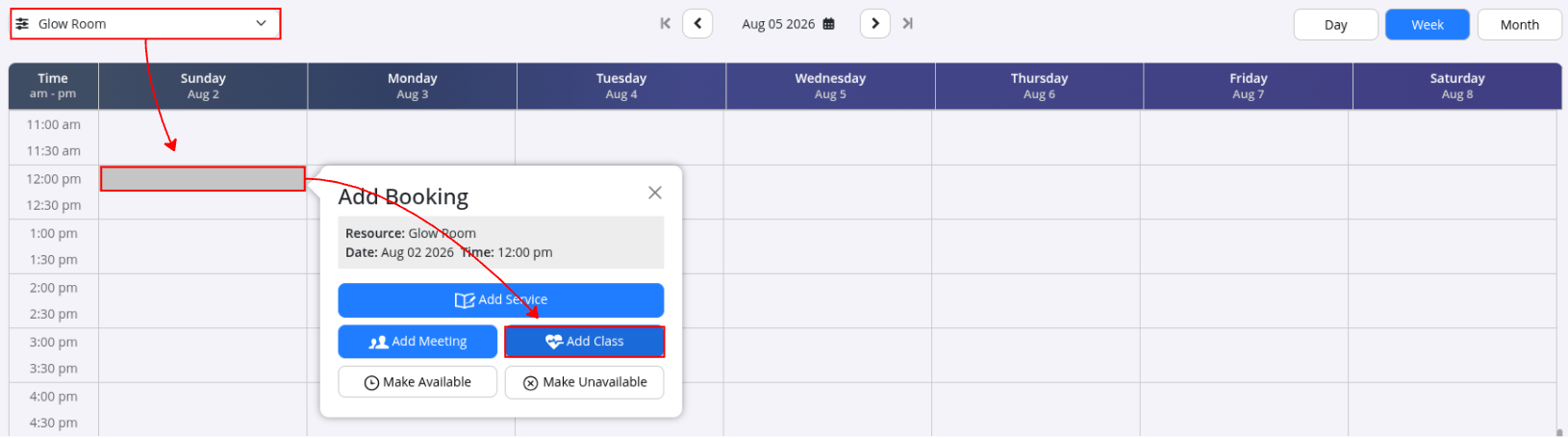
- Complete class details, using repeats function as required
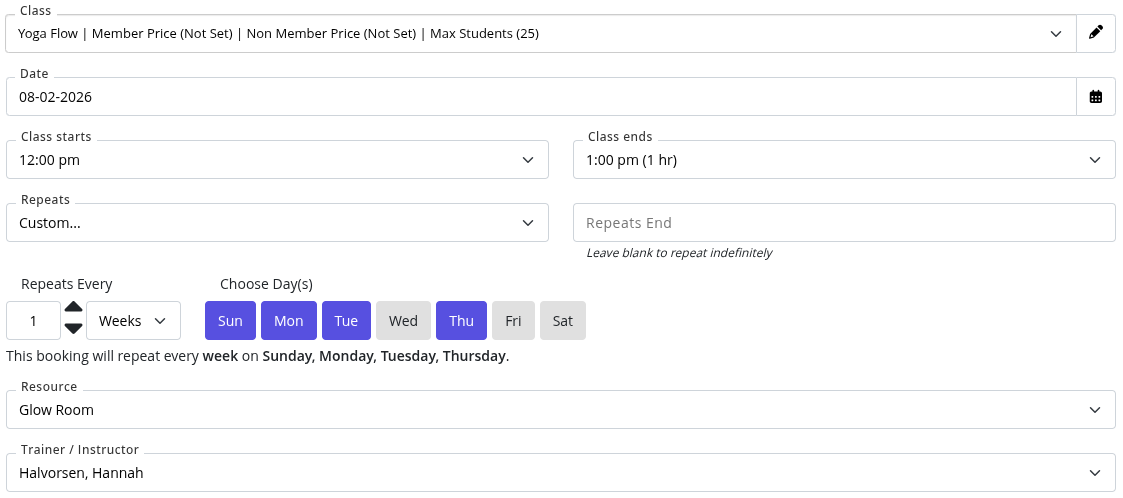
- Once saved, the class will appear on your Schedule and can be booked by eligible members in person and online.

Reschedule Class
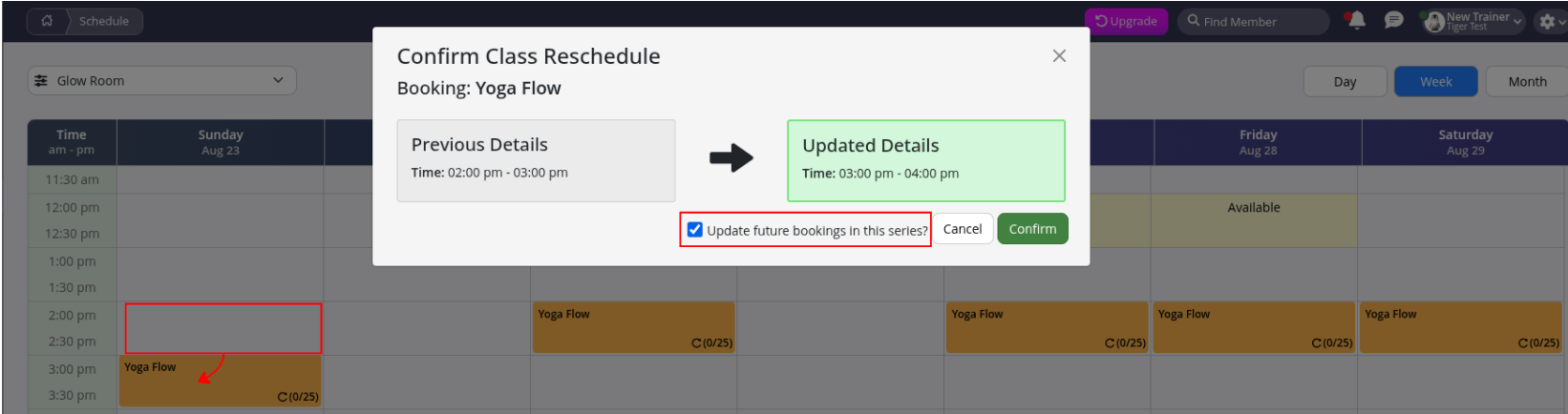
If a class needs to change time, you can drag-and-drop class to it’s new timeslot.
You can select to move just this class, or all classes within this repeat schedule.
Alternatively, click on class to navigate to edit page to adjust trainer, facility, or time from there.
Book Members into a Class
Members can be booked into classes directly from the Schedule.
- Select class; this will open the class attendees page
- Search for member
- Press arrow symbol on right of member card to add member to class
From here you can also;
- Pay for booking
- Check attendee into booking
- Tag attendee as a No Show
- Cancel their booking
- Set ongoing bookings using repeat
- Message class attendees

Message Class Attendees
Send a one-off message directly to members booked into a specific class.
Begin at the Schedule
- Select Class from Schedule
- SMS Attendees or Email Attendees

- Select all attendees or choose specific members
- Next
- Write your message
- Personalize using template fields
- Click Send
Cancel Class
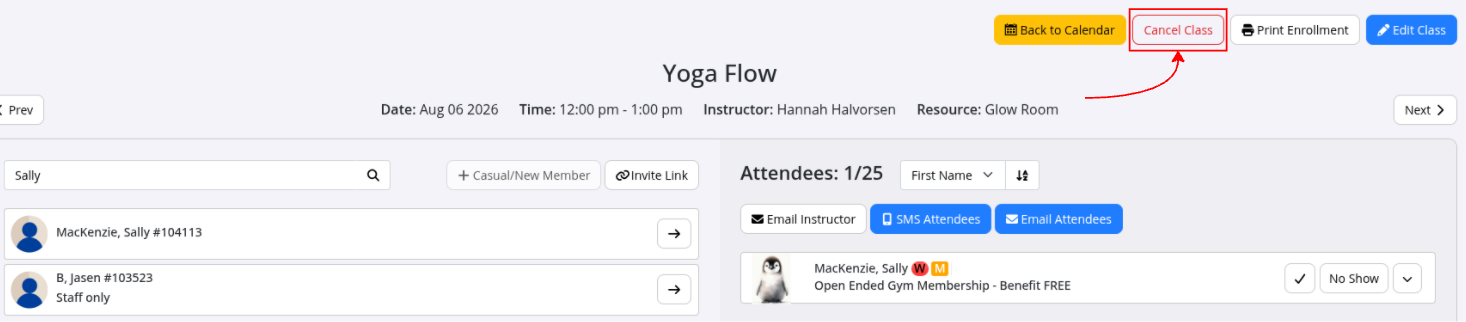
If a class will no longer run, select scheduled class and click Cancel Class.
Option will be offered to delete all classes in this series.
Depending on your configuration, GymMaster will offer option to email all booked members of the cancellation.
Common Questions this Covers
- How do I manage classes from the Schedule
- How do I add a class to the timetable
- How do I book a member into a class
- How do I move a scheduled class
- How do I change the instructor for a class
- How do I cancel a class
- How do I edit a scheduled class
- How do I move a class to another time
- How do I view class bookings
- How do I manage my class timetable

 2026 © Treshna Enterprises Ltd.