
Product Discount Codes
Product Discount Codes (also known as promo codes) allow you to offer discounts on selected products without changing the standard product price.
They are useful for seasonal promotions, marketing campaigns, member offers, corporate or partner discounts, limited-time product sales
Discount Codes can be redeemed during product purchases, including online purchases when enabled.
Create Discount Code
Begin at Settings > Financial Configuration > Discount Codes
- Select Adjust Product Discount Code
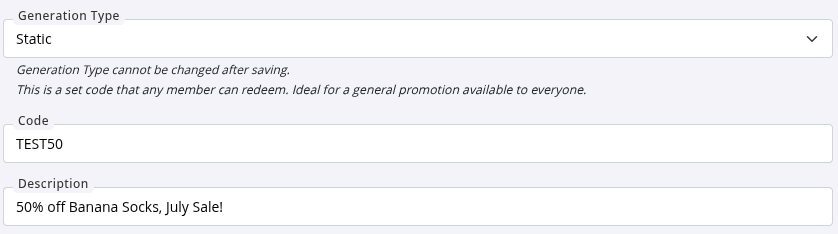
- Complete the basic information for your promotion
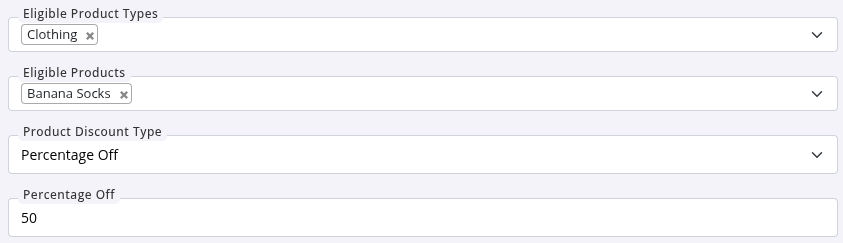
- Choose which products the discount applies to and how the discount is calculated
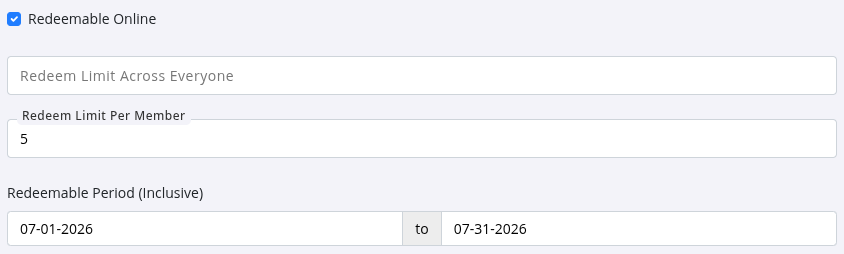
- Set restrictions - help control how and when the discount code can be used
Save
Promote Code
Once created, share your discount / promo code with your intended audience.
| Code Type | How to Promote |
|---|---|
| Static | Promote your static codes through all your usual channels; SMS and email campaigns, social media posts, website and so forth. Simply add the code within your message, and your members / non-members can use the code when they purchase / book online or in person. With static codes everyone can use the same code to receive the reward. |
| Dynamic | Promote dynamic codes to your members directly; SMS and Email through GymMaster. |
Redeem Product Code
When a valid discount / promo code is entered during purchase, GymMaster automatically applies the discount to eligible products.
The discount will only apply when:
- The code is active
- The customer meets any restrictions
- The selected products are included in the promotion
- Any redemption limits have not been reached
Redeem Online
Once enabled, embers will have the opportunity to enter code prior to payment online.
- Enable: Settings > Member Portal Configuration > Point of Sale > Enable Product Discount Codes
Redeem in Person
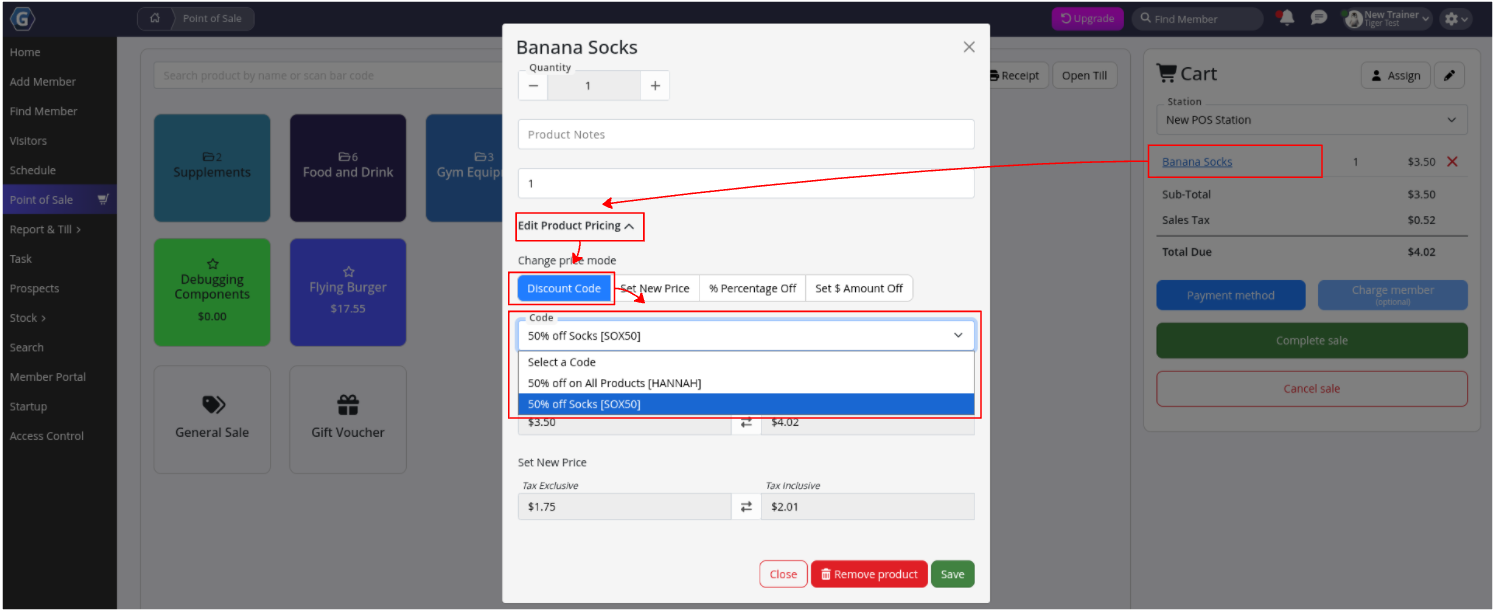
When a member is redeeming a product code in person, staff can enter the code after they have selected the item in POS;
- Add product/s to the sale
- Click on product item in cart
- Select Edit Product Pricing then Discount Code
- Select one of your active pre-defined discount codes
- Complete the sale
The discount code will be applied to the product/s and reflected in the final sale total.
Also see Membership Discount Codes and Booking Discount Codes.
Common Questions this Covers
- How do I create a product discount code in GymMaster
- How do I create a promo code for retail products in GymMaster
- How do I give customers a discount on retail products
- How do I set up product promotions in GymMaster
- How do I apply a discount code to products
- Can I create discount codes for retail products in GymMaster
- How do members use discount codes when buying products
- How do I limit how many times a discount code can be used
- How do I create a percentage discount or fixed amount discount for products
- How do I run a product sale without changing my product prices

 2026 © Treshna Enterprises Ltd.