
Point of Sale Discounts
Point of Sale Discounts allow staff to apply preset discounts to products during a sale.
They are useful when a discount needs to be applied at checkout, such as staff discounts, customer goodwill adjustments, promotional offers, clearance products, or pricing corrections.
During a Point of Sale transaction, the following discount options are available;
| Scenario | Method | Setup |
|---|---|---|
| Member using promo code for product discount | Discount Code | Financial Configuration > Discount Codes |
| Staff member needs to manually alter the price of an item during checkout | Set New Price | Financial Configuration > POS Discounts |
| Staff member needs to apply a percentage discount to a single product | % Percentage Off | Financial Configuration > POS Discounts |
| Staff member needs to reduce product cost by a set value | Set $ Amount Off | Financial Configuration > POS Discounts |
| Entire product sale discount (excludes bookings and memberships) | Discount All | Admin Permission Level Only |
Note: Only users with Intermediate and Admin level Point of Sale access can apply discounts to a sale.
Discount Code
Full Guide: Product Discount Codes
Applies to manual and online product sales.
Product Discount Codes are typically a combination of letters and numbers, for example PROTEIN20, allowing members to apply a promotional discount when purchasing eligible products.
Common uses include:
- Marketing campaigns
- Seasonal promotions
- Limited-time offers
- Partner or referral discounts
Discount / Promo Codes can be applied when purchasing online or in person.
They provide a flexible way to offer product discounts without changing the standard product pricing.
Redeem Discount Code
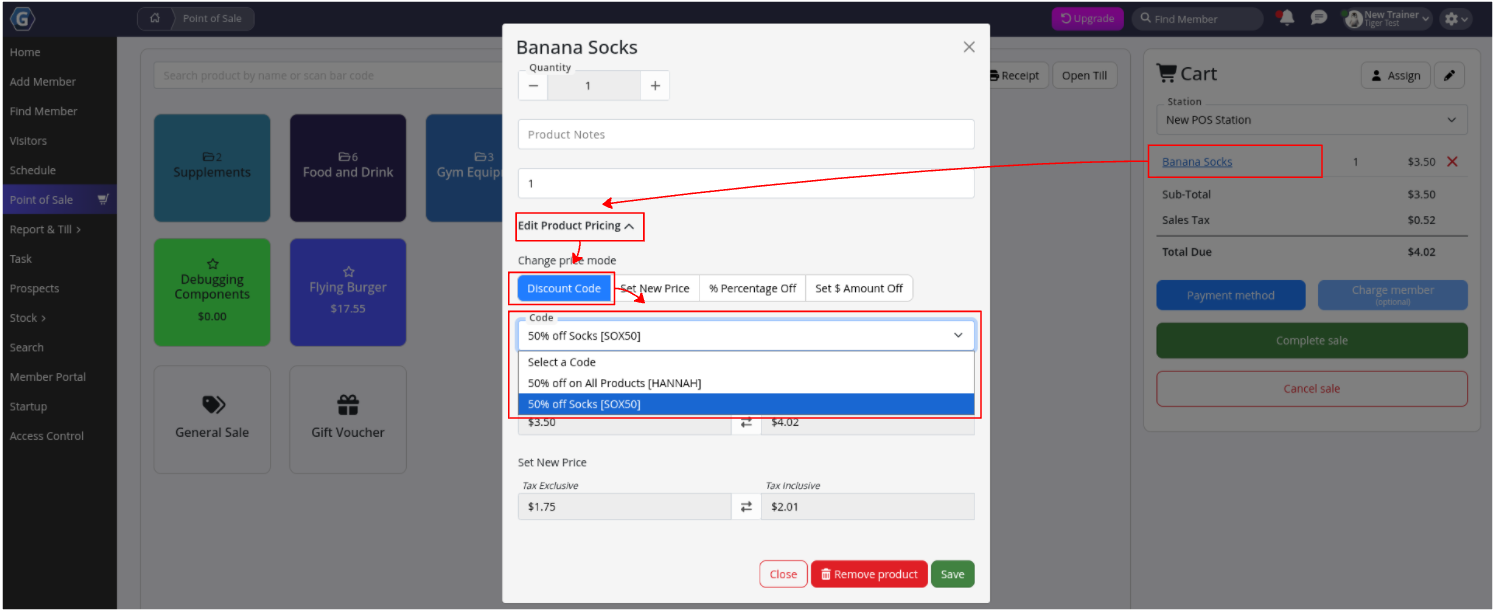
When a member is redeeming a product code in person, staff can enter the code after the product has been added to the POS sale:
- Add product/s to the sale
- Click on the product item in the cart
- Select Edit Product Pricing, then Discount Code
- Select one of your active pre-defined discount codes
- Complete the sale
The discount code will be applied to the eligible product/s and reflected in the final sale total.
POS Discounts
- Set New Price
- % Percentage Discount
- Set $ Amount Off
Applies to one product at a time
Setup
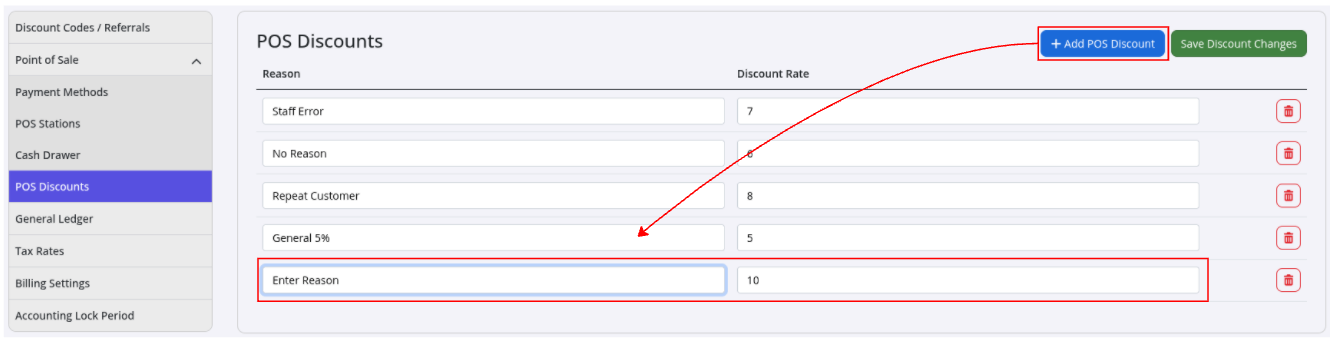
Go to: Settings > Financial Configuration > POS Discounts
- Select Add POS Discount
- Enter a predefined Reason for the discount
- Example: Staff Discount, Damaged Stock, General Discount
- Enter the Discount Rate
- This is entered as a percentage (required for % Percentage Discount)
- Example: Entering 10 applies a 10% discount
- Save
Apply POS Discount
When processing a product sale:
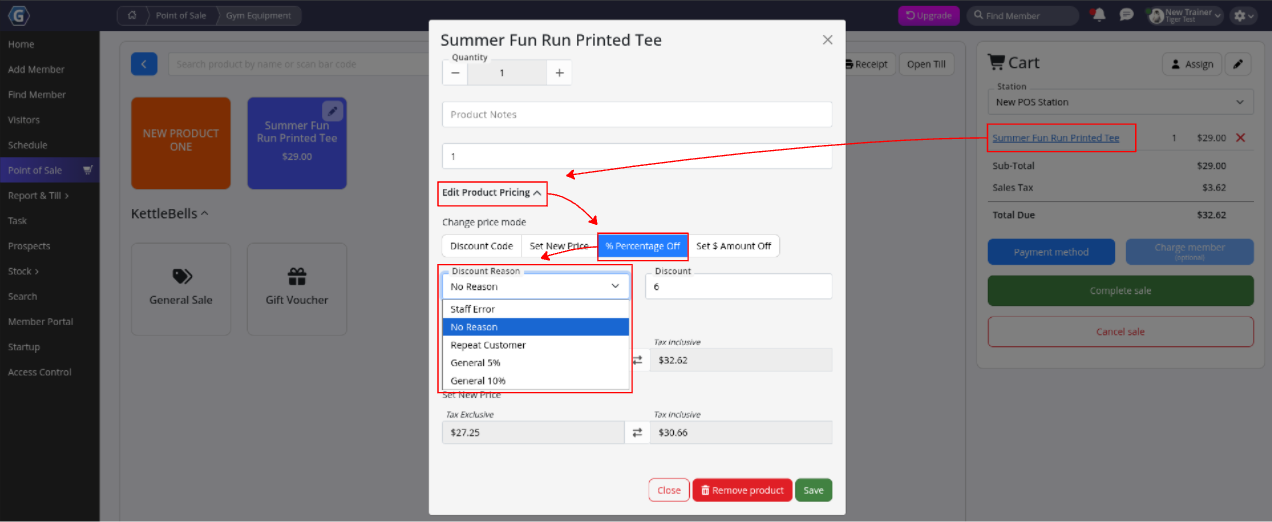
- Add products to the sale
- Click on the product item in the cart requiring a discount
- Select Edit Product Pricing, then choose Set New Price / % Percentage Off / Set $ Amount Off
- Select one of your pre-defined discount options
- Confirm the discounted price (this can be adjusted for the individual sale)
- Complete the sale
The discount will be applied to the selected product and reflected in the final sale total.
Discount All
Admin Permission Required
Applies to products only
An entire product sale can be discounted at once using Discount All.
Once applied, the discount can be removed from selected products, allowing flexibility when managing more complex sales.
Apply Discount to All Products
When processing a product sale:
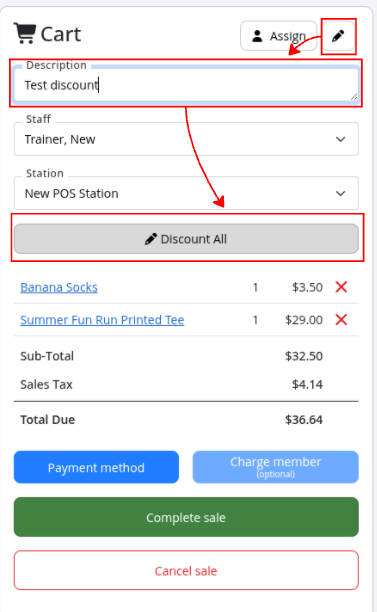
- Add products to the sale
- Click the Edit button at the top right of the Cart
- Add a description, then select Discount All
- Enter the percentage discount to apply to the sale
- Complete the sale
Also see Product Discounts for a full overview of the options available for discounting your products.
Common Questions this Covers
- How do I apply a discount in Point of Sale
- How do I create a POS discount in GymMaster
- How do I give a discount on a product at checkout
- How do I apply a percentage discount to a product sale
- How do I change the price of an item during a POS sale
- How do I create staff discounts in GymMaster
- How do I apply a discount code at Point of Sale
- Can I discount an entire product sale in GymMaster
- How do I set up product discounts for my retail area
- Why can’t I apply discounts in Point of Sale </common_questions>

 2026 © Treshna Enterprises Ltd.