
Mass Prospect Data Upload Tool
2 min read
Updated
2 months ago
Use the Mass Prospect Upload Tool to import leads and prospects into your GymMaster database in bulk.
Access the Upload Tool
- Navigate to: https://yourgymname.gymmasteronline.com/csv
- Example: https://strongergym.gymmasteronline.com/csv
Prepare Your Spreadsheet
Before uploading:
- Use the column headers from the Starting Spreadsheet Template
- Copy and paste the template headers into your spreadsheet exactly as provided
- Columns can be in any order, but header names must match exactly
- Complete member_firstname and lastname for every prospect
- All other fields are optional
- Remove any columns you don’t intend to use
- Save the file as .xlsx
- Use a consistent date format throughout the spreadsheet
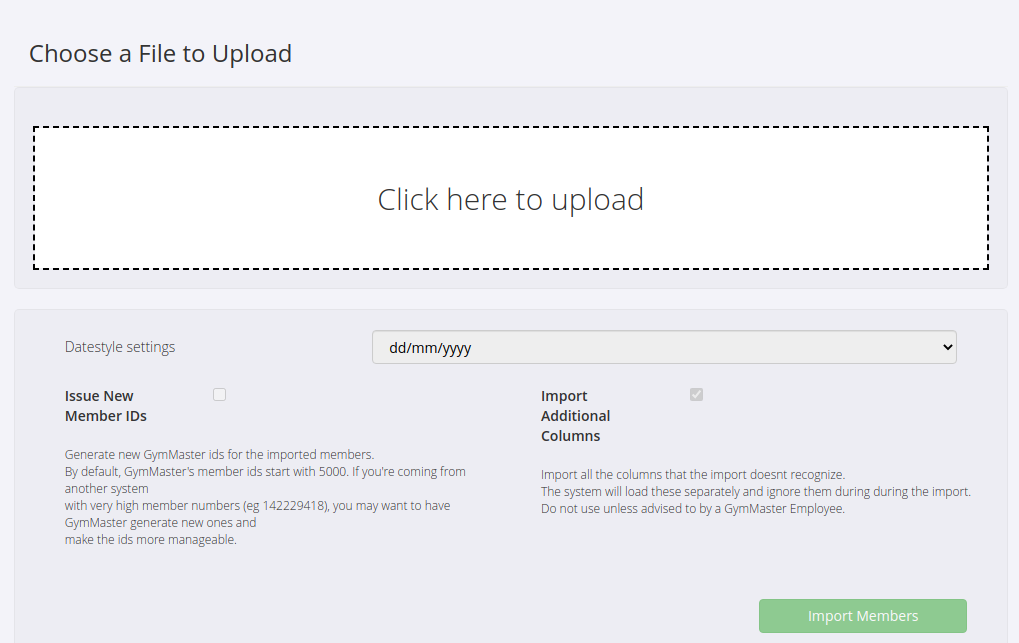
Optional Import Settings
| Setting | Purpose |
|---|---|
| Issue New Member IDs | Generates new GymMaster member IDs instead of importing existing IDs from another system |
| Import Additional Columns | Imports custom data that isn’t normally stored in GymMaster. This data is saved as Labels and can be used for reporting and filtering |
Example: A column named prospect_source could record where each lead originated.

Upload Your Spreadsheet
- Upload your saved .xlsx file.
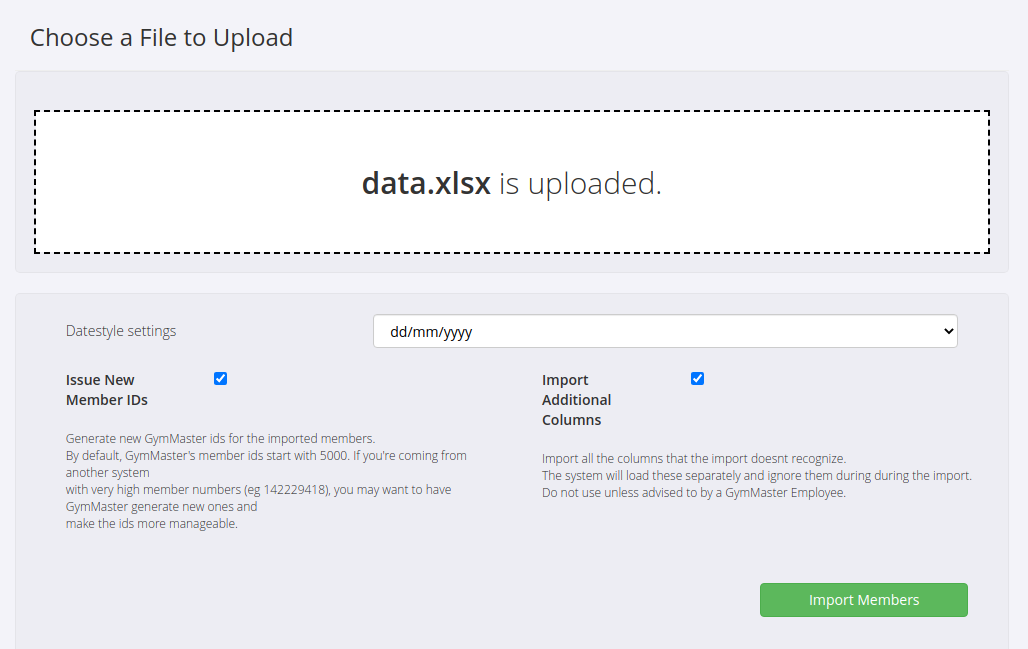
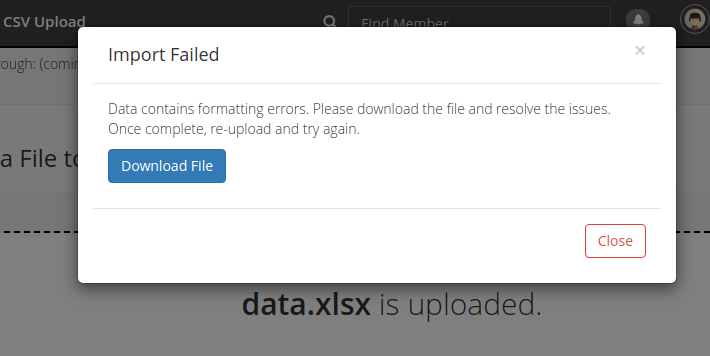
- Select Import Members. It’s normal for the first import attempt to return an Import Failed message.
- Download the validation spreadsheet provided
Review Import Errors
- Open the downloaded spreadsheet
You may notice additional columns highlighted in blue. These are required by the import tool and can be ignored.
Check the spreadsheet for coloured cells beneath the header row:
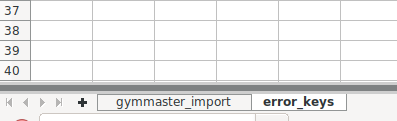
- Refer to the Error Keys sheet for details
- Correct any highlighted issues
- Save the spreadsheet
Common issues include:
- Missing surnames
- Invalid phone number formatting
- Incorrect date formats

Re-upload the Corrected File
- Upload the corrected spreadsheet again. If all issues have been resolved, GymMaster will display the number of records ready for import.
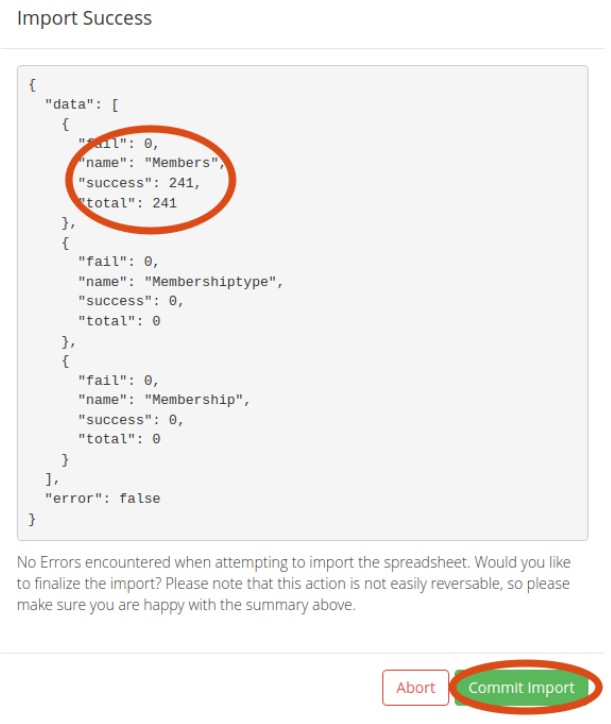
- Select Commit Import to complete the process
- Your imported prospects can now be found under: Find Member > Everyone

If the import still fails:
- Download the latest validation spreadsheet
- Correct any remaining errors
- Upload the file again
If you need assistance, send the downloaded spreadsheet to GymMaster Support along with your facility name.
Next Step
To convert a prospect into an active member, assign them a Membership.
Common Questions this Covers
- How do I import prospects into GymMaster
- How do I bulk upload leads into GymMaster
- Where is the GymMaster prospect import tool
- What format does the GymMaster import spreadsheet need to be in
- Which fields are required when importing prospects
- Why is my GymMaster import failing
- How do I fix prospect import errors
- Can I import custom fields into GymMaster
- What does Import Additional Columns do
- How do I convert imported prospects into members

 2026 © Treshna Enterprises Ltd.