
How to Give a Member a Membership
One of the key functions of GymMaster is assigning memberships to members.
After a membership type has been created, it can either be sold online, or manually added to a member by staff.
We strongly recommend members sign up online whenever possible.
This helps reduce errors in entering personal details, billing information, and membership choices.
Setup Considerations
Before signing up members in person, ensure the following settings are correctly configured:
| Setting | Where to Configure |
|---|---|
| Require initial payment on signup | Settings > Advanced Configuration > Membership > Require an initial payment |
| Capture bank account details | Settings > Advanced Configuration > Membership > Fill in bank account details |
| Collect billing info via Sign & Complete | Settings > Advanced Configuration > Membership > Take Billing information/payment with Sign & Complete |
| Enable Sign & Complete (category level) | Settings > Membership Types > Membership Type Categories > Edit Category > Enable Sign & Complete (requires digital agreement for staff-added memberships; member portal sign-ups are automatically included) |
Adding a Membership to a Member
- Navigate to the member’s Membership tab
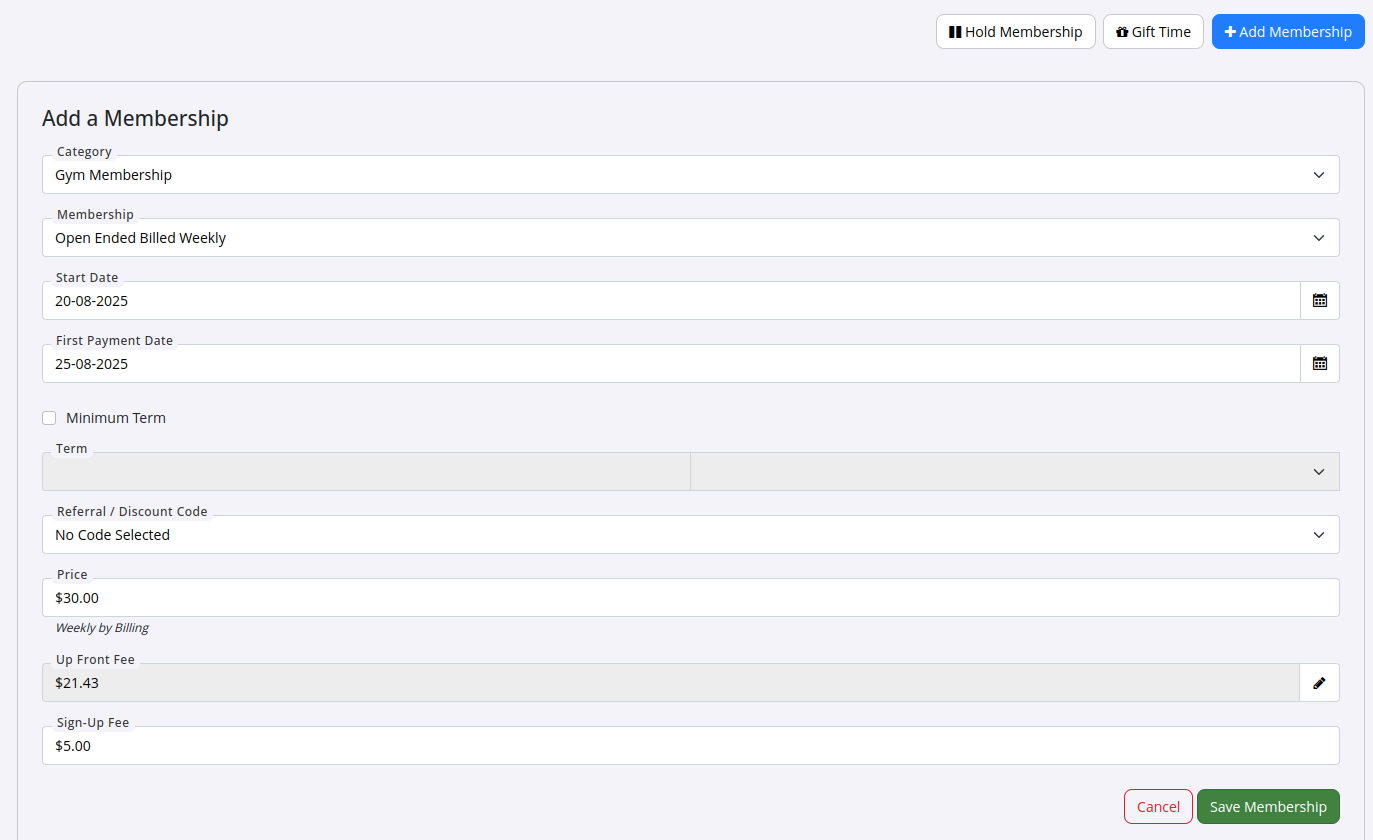
- Select + Add Membership
- Choose the Membership Category and Membership Type
- Set details such as:
- Start Date
- First Payment Date
- Discount Code (if applicable)
- Price modifications (if required)
- Once you’re happy with the setup, click Save
Note : If the Start Date and First Payment Date are different, GymMaster will automatically generate an Upfront prorated fee. This is to cover the period before regular billing begins.
Completing the Membership
After saving, the membership will appear under the member’s Membership tab.
Depending on your system settings, the membership may still be incomplete.
Make sure you fully complete the membership so that the member can begin using it right away.
Common Questions this Covers
- How do I manually assign a membership to a member in GymMaster
- What is the difference between selling a membership online and adding it manually
- How do I give a member a membership through their profile
- Why does a membership show as incomplete after being added by staff
- How do I ensure a manually added membership is fully activated

 2026 © Treshna Enterprises Ltd.
