
Manual Entry of Billing Tokens
2 min read
Updated
6 days ago
If you’ve received a Billing Token extract from your new billing provider, you can manually enter them into GymMaster Member profiles to link their billing details (credit card or bank account).
Before you start — a GymMaster staff member needs to enable this feature for your account.
Email help@gymmaster.com from your account holder’s email address requesting “Allow staff to enter in Member Tokens for Billing”.
Select Your Billing Provider
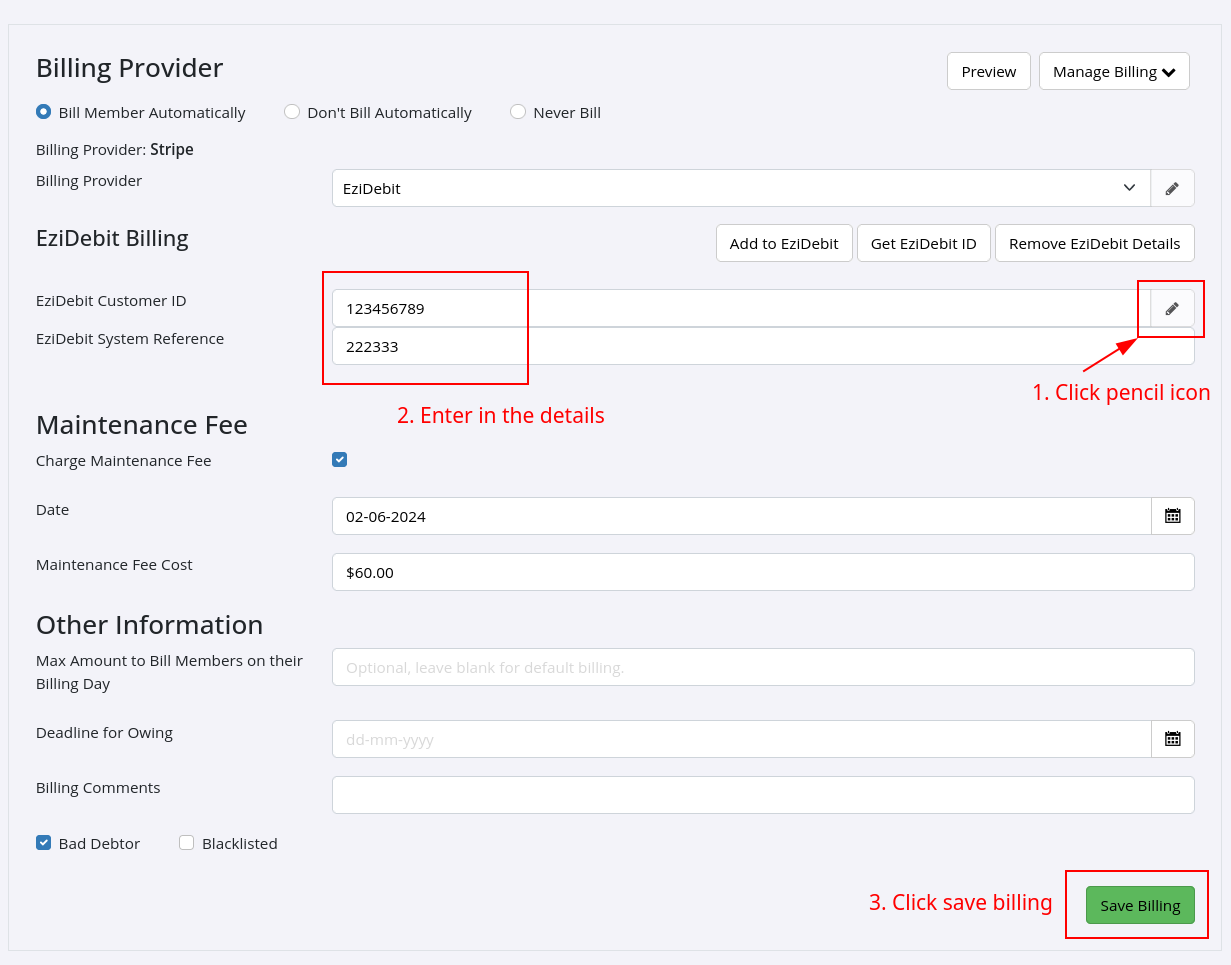
Enter EziDebit Tokens
- Open the members billing details
- Click pencil/edit icon
- Enter customer ID and reference details
- Save
Common Errors
- EziDebit rejected the action with this error: Could not find a customer with the provided details
- EziDebit rejected the action with this error: ‘EziDebitCustomerID’ must be an integer
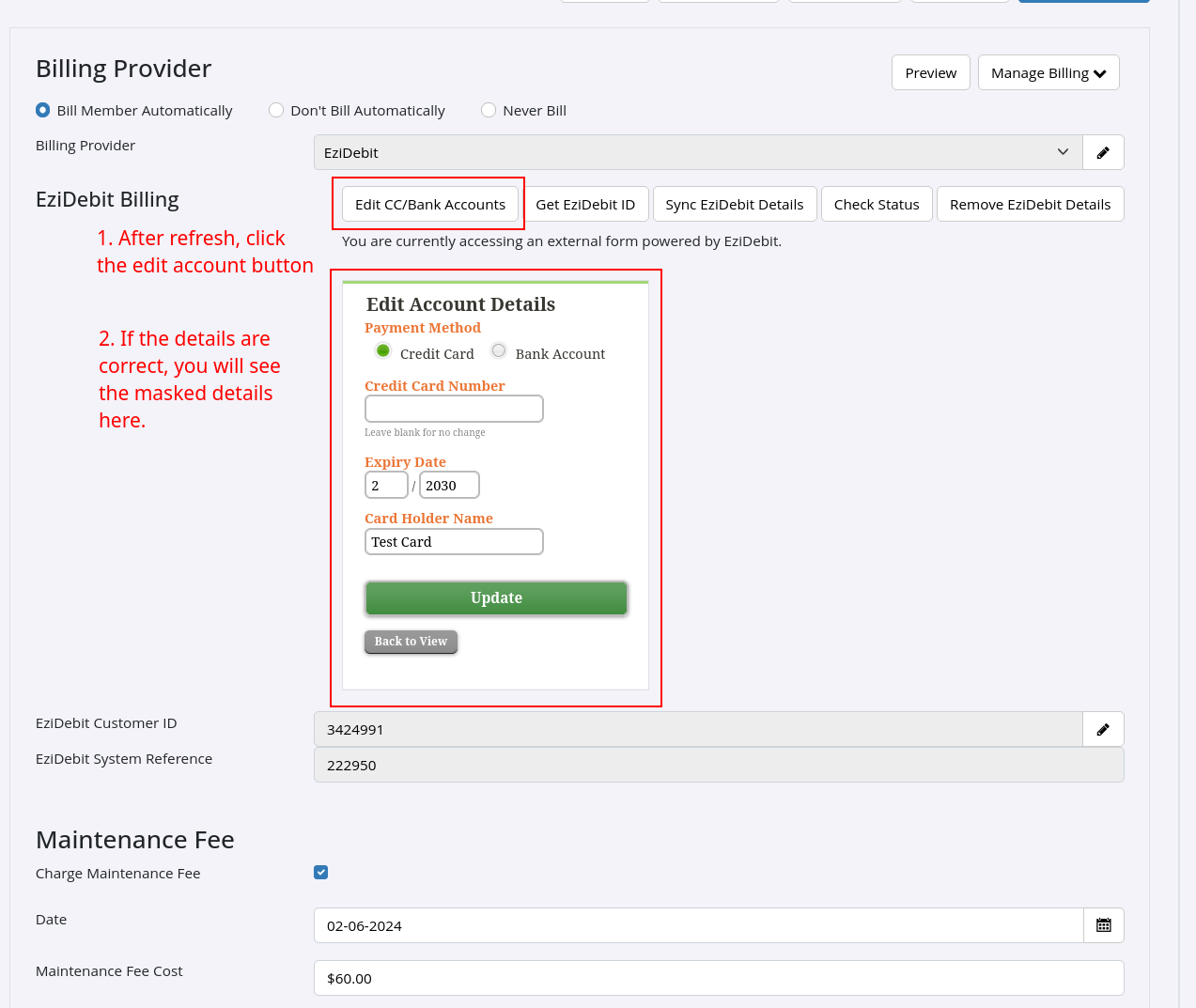
Next:
- Enter the token from your EziDebit extract
- After refresh, select Edit Account
- If details correct, you will see masked details
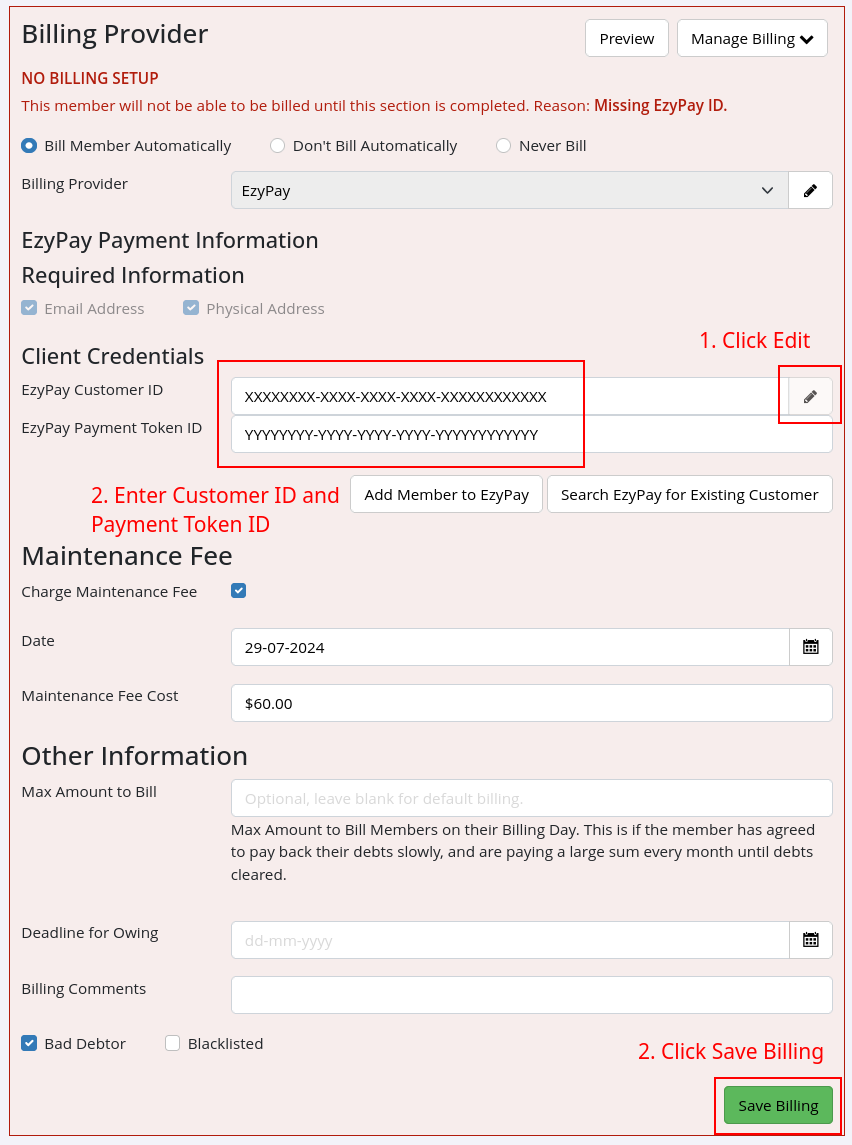
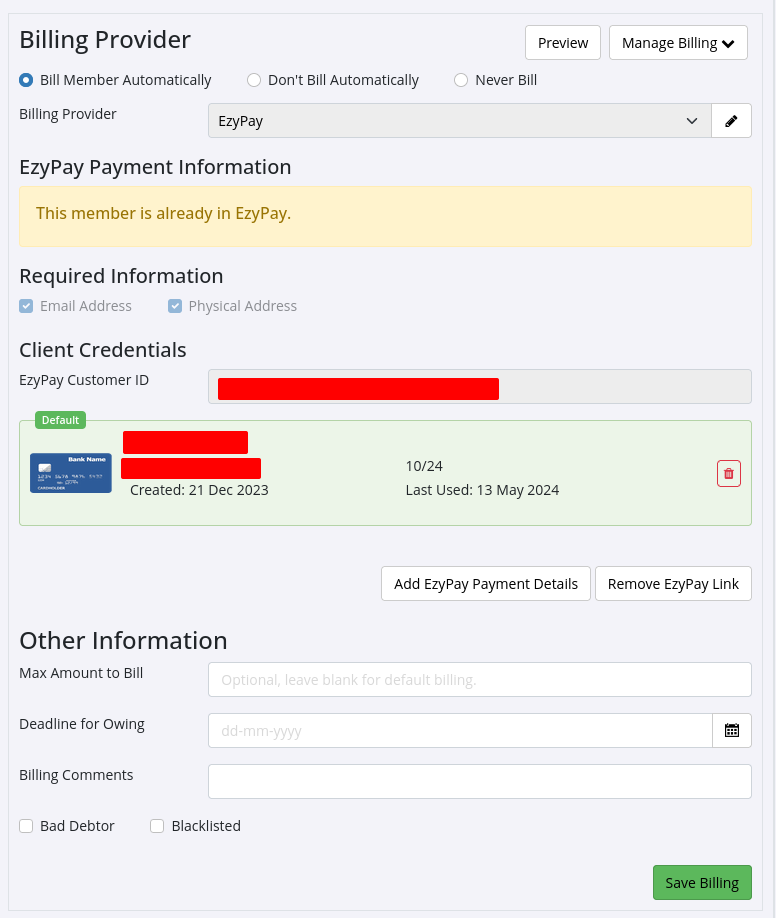
Enter EzyPay Tokens
- Open the members billing details
- Click pencil/edit icon
- Enter customer ID and payment token ID
- Save
Common Errors
- EzyPay Error: Value is invalid id format. Must be specified as XXXXXXXX-XXXX-XXXX-XXXX-XXXXXXXXXXXX
Enter Stripe Tokens
- Open the members billing details
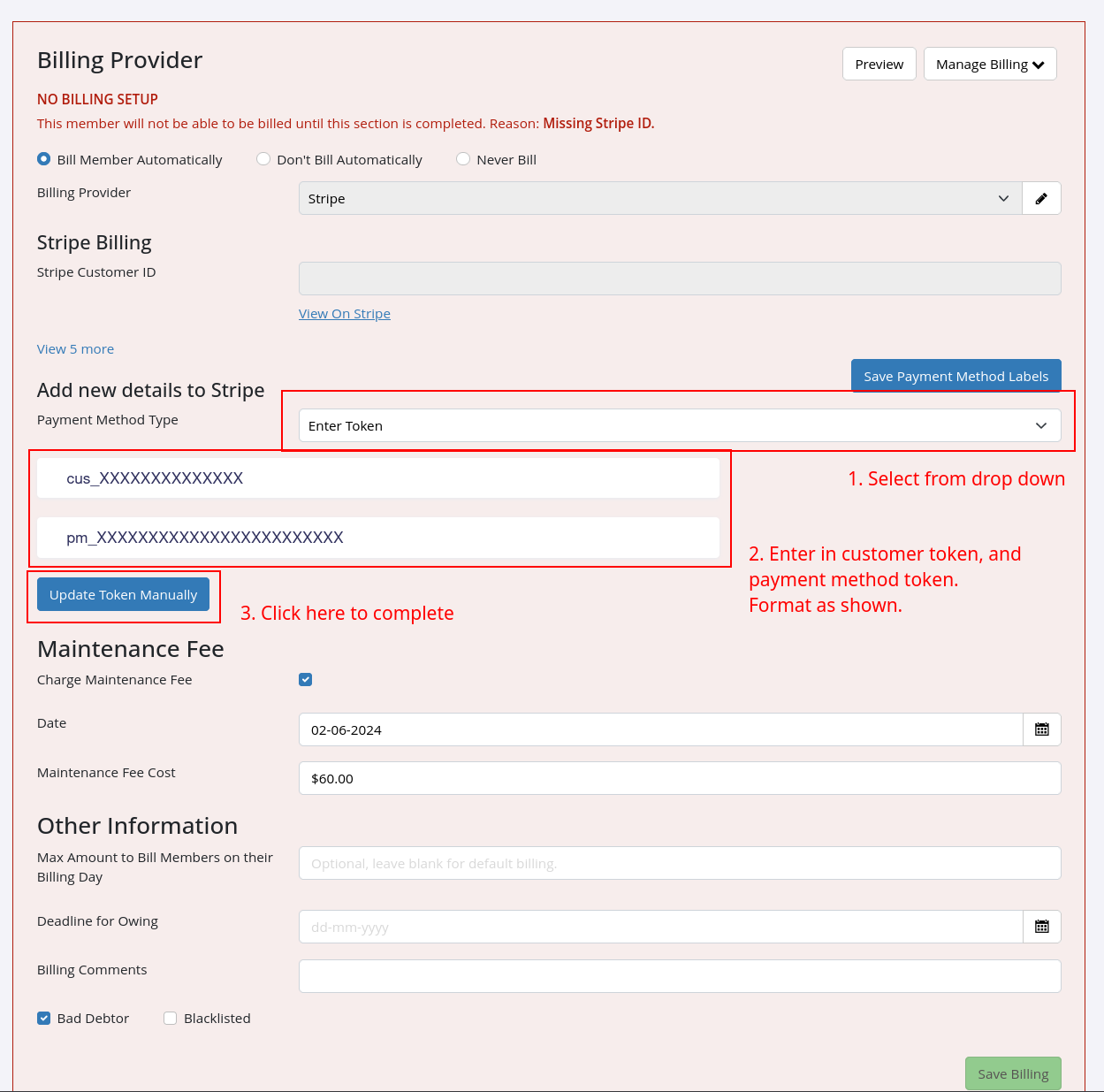
- Select payment method Enter Token from dropdown
- Enter customer token and payment method token. See image for format
- Select Update Token Manually to complete
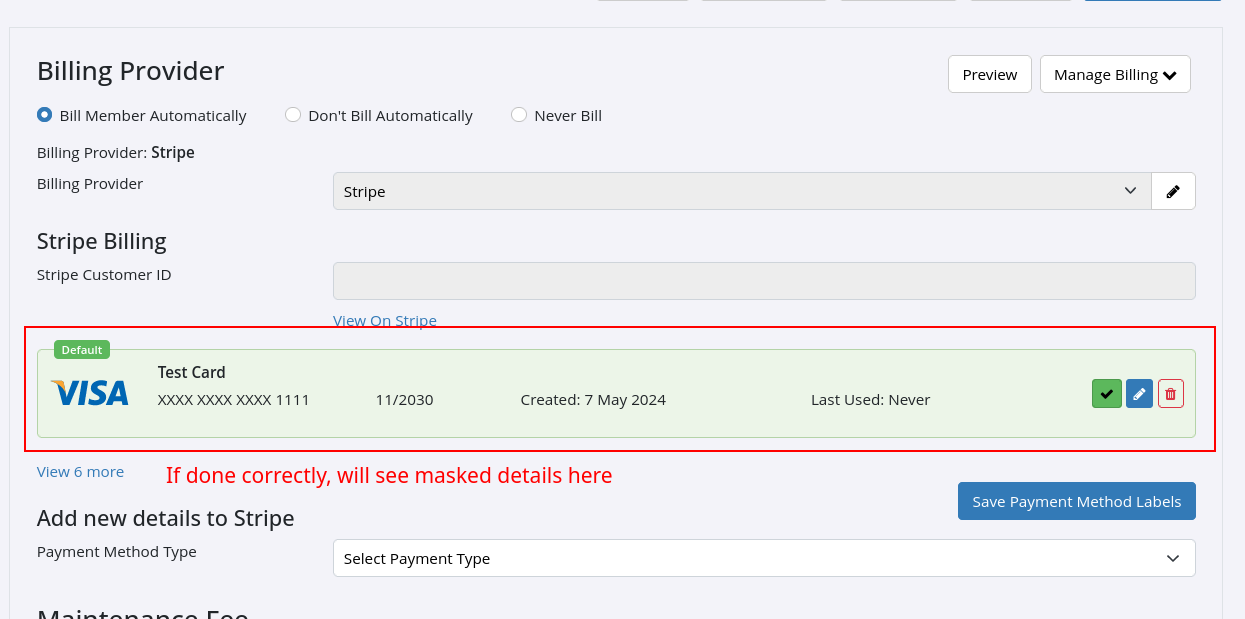
- If done correctly, you will see masked details here;
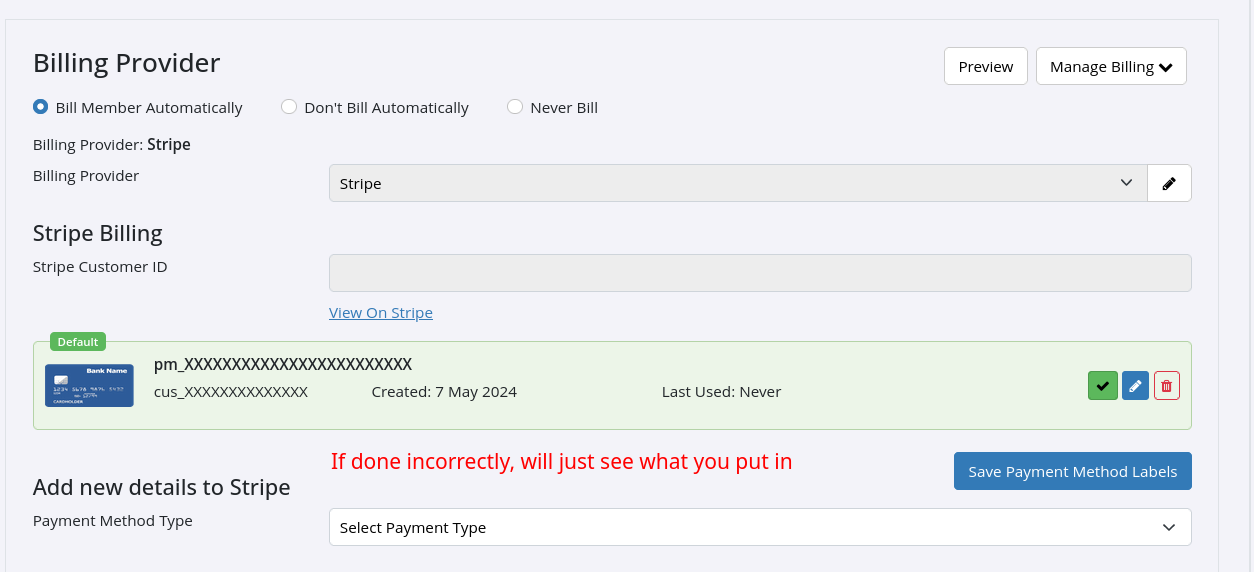
- If done incorrectly, you will see same details you put in
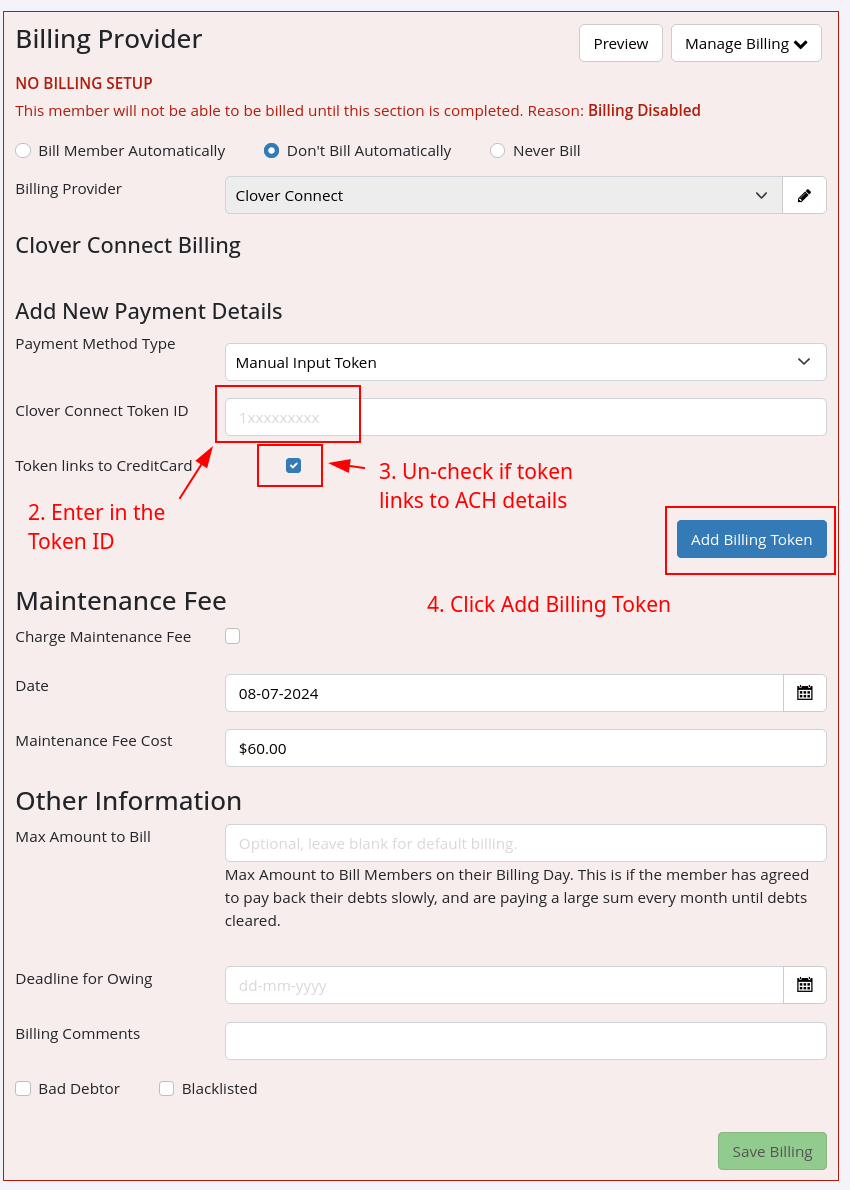
Enter CloverConnect Tokens
- Open the members billing details
- Select Manual Input Token in payment method type
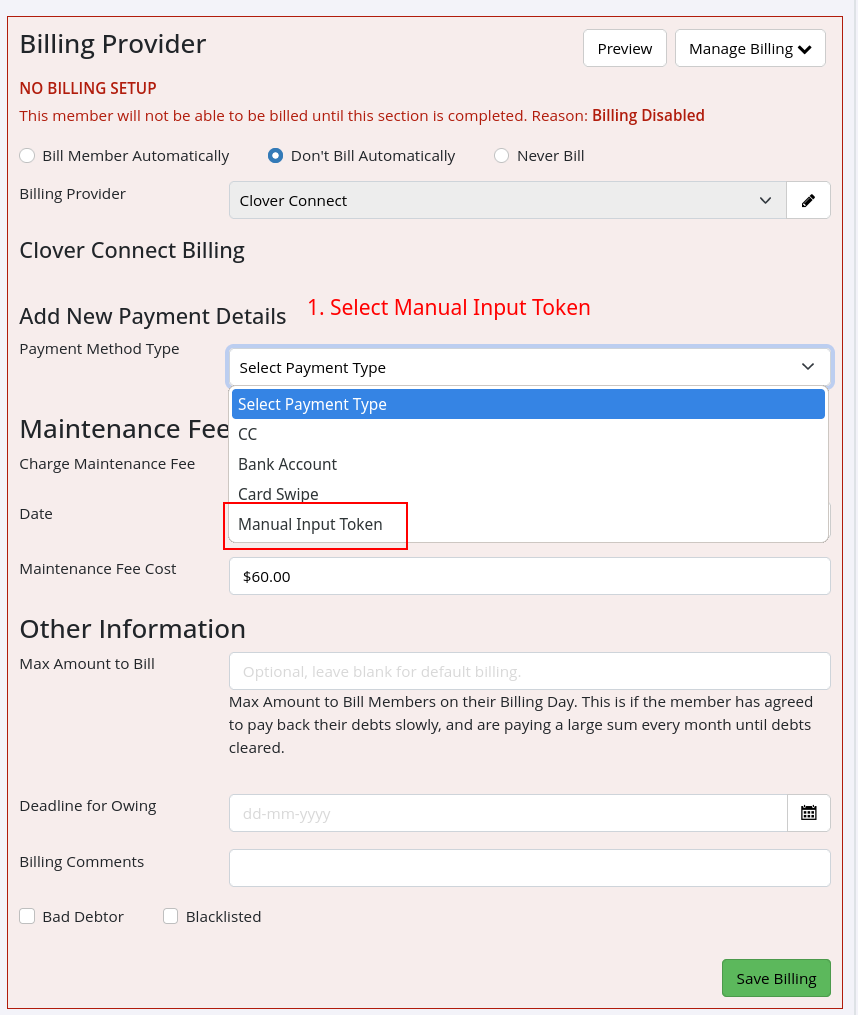
- Enter customer token ID
- Un-check if token links to ACH details
- Click Add Billing Token
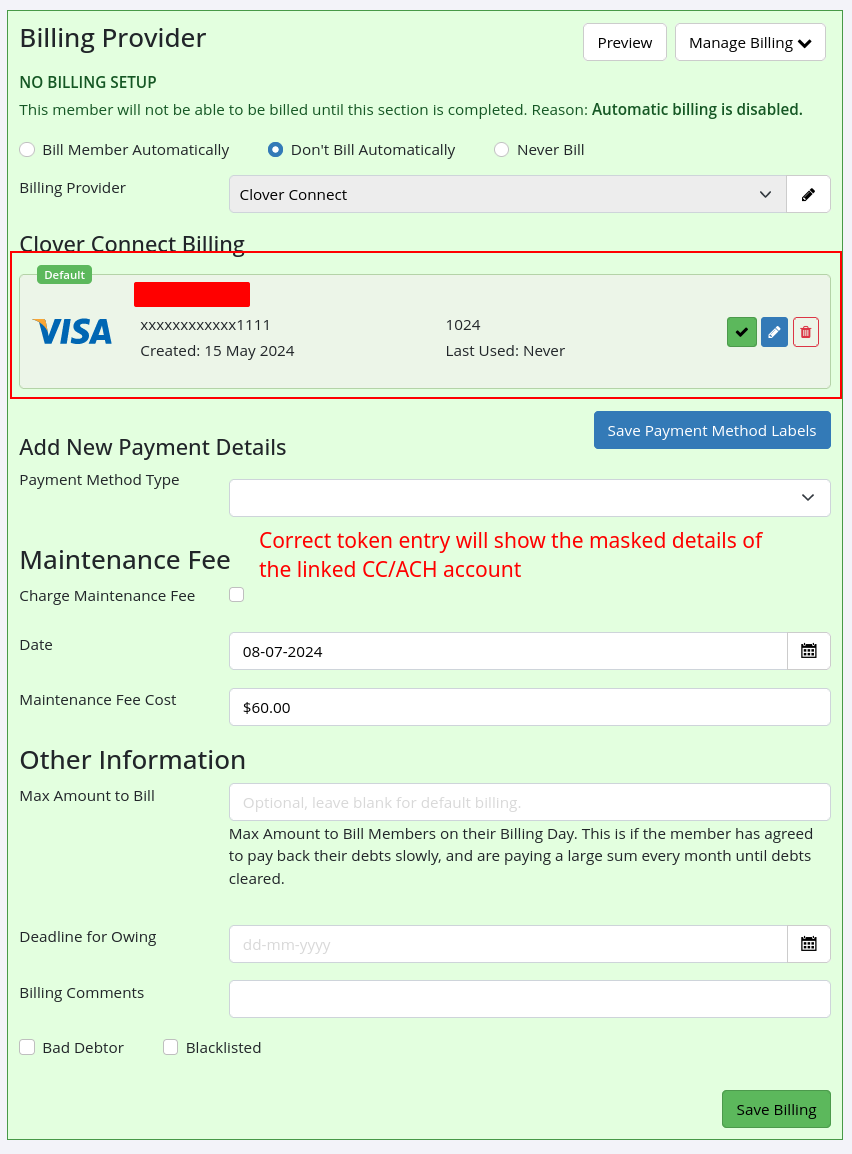
- If done correctly, you will see masked details here;
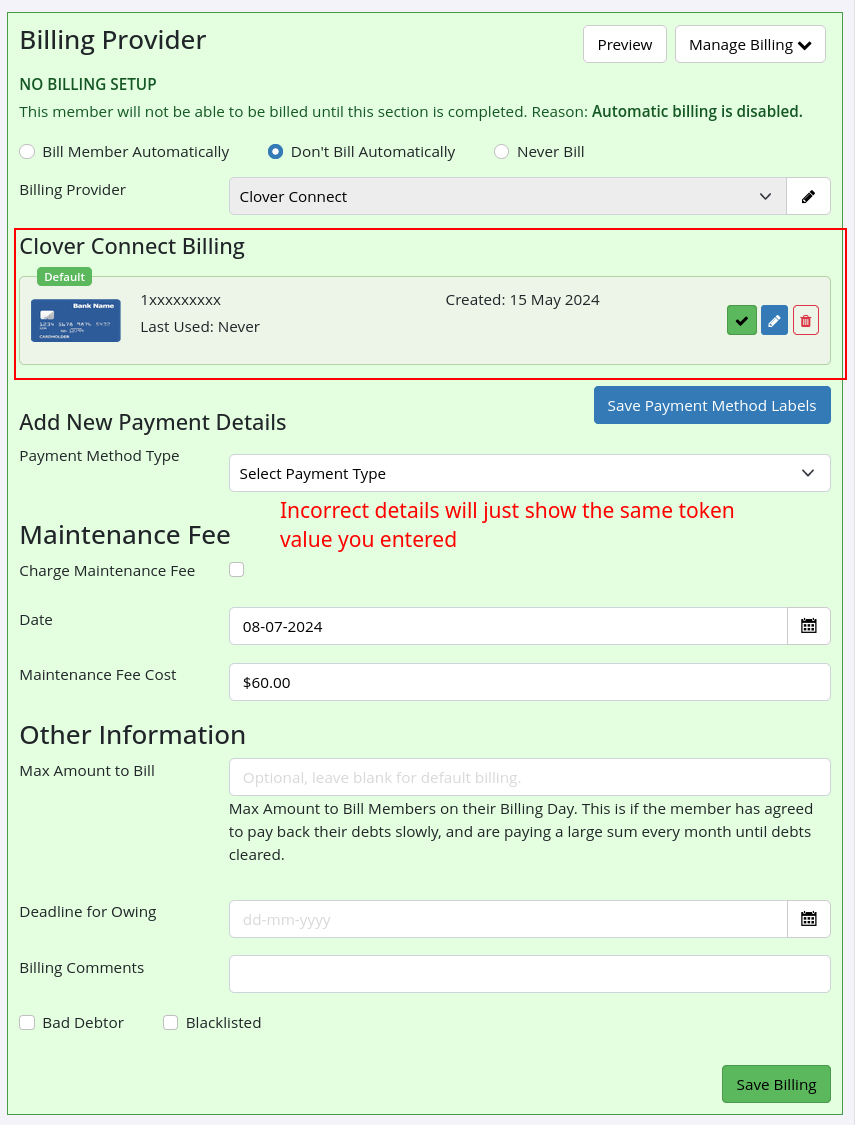
- If done incorrectly, you will see same details you put in
Further Questions? See our list of Frequently Asked Questions about Billing
Common Questions this Covers
- Where to enter details for EziDebit / EziPay / Stripe / CloverConnect
- How to setup billing provider for member
- How to link member to billing provider

 2026 © Treshna Enterprises Ltd.
