
How to Report on Current Members
When you wish to see information about your current members, there are two main reports you’ll use :
- Reports & Till > Standard Report > Member > Current Members
- Reports & Till > Standard Report > Member > Current Memberships
These reports let you pull a list of all current members, and you can customize the fields to include the specific info you wish to see.
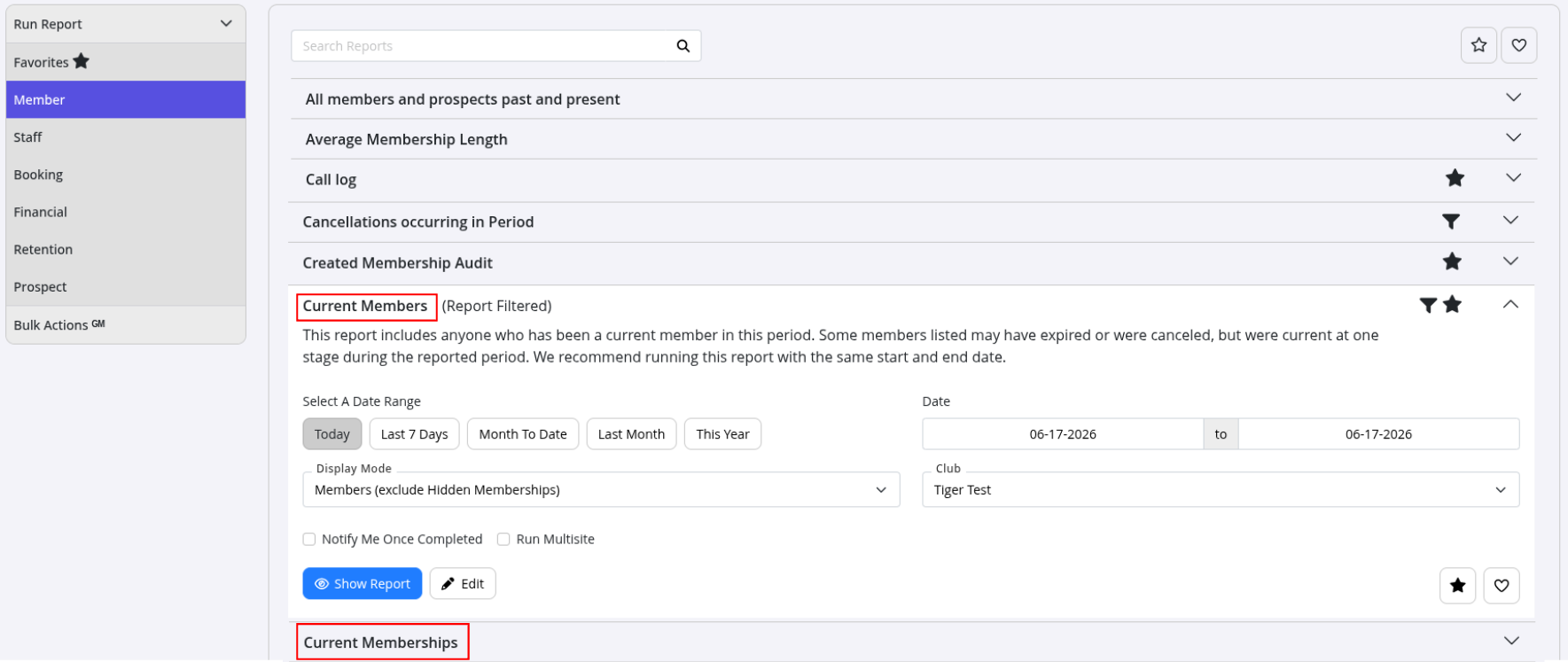
Current Members
This report shows anyone who was considered a current member at any point during the period you’re reporting on.
Keep in mind, some members on this list might have expired or cancelled since then, but they were active at some stage in the period.
Pro tip: set the same start and end date to keep it simple and accurate.
This is the most commonly used report when you just wish to see member info without much filtering.

Current Memberships
This report shows all memberships that were active in the selected time period.
It works a lot like the Current Members report, but with one handy extra feature, before running it, you can filter by specific membership type and/or membership category.
This saves you time accessing this information, because you don’t need to create a separate filtered copy of the report to achieve this.

What Counts as a Current Member
The settings below change who your club counts as a current member in reports. They do not change how GymMaster counts current members for your GymMaster plan and bill.
Current members for your GymMaster bill
GymMaster counts members with a paid in full or regular billing membership, including;
- Free ($0.00) memberships
- Members signed up for a future start date
- Members with memberships hidden from your reports
By default this does not include concession cardholders, casual members without a current membership, prospects and historic members. So your GymMaster bill can count more members than your reports show.
Current members in your reports
A member is counted as a current member in your reports when they have a membership that is active in the period, and the Membership Basis of its membership type is counted.
Membership bases that are counted in reports
Each membership type has a Membership Basis, such as Open Ended Contract or Class & Service Pack. The Types of memberships that are counted as current members setting in Settings > Advanced Configuration > Member Reports picks which bases count.
- Most clubs count Open Ended Contract, Renewal Based Contract and Preset Date memberships
- Pack holders (Club Pack and Class & Service Pack) are not counted unless these bases are ticked
- Ticking more bases increases your member count, shows those members in reports, and lets them book classes and services as Current Members
Shared memberships
- Members on a shared membership are counted as current members only when Include shared members is on, in Settings > Advanced Configuration > Member Reports
- This setting also changes the join status in the New Members and Starting Memberships reports. If a member’s shared membership ended within the rejoin period, their next membership is a Renew (rejoined). See New, Rejoined and Returning Members
If you can not see this setting, contact GymMaster support to change it.
Memberships that are not counted in reports
- Memberships that are not complete
- Membership types with Hide from Reports ticked. These are still counted for your GymMaster bill
- Free ($0.00) memberships, if your club has $0.00 memberships are casual memberships turned on. These are still counted for your GymMaster bill
These are called hidden memberships. To include or show them, change the Display Mode when you run the report;
- Members (exclude Hidden Memberships) - only counted memberships. This is the default
- All Memberships - counted and hidden memberships
- Hidden Memberships Only - only hidden memberships
The Types of memberships that are counted as current members setting also decides who books classes and services as a Current Member. Members with only memberships that are not ticked, such as a Class & Booking Pack or a Trial, book as Casuals. See Members, Casuals and Prospects for Classes and Services.
Common Questions this Covers
- How do I see a list of all current members
- How do I check current memberships
- Can I filter members by membership type or category
- What’s the difference between Current Members and Current Memberships reports
- What counts as a current member
- Why are concession pack holders not in my member count
- Why is my member count different to the members on my GymMaster bill

 2026 © Treshna Enterprises Ltd.