
Block Schedule Availability
Temporarily block out time in your Schedule for staff leave, training days, facility maintenance, cleaning, or other periods when classes and services shouldn’t be available.
Using Make Time Unavailable or Add Meeting, you can prevent new bookings during a selected period without changing your regular roster, making it easy to automatically resume your normal schedule afterwards.
Closing the entire club for a holiday or maintenance? Create a Mass Hold to pause memberships and prevent member access. Go to Club Details > Mass Hold.
Block Timeslot
Note: Any overlapping classes or services must be cancelled before the time can be blocked.
To block a single timeslot, either as a one-off or recurring event:
- Open the Schedule
- Select the relevant facility or staff member
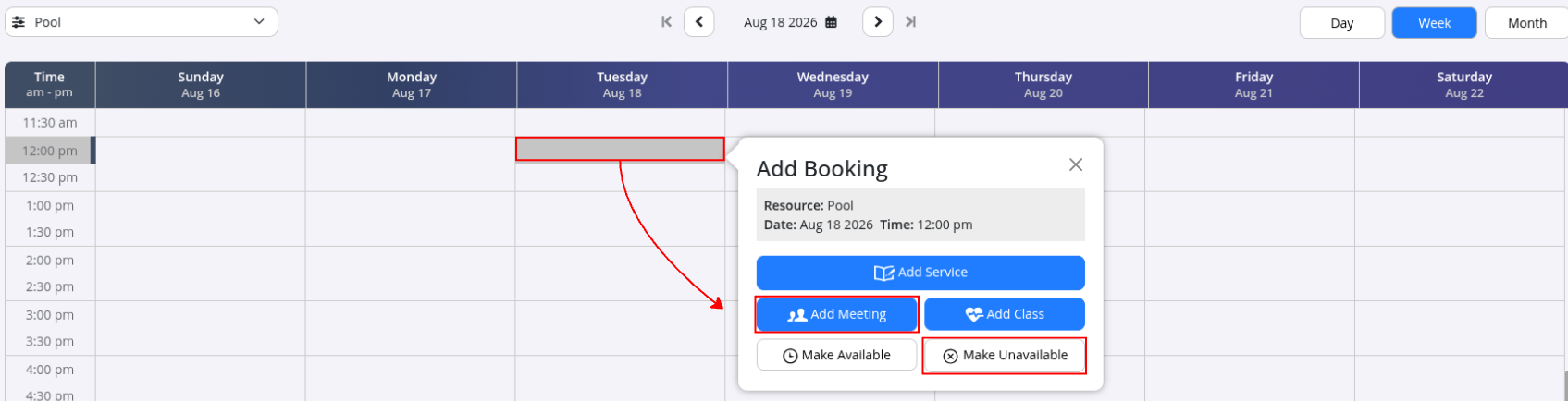
- Click the timeslot you want to block
- Select Make Time Unavailable or Add Meeting
- Unavailable Time blocks the selected period, preventing staff and members from creating bookings
- Meeting creates a visible calendar event, such as Cleaning, Maintenance, or Staff Meeting
- Set the required date and time range
- Use the Repeats function for recurring unavailable periods
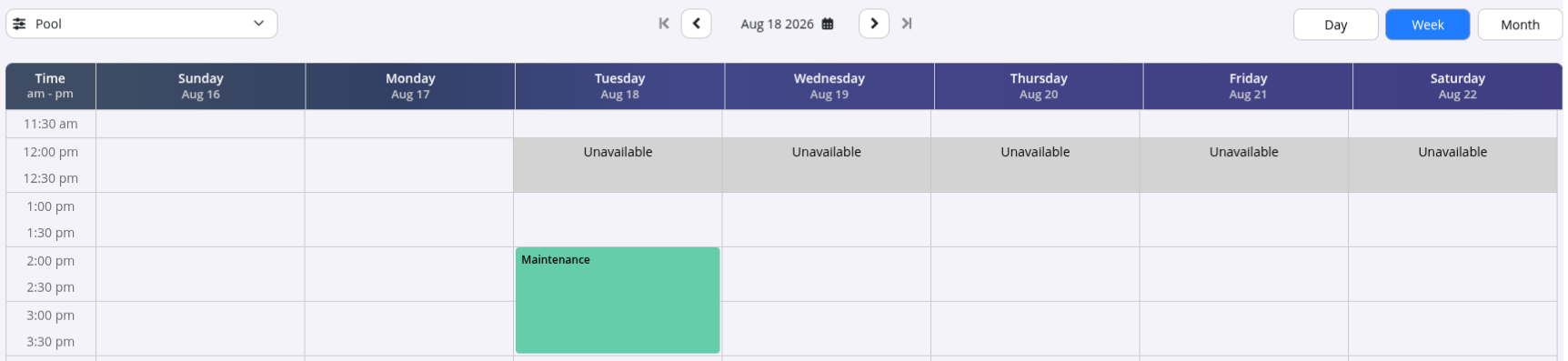
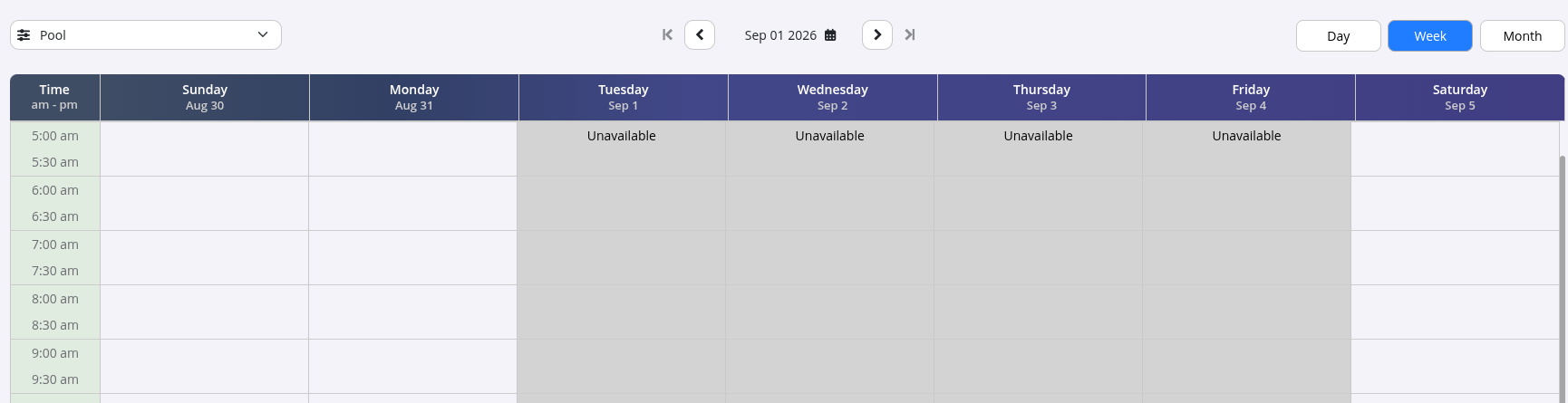
- Unavailable Time appears greyed out on the Schedule
- Meetings appear as coloured events and can be moved or resized using drag-and-drop
Block Full Day
Note: Any overlapping classes or services must be cancelled before the time can be blocked.
To block an entire day, week, or longer period:
- Open the Schedule
- Select the relevant facility or staff member
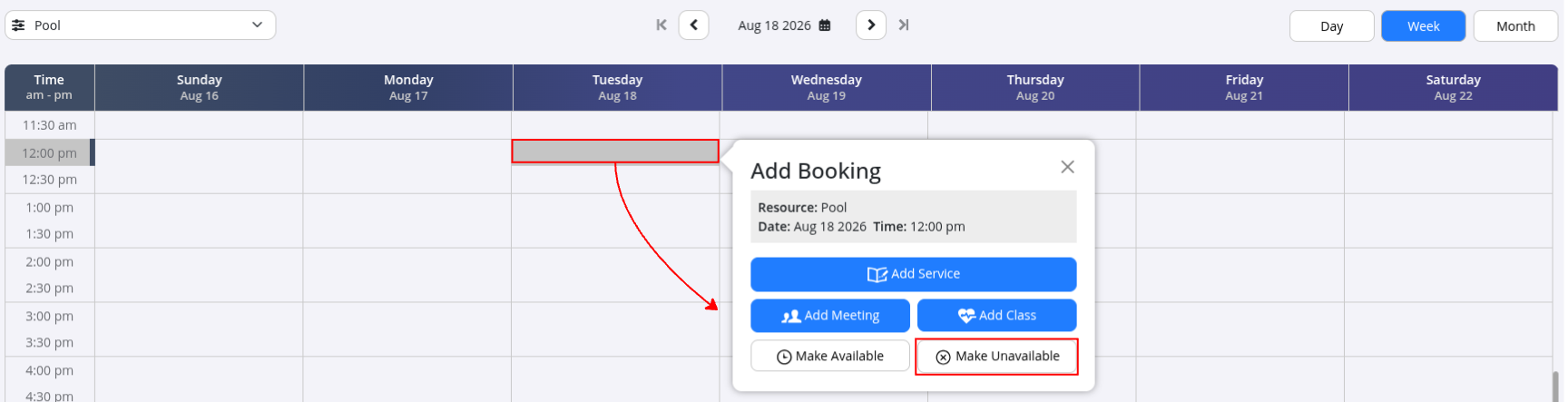
- Click anywhere on the day the unavailable period begins
- Select Make Time Unavailable
- Use the Repeats function to block multiple days at once
- Select Make Day Unavailable
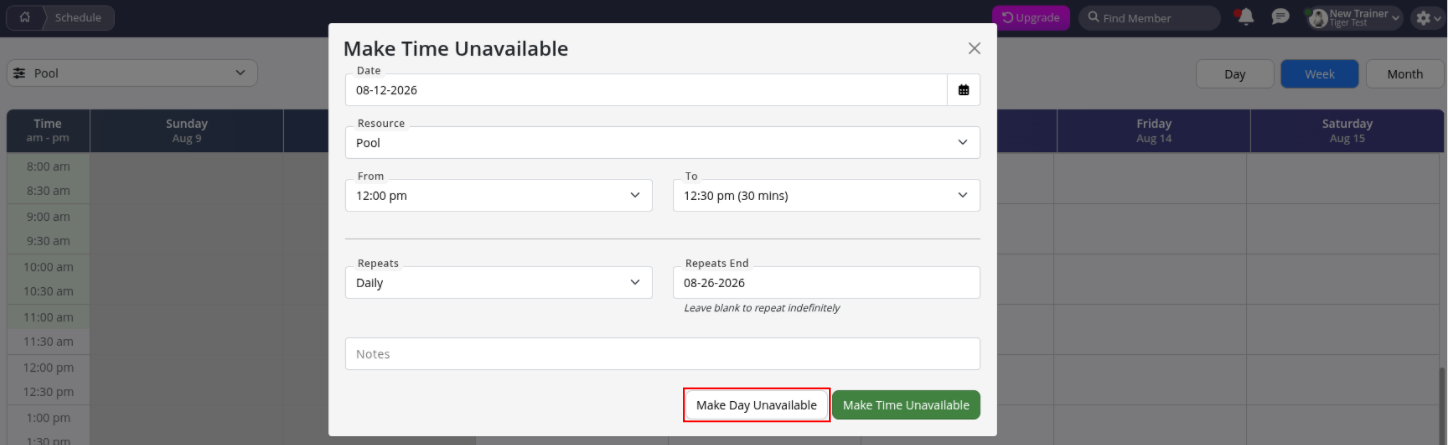
- Unavailable Days appear greyed out on the Schedule
Communicate Changes to Members
Temporary schedule changes can affect your members' experience.
We recommend letting members know about facility closures, timetable changes, or reduced availability using Club Notices or Group Communication. Keeping members informed helps reduce confusion and unnecessary enquiries.
Common Questions this Covers <common_questions>
- How do I block out time in the GymMaster Schedule
- How do I make time unavailable in the Schedule
- How do I block staff availability
- How do I block a facility from taking bookings
- How do I close bookings for holidays
- How do I stop members booking during a closure
- How do I temporarily remove availability from the Schedule
- How do I add a meeting to the Schedule
- How do I cancel classes during holidays
- How do I notify members about schedule changes
</common_questions>

 2026 © Treshna Enterprises Ltd.