
Customising Your Reports
GymMaster’s reporting system is built to be flexible, so you can tailor reports to suit the way your facility works. Starting from any base report, you can add, remove, and rearrange fields to create exactly the view you need.
For example, the Current Members report is based on member data, so you can add extra member-related fields like date of birth, phone number, emergency contact details, and more.
Customise Report
- Select the report and click Edit instead of Show Report
- Use drag and drop to reorder fields under Edit Report heading
- Remove to delete fields you don’t need
- Use Add Field to include additional fields
- See Filtering your Reports for further details on filtering using fields
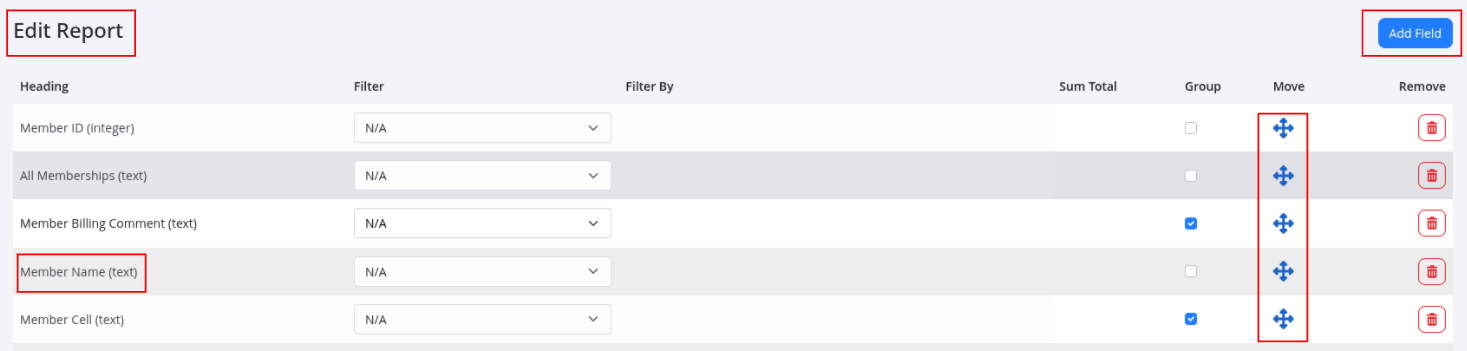
Add Field
For example, to add a member’s date of birth:
- Click Add Field
- Search for or select Date of Birth
- Use search bar to help find field
- Click +Add
The field list is both searchable and grouped into categories, making it easy to find what you need.
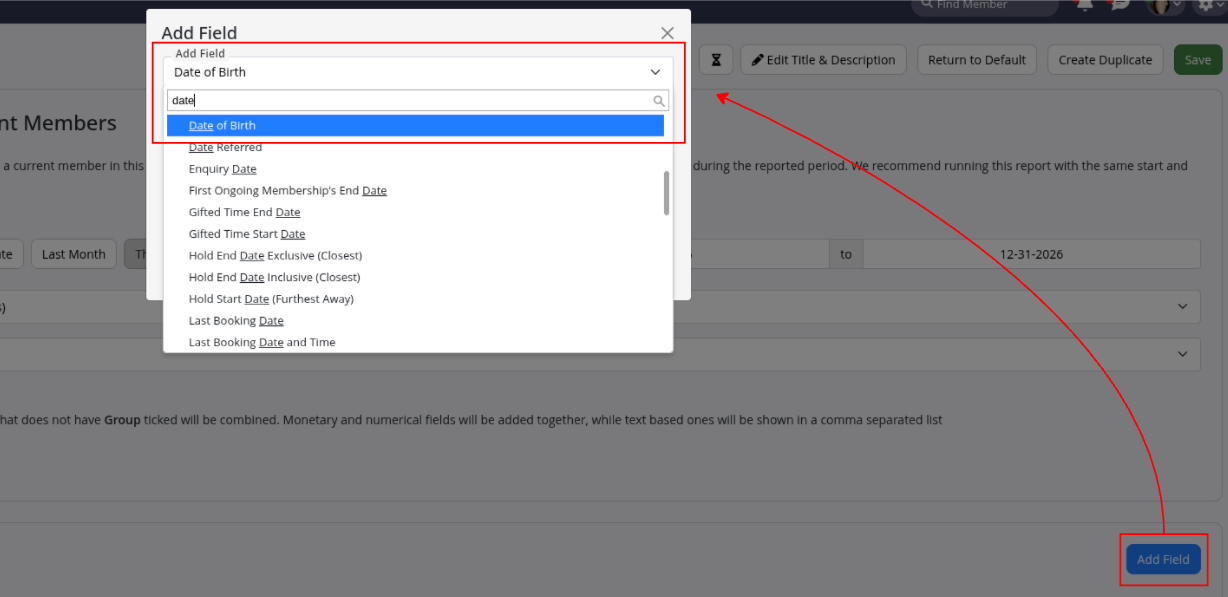
Tip: Before making changes, use Create Duplicate to copy the report first. This keeps your original reports clean and available for general use. If you ever want to restore the original layout, click Return to Default to reset the report fields.
Grouping
When adding fields, keep in mind how the report is grouped.
For example, the Current Members report is grouped by member, so it works best with member-related data.
If you also want to display membership-specific information, you may need to adjust the how should rows be grouped setting or use a more suitable base report such as Current Memberships.
Narrow down your report search further by Filtering your Reports.
Common Questions this Covers
- How to add fields to report
- How to add detail to report
- How to change reports
- How to adjust information shown on reports
Get started with a free, no-obligation chat, and see how we can help you grow

Awards and recognition
- Deloitte Master of Growth Index 2025
- Deloitte Master of Growth Index 2024
- Software Advice FrontRunners 2023
- GetApp Category Leaders 2023
- Capterra Best Value 2022
- GetApp Best Functionality & Features 2022
- Software Advice Most Recommended 2022
- SoftwareSuggest User Most Likely to Recommend Summer 2022
- Software Advice Best Customer Support 2021
- Deloitte Technology Fast 500 Asia Pacific 2018
 2026 © Treshna Enterprises Ltd.