
How to Block Member Access
Depending on the reason for blocking a member’s access, there are several ways to handle this in GymMaster.
Outstanding Balance
If you want to block members automatically when they owe money (such as from failed billing), you can set the system to stop their access after a certain time, and amount owed.
Go to :
- Settings > Advanced Configuration > Doors & Readers > Stop after owe - Time
- Settings > Advanced Configuration > Doors & Readers > Stop after owe - Amount
These settings work together. For example:
- Stop after owe - Time = 2 days
- Stop after owe - Amount = $50.00
A member’s access will be blocked if they owe $50.00 or more, for 2 days or more.
Note: This will automatically clear once the member has paid, and their balance is back below the threshold.
Ongoing Outstanding Balance
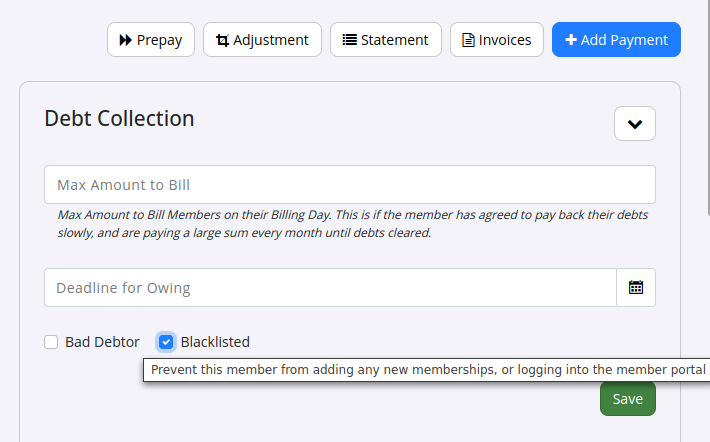
Debt Collection
If a member’s account is at the stage where it may be sent to collections :
- Navigate to the member’s profile
- Accounts and Billing > Debt Collection > Blacklisted
If blacklisted, member cannot purchase new memberships or access Member Portal.
Note Blacklisting alone does not prevent entry.
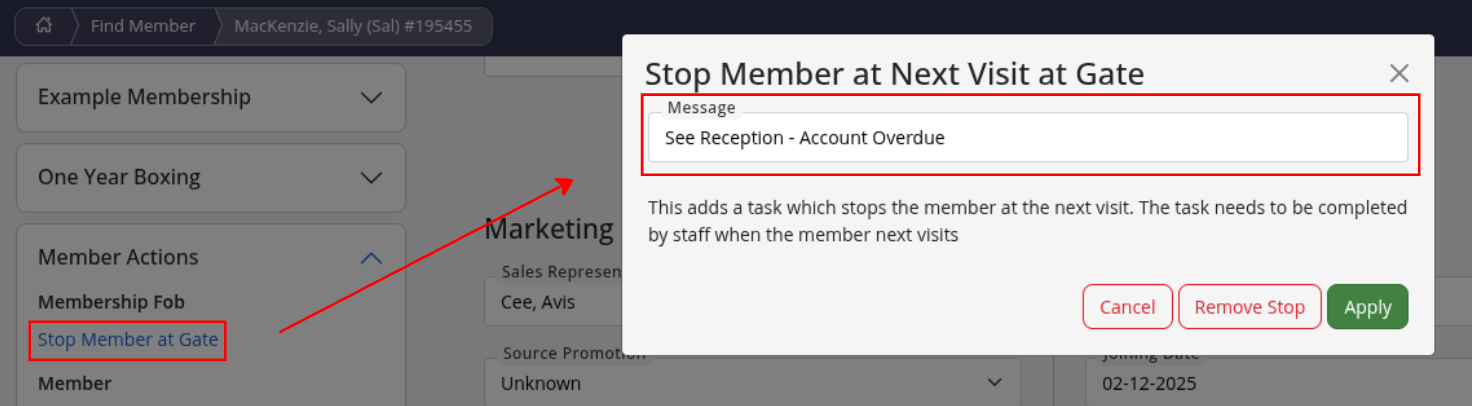
Stop Member at Reception
If you need to prevent access until a member speaks with staff:
- Navigate to the member’s profile > Scroll down > Select Member Actions on the left > Stop Member at Gate
Note : This creates a task in the member’s Communication tab. It will need to be manually cleared by staff afterwards.
For a full list of reasons why members can be denied entry, see the article Member denied entry.
Common Questions this Covers
- How to block Members
- How to stop members access
- How to prevent members coming in
- How to block members access
- How to stop members visiting
Get started with a free, no-obligation chat, and see how we can help you grow

Awards and recognition
- Deloitte Master of Growth Index 2025
- Deloitte Master of Growth Index 2024
- Software Advice FrontRunners 2023
- GetApp Category Leaders 2023
- Capterra Best Value 2022
- GetApp Best Functionality & Features 2022
- Software Advice Most Recommended 2022
- SoftwareSuggest User Most Likely to Recommend Summer 2022
- Software Advice Best Customer Support 2021
- Deloitte Technology Fast 500 Asia Pacific 2018
 2026 © Treshna Enterprises Ltd.
