
View Member Changes
2 min read
Updated
28 days ago
GymMaster keeps a detailed record of most changes made to each member’s profile. This helps you track what’s happened, when it happened, and whether it was triggered by a staff member or automatically by the system.
- Open the Member’s profile
- Scroll down & expand Member Actions on the left
- Click the link for Member Changes
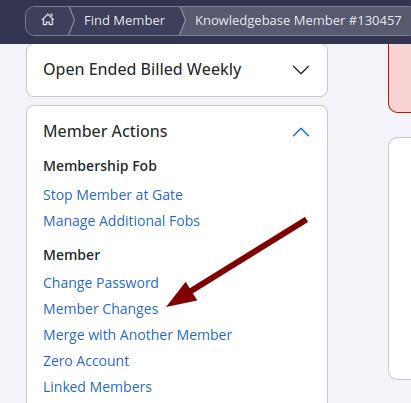
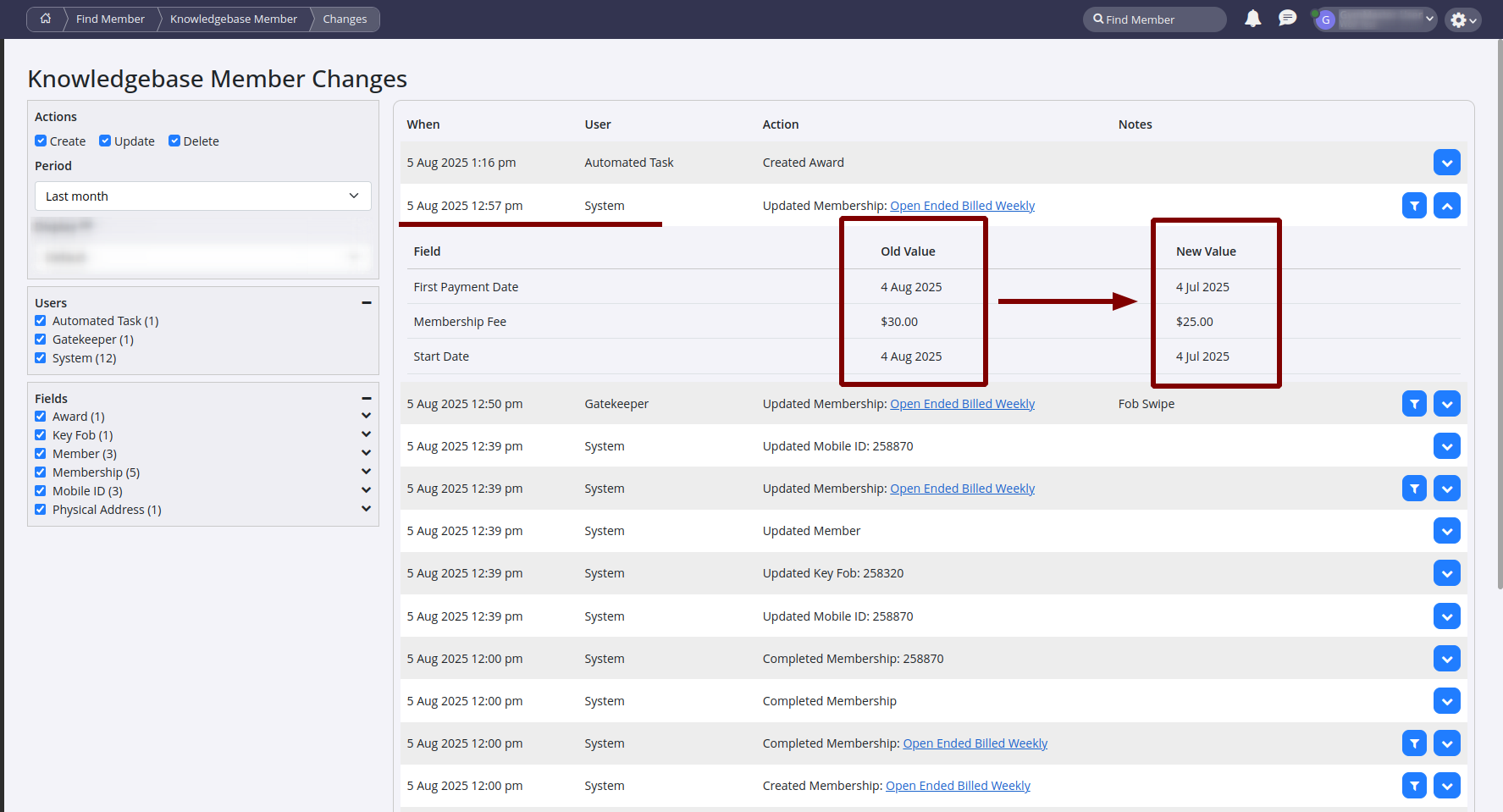
You’ll now see a timeline of events showing :
- What was changed
- When the change occurred
- Who (or what system action) made the change
Information Recorded
Some useful records you’ll find in Member Changes include:
- When the member was created or their details were updated
- Memberships that were added, changed, or cancelled
- Concessions used from visit-based memberships
- Any suspensions added, edited, or removed
- Access control tags that were assigned or changed
- Bookings that were made, updated, or checked in
This can be especially useful for troubleshooting issues, confirming updates, or reviewing staff activity.
Example - the Membership Fee is reduced from $30.00 down to $25.00.
Note : If this had been actioned from a staff account, the staff account would show instead of ‘System’
Common Questions this Covers
- How do I see what changes were made to a member’s profile
- Who updated a member’s details or membership
- Can I see when a booking or suspension was added
- How do I confirm if a fee change was made by staff or the system
Get started with a free, no-obligation chat, and see how we can help you grow

Awards and recognition
- Deloitte Master of Growth Index 2025
- Deloitte Master of Growth Index 2024
- Software Advice FrontRunners 2023
- GetApp Category Leaders 2023
- Capterra Best Value 2022
- GetApp Best Functionality & Features 2022
- Software Advice Most Recommended 2022
- SoftwareSuggest User Most Likely to Recommend Summer 2022
- Software Advice Best Customer Support 2021
- Deloitte Technology Fast 500 Asia Pacific 2018
 2026 © Treshna Enterprises Ltd.