
View and Complete Staff Tasks
2 min read
Updated
15 days ago
Automated tasks are generated by GymMaster every 30 minutes, so there may be a short delay between the trigger event and the task appearing in Tasks.
View Tasks
All staff can access their task list from the Tasks page in the left-hand menu.
This page displays both current and completed tasks.
Staff can open any task to view additional details, including notes, deadlines, assigned members, and task history.
Tasks are grouped by type:
- Staff Action – Tasks requiring staff follow-up or action
- Email – Email communication tasks
- SMS – SMS communication tasks
- Manual Action – General staff-assigned tasks
- Completed Tasks – Previously completed task history

Complete a Task
Once the required action has been completed, staff can mark the task as complete.
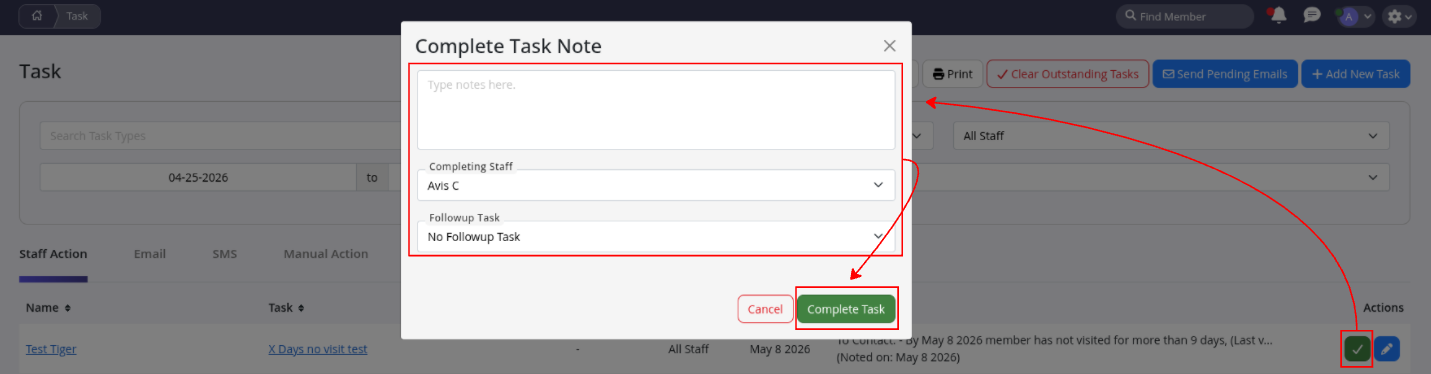
- Open the task and select Complete
- Or click the green tick on the right-hand side of the task list for quick completion
When completing a task, you can:
- Add completion notes for future reference
- Create a follow-up task if additional action is required
Keeping your task list up to date helps ensure important actions are completed on time and members receive consistent service.
Common Questions this Covers
- Where do I find my personal tasks in GymMaster
- How do I mark a staff task as complete
- Why can’t I see my automated task yet
- How do I add notes or create a follow-up task
- How do staff view completed tasks in GymMaster
Get started with a free, no-obligation chat, and see how we can help you grow

Awards and recognition
- Deloitte Master of Growth Index 2025
- Deloitte Master of Growth Index 2024
- Software Advice FrontRunners 2023
- GetApp Category Leaders 2023
- Capterra Best Value 2022
- GetApp Best Functionality & Features 2022
- Software Advice Most Recommended 2022
- SoftwareSuggest User Most Likely to Recommend Summer 2022
- Software Advice Best Customer Support 2021
- Deloitte Technology Fast 500 Asia Pacific 2018
 2026 © Treshna Enterprises Ltd.
