
Verifying Automated Tasks
1 min read
Updated
3 months ago
Tasks that are configured to email or SMS automatically will never appear in the task list because they are completed the moment that their communication action is completed.
In order to verify that a task has been generated and a communication has been sent for a member;
- Go to member’s profile
- Navigate to their Communication tab
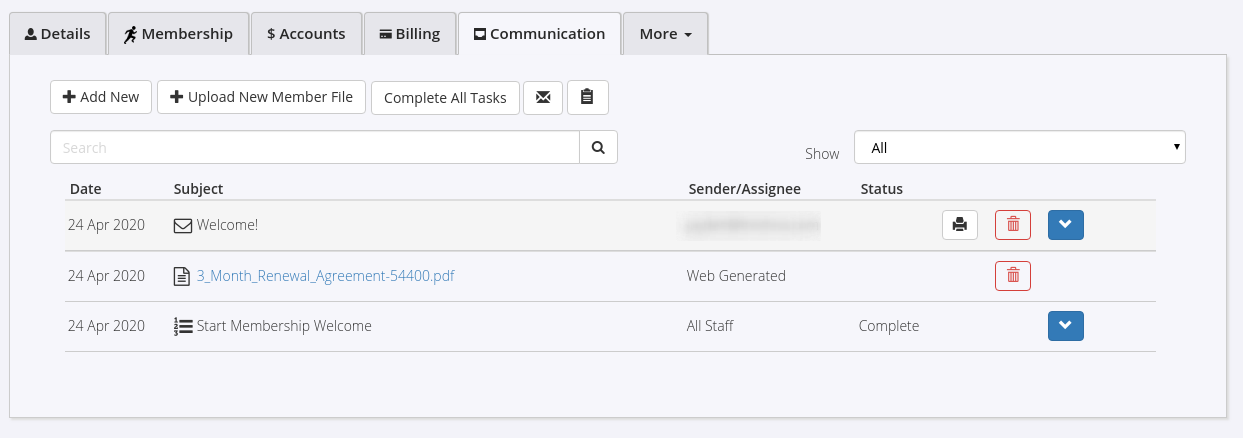
In this example, you can see that this facility has an automated task set up to send a Welcome! email to members whenever they start a new membership. First, the task is generated, and then the email is sent.
If you can see the task in the list, but there is no corresponding email or SMS, ensure that the Task Type has been configured to send automatically. Settings > Task Automation > [edit] > Email / SMS > Auto Send
Get started with a free, no-obligation chat, and see how we can help you grow

Awards and recognition
- Deloitte Master of Growth Index 2025
- Deloitte Master of Growth Index 2024
- Software Advice FrontRunners 2023
- GetApp Category Leaders 2023
- Capterra Best Value 2022
- GetApp Best Functionality & Features 2022
- Software Advice Most Recommended 2022
- SoftwareSuggest User Most Likely to Recommend Summer 2022
- Software Advice Best Customer Support 2021
- Deloitte Technology Fast 500 Asia Pacific 2018
 2026 © Treshna Enterprises Ltd.