
Navigating the Point of Sale
2 min read
Updated
3 months ago
To use the built-in Point of Sale to complete a sale at your facility, select Point of Sale from the left-hand menu in GymMaster.
From here, you can sell products, process outstanding balances, take deposits, manage your POS till, and more.
Below is an overview of the POS screen.
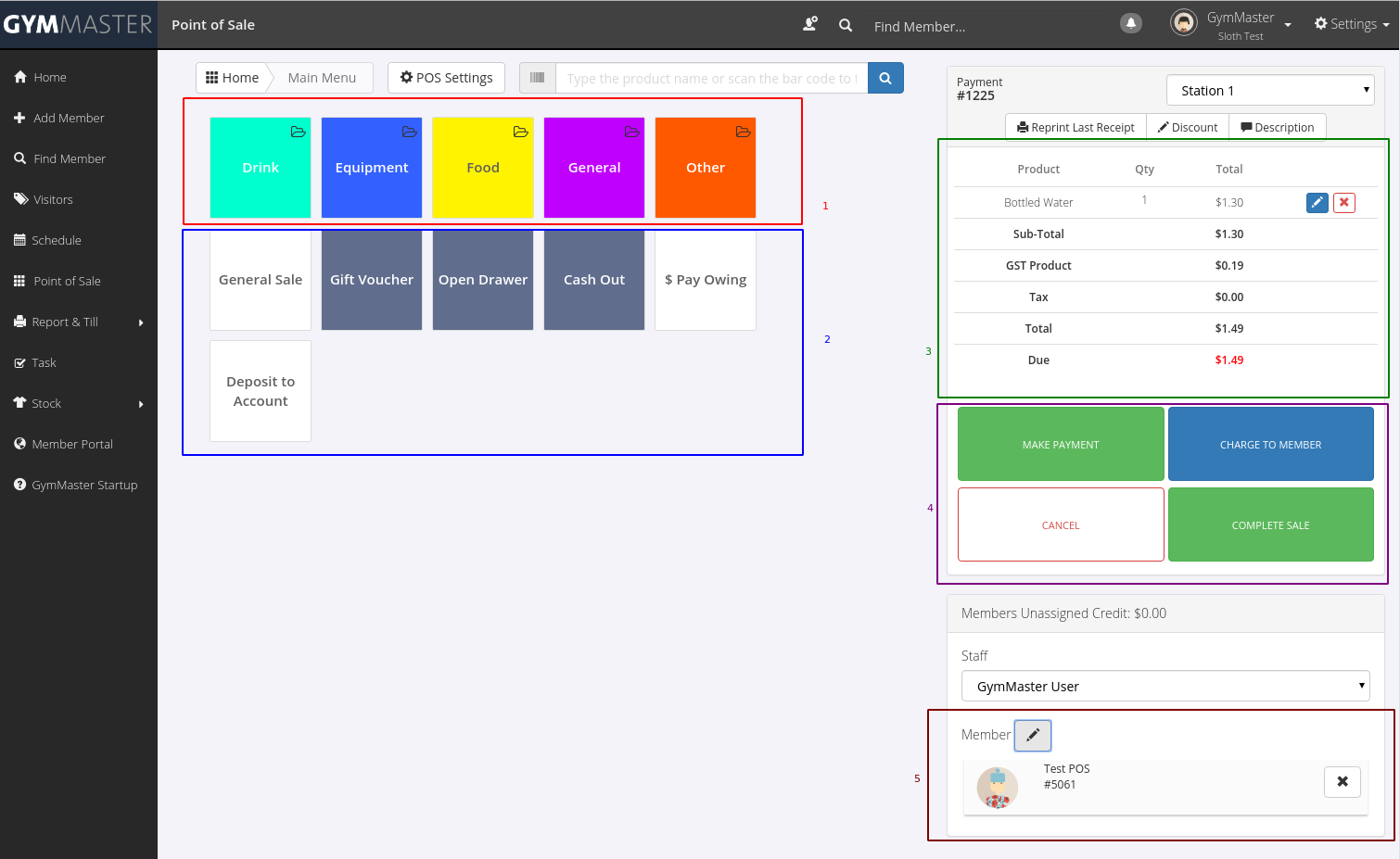
1. Products
- Products are grouped into categories, shown as folders
- To add new products, go to Settings > Products > Add Product
2. Advanced Actions
- General Sale: Create a custom sale outside of your product list, where pricing may vary
- Gift Voucher: Sell a voucher for future use
- Open Drawer: Opens the cash drawer
- Cash Out: Exchange cash from the drawer for another payment type (for example, card to cash withdrawal)
- $ Pay Owing: View and collect outstanding member balances
- Deposit to Account: Add credit to a member’s account for future use. The current sale must be empty
3. The Sale
- Adjust item price and quantity
- Remove items from the sale
- View the total amount due
4. Sale Actions
- Make Payment: Select a payment method. Manage methods via Settings > Financial Configuration > Payment Methods
- Charge Member: Add the sale to the member’s account for later payment when no billing details exist
- Bill Member: Send the transaction to your billing provider if billing details are on file
- Cancel: Cancels the current sale
- Complete Sale: Finalises and saves the sale
5. Assigned Member
- Required for advanced actions
- Links the sale to a member for accurate records and future reference
Common Questions this Covers
- How do I use the Point of Sale in GymMaster
- How do I process a sale or payment in POS
- What is the difference between Charge Member and Bill Member in POS
- How do I sell products or gift vouchers through Point of Sale
- How do I handle outstanding member balances in POS
Get started with a free, no-obligation chat, and see how we can help you grow

Awards and recognition
- Deloitte Master of Growth Index 2025
- Deloitte Master of Growth Index 2024
- Software Advice FrontRunners 2023
- GetApp Category Leaders 2023
- Capterra Best Value 2022
- GetApp Best Functionality & Features 2022
- Software Advice Most Recommended 2022
- SoftwareSuggest User Most Likely to Recommend Summer 2022
- Software Advice Best Customer Support 2021
- Deloitte Technology Fast 500 Asia Pacific 2018
 2026 © Treshna Enterprises Ltd.