
Personalize Communication Templates
Personalizing your communication makes a big difference for members.
Instead of sending generic messages, you can include details that relate directly to each member, by adding template fields.
This might be their name, the membership they’re on, their account balance, or even a direct link to pay overdue fees or update billing details.
Almost any data tied to a member can be dropped into your templates to create a more personal and effective communication.
Templates are created and managed under Settings > Templates
How Template Fields Work
Template fields won’t display as plain text while you’re editing. They’ll show in a special format that GymMaster recognizes when sending the message.
- All fields will be wrapped in curly brackets
- Each field is prefixed with a number
Examples: Instead of writing:
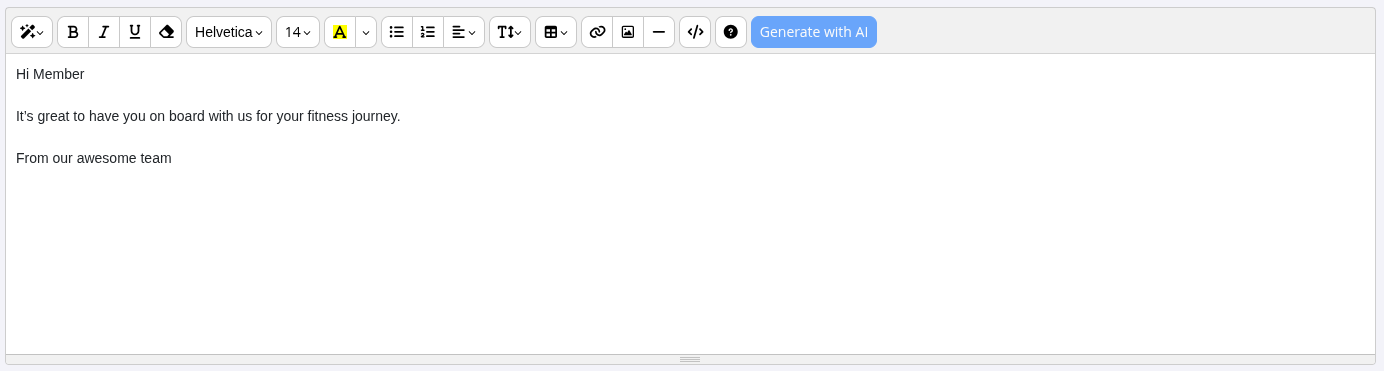
You can write:
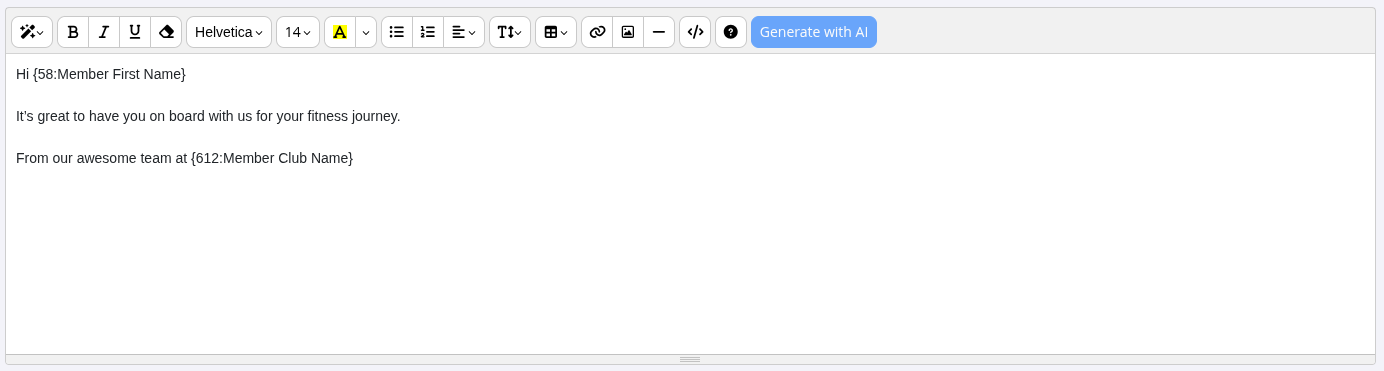
Each member will receive a personalized version of the same template with their individual information.
Add Template Fields
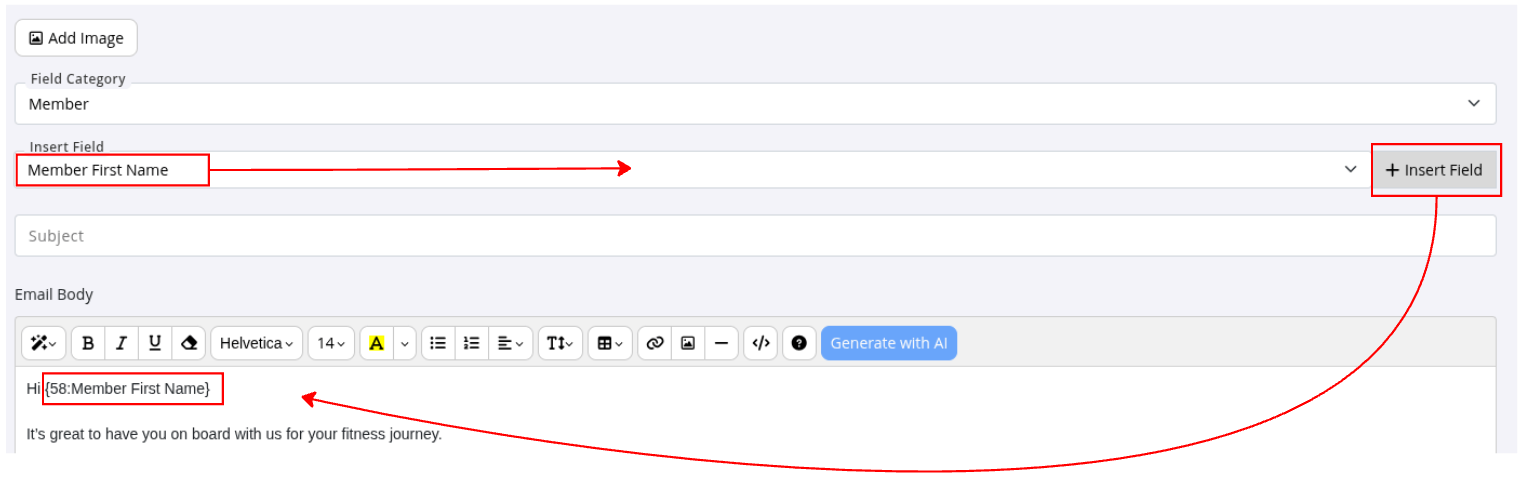
When creating or editing a template, you’ll see an Insert Field dropdown.
This contains a long list of all the dynamic fields you can use.
- Open the Insert Field dropdown and search for the field you need
- Place your cursor where you want that field to appear in the message
- Click +Insert Field
The field will drop into your template at that point.
Common Questions this Covers
- How to personalise bulk emails
- How to insert individual details in templates
- Can templates be individualised per member
- What are template fields
Get started with a free, no-obligation chat, and see how we can help you grow

Awards and recognition
- Deloitte Master of Growth Index 2025
- Deloitte Master of Growth Index 2024
- Software Advice FrontRunners 2023
- GetApp Category Leaders 2023
- Capterra Best Value 2022
- GetApp Best Functionality & Features 2022
- Software Advice Most Recommended 2022
- SoftwareSuggest User Most Likely to Recommend Summer 2022
- Software Advice Best Customer Support 2021
- Deloitte Technology Fast 500 Asia Pacific 2018
 2026 © Treshna Enterprises Ltd.
