
Update Billing Details through the Member Portal
You can allow your members to update their billing details themselves through their Member’s Portal.
A common case for this is when a member fails a billing payment, or if a member has just signed up.
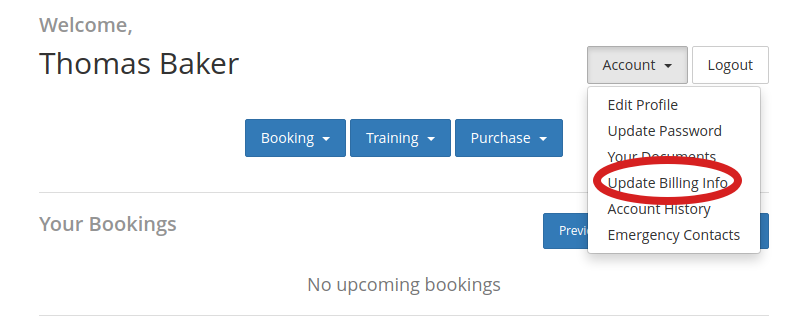
Once the member is in the member portal, they can navigate to Account > Update Billing Info where they can enter their new card/ bank account information.
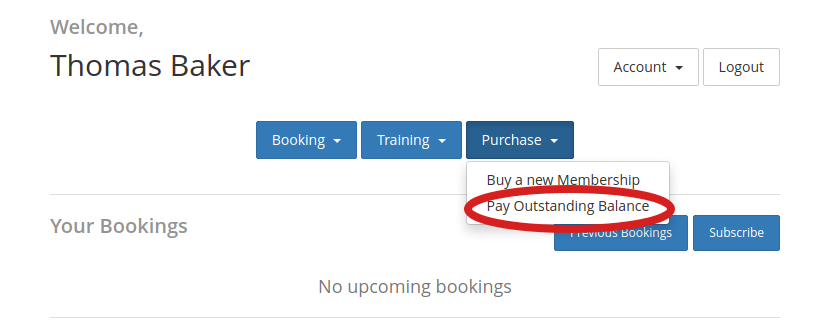
After updating the information, the member may wish to pay their outstanding balance. They can do this by navigating to Purchase > Pay Outstanding Balance.
Direct Link URL
You can also send members a direct link that automatically logs them into the Member Portal and takes them straight to the page where they can update their payment details.
The template field used for this link is: Member Update Payment Info URL
Important
For members to update their billing details through the Member Portal, the setting Hide Update Billing Info button must be turned off.
- Navigate to: Settings > Member Portal > Hide Update Billing Info button
A quick way to check what your members can access in the portal is to use the Login as Member feature.
Common Questions this Covers
- How can members update their payment or billing details online
- How do I send a member a link to update their card details
- Can members update failed payment information through the Member Portal
- Why can’t members see the “Update Billing Info” option in the portal
- How do members pay overdue balances after updating billing details
Get started with a free, no-obligation chat, and see how we can help you grow

Awards and recognition
- Deloitte Master of Growth Index 2025
- Deloitte Master of Growth Index 2024
- Software Advice FrontRunners 2023
- GetApp Category Leaders 2023
- Capterra Best Value 2022
- GetApp Best Functionality & Features 2022
- Software Advice Most Recommended 2022
- SoftwareSuggest User Most Likely to Recommend Summer 2022
- Software Advice Best Customer Support 2021
- Deloitte Technology Fast 500 Asia Pacific 2018
 2026 © Treshna Enterprises Ltd.
