Ensure Tax Rates are completed before continuing with billing setup.
Automated billing takes the work out of collecting recurring membership payments. Once configured, GymMaster automatically manages billing runs, payment processing, and collection through your chosen billing provider.
The complete setup process typically takes 3–5 business days, although timing may vary depending on your billing provider and bank.
Before you begin, review the Integrated Billing Process to understand how the different parts of the billing cycle work together.
Automated billing is configured in four steps:
A billing provider is required to use GymMaster’s automated billing features.
Billing providers are third-party payment services that securely process membership payments on behalf of your club. They integrate directly with GymMaster to manage recurring billing, payment collection, invoicing, and related financial transactions.
Common GymMaster billing providers include:
Using a billing provider helps reduce administration, automate payment collection, and provide members with convenient payment options, while maintaining industry-standard security and compliance.
The following resources can help you choose the right provider for your club:
All base billing setup is completed under Settings > Financial Configuration > Billing Settings

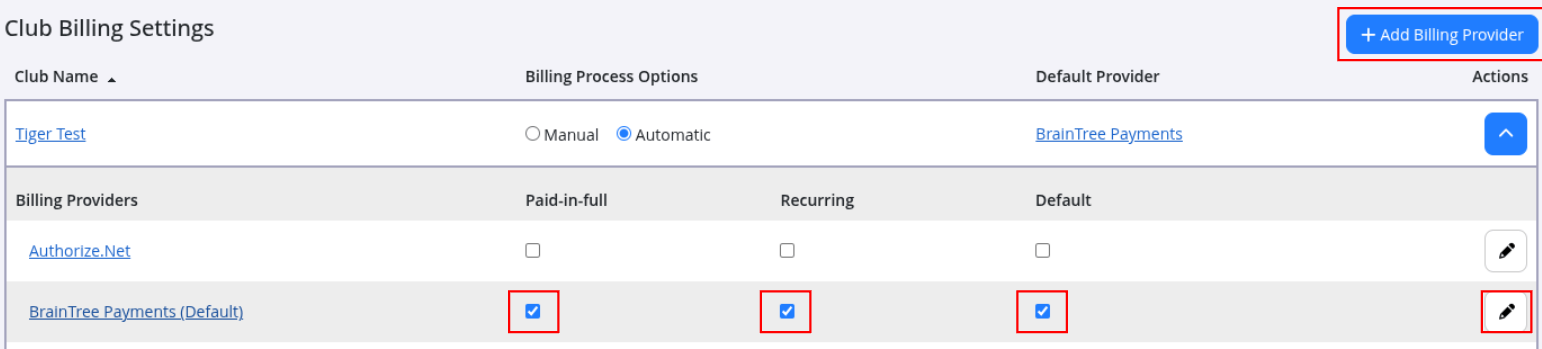

Automatic billing is now active. Next step is adding member billing details.
Full details: New Member - Setup Billing
When Automatic Billing is enabled under Settings > Financial Configuration > Billing Setiings, billing will automatically run on a scheduled cycle.
Billing cycle is determined by:
GymMaster sends the payment request to your billing provider. From there, the request is passed to the member’s bank for processing. The bank then returns a success or failure response back through the same chain (from the bank, to the billing provider, and back into GymMaster) where the member’s account is updated with the result.
This process typically takes 3 to 5 working days, though timing can vary depending on your billing provider and the member’s bank.
Common Questions this Covers

 2026 © Treshna Enterprises Ltd.

